
Production workflow
AI Video Generator from Script: Choose Models, Prepare Inputs and Revise One Shot
After the script breakdown, choose a video model, prepare keyframes and motion prompts, regenerate the shots that need work, and take the clips into your editing software.
On this page
- Start with an approved shot table
- Choose the model and channel for the inputs you need
- Prepare inputs that describe one achievable shot
- Test one shot, then revise only what needs work
- Budget for another attempt
- Download the clips and finish in your video-editing software
- Connect your own API channels and third-party relays
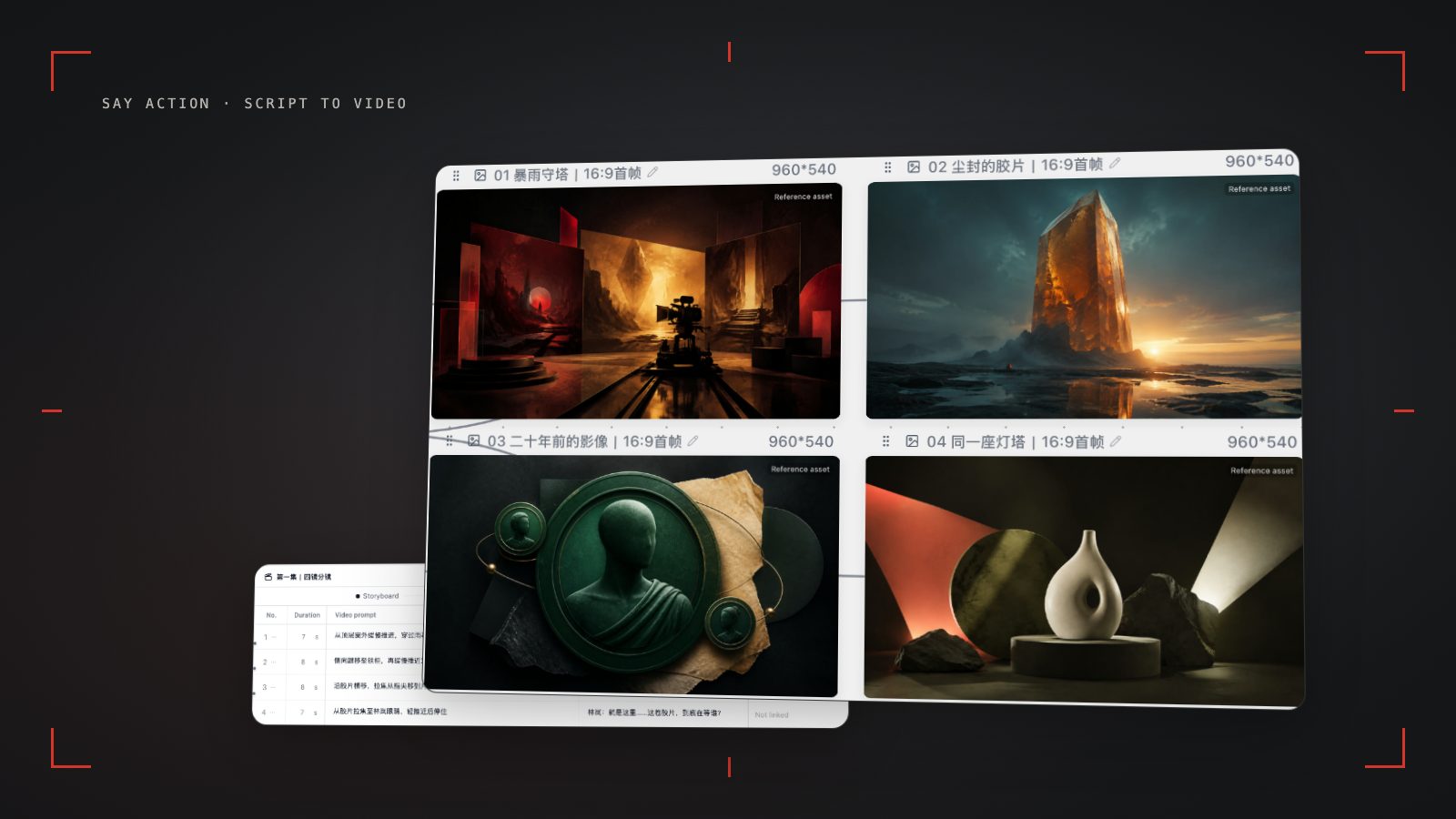
Start with an approved shot table
For the script breakdown, read Script to Storyboard. For field definitions, use Shot List Generator. The Seedance consistency guide covers character references, and AI Short Drama covers the episode workflow. This guide starts with an approved shot table and focuses on turning each row into usable video footage.
Choose the model and channel for the inputs you need
For first and last frames or character reference images, consider a Seedance channel. The adapter organizes images as first frames, last frames or references and can send video and audio references. The model, endpoint and configuration determine which inputs are available. Do not assume one Seedance channel's capabilities apply to every version.
Our current Gemini Veo adapter accepts text or one starting image. It does not accept multi-image reference mode, video references or audio references. Our Novita adapter also accepts at most one starting image; text-only requests offer 16:9, 9:16 or 1:1. These are boundaries of the current Say Action adapters, not claims about every product those providers offer.
Check the actual model, aspect ratio, duration and input mode in the video node before connecting assets. For portrait work, select a configuration that explicitly supports 9:16. An endpoint with only a starting-image input cannot stand in for first-and-last-frame mode when a shot needs a specified ending.
Prepare inputs that describe one achievable shot
Review the row's image prompt and motion prompt. The image prompt establishes the character, setting and composition. The motion prompt describes the action and camera change within the clip: ‘The character stops at the door and looks down at the table; the camera slowly pushes toward the envelope.’ Avoid packing several story turns into one shot.
Generate an image from the storyboard row, approve the composition, and use it as the video's starting frame. If the model supports an ending frame, prepare the composition at the end of the action too. Character references establish appearance; first and last frames establish endpoints. They are different inputs and should not be swapped indiscriminately.
Connect character references to the reference or first/last-frame inputs supported by the selected model, then confirm resolution and duration. Capabilities depend on the model and provider; reference images do not guarantee perfect consistency.
Test one shot, then revise only what needs work
Creating a video node from a storyboard row carries over the duration, motion prompt and shot number. Generate a representative shot first. Check whether the action finishes, the character holds up and the aspect ratio is correct before moving to the next row. Canvas connections preserve the relationship between each video, its storyboard row and its image.
If the window shot adds an unwanted camera pan, change that node's motion prompt and regenerate it. Avoid changing the reference image, model and action description at the same time: one change at a time makes the result easier to assess. Keep the shots you like; revising one shot does not require starting the whole table again.
Budget for another attempt
See available models, resolutions, and estimated credits on the creation page. The final credit charge is shown before you submit.
Platform-credit work is billed by task; check the estimated credits before running it. A successful result you dislike is different from a failed generation, so review the new estimate before submitting another attempt. BYOK uses your own provider channel.
Credits are estimated from channel pricing; final deduction follows the price tiers configured in the admin backend. Per-second video billing is pre-authorized by requested seconds; if upstream output exceeds the request, a small concession difference may occur.
When the upstream explicitly reports failure, reserved credits are refunded; tasks with unclear network status stay pending review to avoid double settlement.
BYOK supports a custom API endpoint, model key and headers. For OneAPI, NewAPI or another relay, select the OpenAI, Gemini or Claude protocol that matches its actual API, then check model IDs and image/video endpoint support. Not every relay or private protocol works automatically. BYOK model calls have no platform model markup or platform generation-credit deduction; workspace access and provider usage are still billed separately.
Download the clips and finish in your video-editing software
Download the clips you intend to use, organize them by storyboard shot number, and import them into your editing software. Check the actual duration and aspect ratio of each clip. Finish the cuts, sound, subtitles and pacing there; a successful video task is not a finished episode.
Keep the storyboard and asset connections on the canvas. If an edit reveals that a reaction shot is too short, return to its video node, adjust the inputs and regenerate it, then replace that clip in your editor.
Connect your own API channels and third-party relays
In model-channel settings, enter the Base URL and API key, then configure the protocol, model IDs and required headers from your provider's documentation. Check the image and video modes you need before generating. Paths, resolutions and first/last-frame inputs depend on the connected channel. An adaptation request for an unsupported channel is not a compatibility guarantee.
BYOK supports a custom API endpoint, model key and headers. For OneAPI, NewAPI or another relay, select the OpenAI, Gemini or Claude protocol that matches its actual API, then check model IDs and image/video endpoint support. Not every relay or private protocol works automatically. BYOK model calls have no platform model markup or platform generation-credit deduction; workspace access and provider usage are still billed separately.
Connect only trusted providers and use HTTPS in production. Custom requests are forwarded through the authenticated backend; required prompts, reference assets and credentials take part in the request. Never put API keys, passwords or secret-bearing headers in public canvases, screenshots or support requests.
Frequently asked questions
Can a whole script become a finished episode in one request?
This workflow generates footage shot by shot after the storyboard is approved, then uses editing software for cuts, sound and subtitles. It does not promise a finished episode from a single request.
Does every video model support first and last frames and 9:16?
No. Check the current model and channel's input modes and aspect ratios. Our Gemini Veo and Novita adapters accept at most one starting image and should not be treated as first-and-last-frame endpoints.
How are retries and failed tasks charged?
When the upstream explicitly reports failure, reserved credits are refunded; tasks with unclear network status stay pending review to avoid double settlement.
Can I connect OneAPI, NewAPI and custom headers?
BYOK supports a custom API endpoint, model key and headers. For OneAPI, NewAPI or another relay, select the OpenAI, Gemini or Claude protocol that matches its actual API, then check model IDs and image/video endpoint support. Not every relay or private protocol works automatically. BYOK model calls have no platform model markup or platform generation-credit deduction; workspace access and provider usage are still billed separately.