
Step-by-Step Infinite Canvas Tutorial: Build Your First AI Video Shot from Scratch

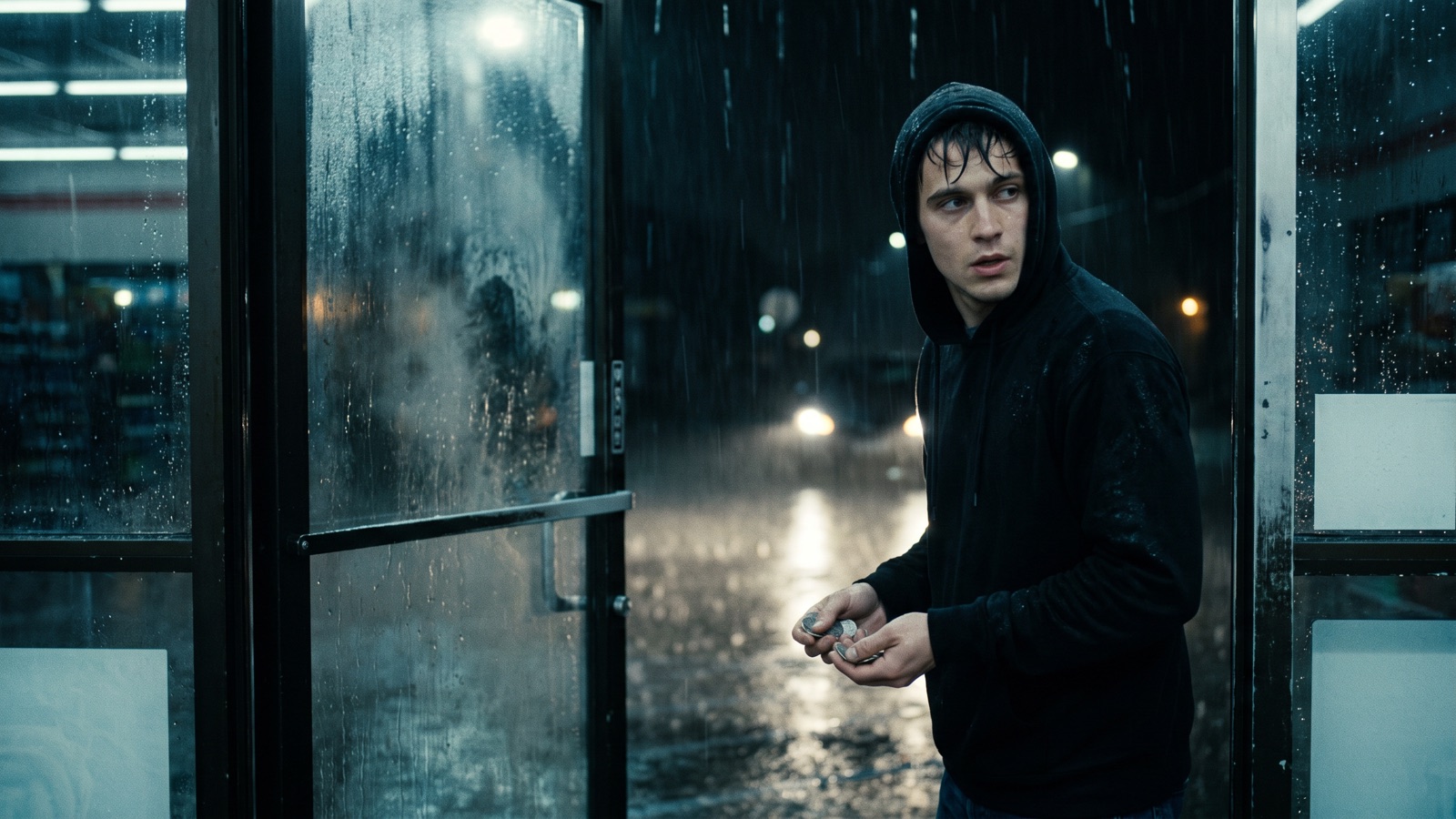
By the end of this tutorial, you will be able to stage and render a complete 9:16 vertical AI video shot on the DramaCanvas infinite canvas from scratch. We follow Shot 1 of our suspense drama *Rainy Night Convenience Store* through every stage: creating a canvas, choosing nodes, connecting wires, and submitting generation tasks. Reading through takes about 34 minutes, giving you complete canvas steps and three prompts you can copy.
How do you create, rename, and pick an empty canvas?
Create canvases and manage project associations on My canvases. Rename a canvas from its top bar.
1. Create a blank board from the Canvases index
On the "My canvases" page, click the bold New canvas button in the top-right corner, or click the central button when your list is empty. You can also click any existing canvas card to enter it directly. Clicking the button loads the infinite canvas workspace, revealing the canvas, a bottom toolbar, and the default canvas title in the upper-left corner.
Creators often wonder why their canvas count does not increase after clicking "New canvas." DramaCanvas reuses empty boards: the system scans for your most recently updated canvas that has no content, is unlinked to any project, and contains no sample data. If one exists, the app reopens that board. The app creates a new numbered canvas (titled "Free canvas" plus an index) only when no existing board meets these conditions. If an empty board opens, start working immediately without returning to the list.
When you have many canvases, scrolling down loads more automatically. Reaching the bottom displays "All canvases loaded"; if loading stalls, click the Retry prompt. If local storage and user credentials are still initializing, the screen displays "Restoring canvases: Reading local cache and account sync status"; wait a moment for loading to finish before proceeding.
2. Click the top bar title to rename your canvas
In the top bar at the upper-left corner of the canvas, click the current canvas title (such as "Free canvas 1") or click the pencil icon labeled Click to rename canvas. The title text transforms into an inline input field with the existing name highlighted and your cursor focused.
Enter your specific series and episode title, such as Rainy Night Convenience Store - Ep 1, then press Enter or click any neutral background area to commit the change. Pressing Backspace or Delete while editing inside this title field applies strictly to the text itself; the editor will not delete cards on the board behind it. To return to the dashboard, click the menu button on the far left labeled Open canvas menu and select Canvases to reach the directory, or select Home to return to the home page.
3. Link a canvas to a project or detach it from the list
In "My canvases", filter boards with the top dropdowns (All canvases, Free canvases, or Filter by project). Select cards with checkboxes, click Add to project, pick your production, and click Save association. To unlink, click Remove from project. "Remove from project" only unbinds project metadata; the canvas and all its nodes remain intact under "Free canvases" and are never deleted.
Grouping episode boards under a project lets you share character visual assets across scenes. Once linked, the top bar displays Back to project: Project Name, returning you to the project overview. You can also click New canvas directly inside any project header.
4. How do you choose between the three empty canvas states?
When you open a new board, the central viewport displays one of three distinct empty states depending on whether the canvas was launched independently, attached to a project, or initiated from a drama template:
- Free canvas empty state (Unstructured creative start): This state appears on independent boards created from the main directory without project ties. A centered card reads "Click + to add text, images, video, audio or import assets," anchored by a primary button labeled Add the first item. Clicking it opens the creation dropdown menu directly beneath the card, listing available node types and asset libraries. Choose this state for concept sketches, standalone mood boards, or unstructured prompting. Adding a node hides the empty-state prompt, and it reappears if you clear all nodes from the board. - Project canvas empty state (Script-driven workflow): This state appears when entering a blank canvas attached to an active project. The center card announces Project canvas is empty and presents three actions: Add first chapter, Project assets, and New text. If your production outline is divided into chapters, click Add first chapter to populate the board with pre-written beats; otherwise, click New text to start drafting shot prompts immediately. If the Add first chapter button is grayed out, your project outline does not contain any written chapters yet. - Short drama guide empty state (Structured onboarding): With the short drama feature enabled, an empty, unlinked canvas displays this wizard. The viewport presents three primary choices: Let the Agent, Create yourself, and Free blank canvas. Clicking Let the Agent launches the conversational assistant to assemble shot cards; clicking Create yourself builds a standard end-to-end drama shot structure; clicking Free blank canvas clears the wizard and gives you an empty canvas.
What are the seven ways to add nodes to your canvas?
DramaCanvas gives you seven ways to add cards to the board, from menus and double-clicks to drag-and-drop and clipboard pasting:
The bottom toolbar "+" menu
Click the plus icon labeled "Add node" on the bottom dock to open the full category menu, then select your node type. Creating an Image or Video card automatically opens its generation settings panel. The canvas currently uses Professional mode; Frame and Audio are available in the Add node menu.
The canvas right-click context menu
Right-click any open space on the canvas background to bring up the context menu, then select "Add node." Your new card drops directly onto the clicked coordinates, eliminating the need to drag it across the screen. Avoid right-clicking existing cards or frame borders, which opens that item's dedicated card menu instead.
Double-clicking empty canvas space
Double-click with your left mouse button on any unoccupied area of the board to open the node creation menu on that exact spot. Click your desired card type to drop it onto the saved cursor position. Press
Escor click anywhere on the background if you want to dismiss the menu.Dragging an output port to "Create next step"
Click and hold the circular output port on the right edge of an existing node, drag outward into open canvas, and release the mouse. Releasing over empty space opens the "Create next step" menu, where selecting a node type creates the downstream card and links it in one move. If you release the pointer too close to an incompatible card, the preview wire snaps back cleanly.
Batch uploading via the "Upload files" modal
Click "Upload file" in the bottom dock menu or right-click empty space and choose "Upload here" to open the batch media modal. Select your local images, videos, or audio files, then click "Add to canvas" to place them as organized cards in clean rows. Note that this modal is restricted to media files and does not accept plain TXT or Markdown script documents.
Dragging local files directly onto the board
Select images, video clips, audio tracks, or text documents (.txt, .md) from your desktop file manager and drop them onto the browser window. Cards appear at your drop coordinates with real-time upload progress bars, making this the fastest way to bring external scripts onto the board. Make sure to release files over empty canvas, as dropping onto an existing image card replaces its media rather than adding a new card.
Pasting from your system clipboard
Copy an image or script text from another application, then press
Cmd/Ctrl+Von the canvas background to drop a new image or text card at the center of your screen. Selecting an existing card and pressingCmd/Ctrl+Cfollowed byCmd/Ctrl+Vclones that card slightly offset to the lower right. If your text cursor is focused inside an active input field, pasting applies only to the text and will not add a card to the board.
What does every canvas node do?
The Add node menu includes Text, Image, and Video nodes, alongside Folder, Workflow, and Director desk entries. Selecting cards based on the specific deliverable needed for your current scene prevents tedious rewiring later:
| Creative Scenario / Goal | Recommended Card | Core Input | Deliverable Output | Pitfalls & Limitations |
|---|---|---|---|---|
| Drafting outlines, character bios, and shot prompts | Text | Keyboard text or pasted copy | Rich text or downstream prompts | Does not generate images directly; rejects incoming audio |
| Generating character portraits, keyframes, and stills | Image | Prompts, image references (by model) | Static image assets | Rejects direct video or audio wires; custom dimensions must align to multiples of 16 |
| Producing animated video shots with camera motion | Video | Prompts, start/end frames, video refs | MP4 video assets | Requires models supporting keyframes; duration set by discrete model tiers |
| Synthesizing character dialogue, voiceover, and foley | Audio | Text prompt or 1 character card | MP3/WAV audio assets | Accepts at most 1 voice-bound character card; rejects media files |
| Splitting outlines into structured shot rows | Storyboard script | Story outline or scene premise | Shot table and standalone cards | Text models only for breakdown; merging video requires at least 2 successful clips |
| Grouping and collapsing scene cards | Frame | Enclosed scene nodes | Visual grouping and folded view | Does not route wires; cannot nest a frame inside another frame |
| Sketching blocking, perspective, and composition | Drawing | Freehand strokes or image wire | Sketchboard and image asset | Create a Drawing node directly, or start from an image node that already contains an image. |
| Testing multi-outfit and scene variations in batch | Batch table | Valid image refs (try-on needs 2; max 6 cols) | Batch standalone image cards | Batch try-on requires at least 2 images; max 6 columns; does not output video |
| Extracting lineart, depth maps, or grayscale | Media conversion | 1 source image | Local processed image asset | Accepts only 1 input; video conversion inactive; depth/lineart requires local service |
| Managing and archiving media asset directories | Folder | Associated asset folder | Directory tree and folded view | Variant of Frame; linked asset folder subject to project archiving rules |
| Running custom generation forms and templates | Workflow | Prompts and dynamic form fields | Standalone media cards | Requires template setup; switching modes resets form parameters |
| 3D scene previsualization and camera staging | Director desk | Scene templates and camera assets | Video shot card and 3D studio | Pick template to create shot node, then launch 3D studio to arrange lights and cameras |
Verified date: 2026-10-19.
The canvas currently uses Professional mode, expanding the dock to show all card and tool entries and unlocking granular image and video manipulation tools.
1. Text node: Writing scripts, character bibles, and prompts
Text nodes store scene outlines, character appearances, environment descriptions, and shot prompts. The card defaults to 340×240. The default font size is 14px; toolbar controls adjust it from 10px to 32px. Click "Expand editor" to open a distraction-free rich-text writing modal.
Within the prompt panel, you can set the number of text generation variations (default 1, range 1–15) and toggle streaming output or reasoning models in text settings. Clicking "Generate image from text" routes your copy into image creation. Note that Text nodes enforce a single-prompt limit of 32,000 characters; external links in the rich text editor support standard http, https, mailto, or tel links; and Text nodes strictly reject incoming audio connections.
2. Image node: Generating character portraits, keyframes, and scene stills
Image nodes generate character reference sheets, concept art, scene stills, and starting keyframes for video clips. The card measures 720×405 with a central preview and drop target, anchored by a bottom prompt box and model picker. Clicking "Generation settings" opens the "Image settings" modal.
Inside Image settings, quality defaults to auto (with options for auto, high, medium, low, 1k, and 2k), aspect ratios support 1:1, 9:16, 16:9 presets, and generation count defaults to 1 (up to 15 images). When entering custom pixel dimensions, width and height must be positive multiples of 16, the longest edge cannot exceed 3840px, the aspect ratio must stay within 3:1, and total pixel count must fall between 655,360 and 8,294,400. Remember that resizing the card outline on the canvas only changes its visual scale on the board; the output resolution is determined strictly by the Image settings panel. Image cards reject incoming video and audio wires.
In Professional mode with an active image loaded, the card toolbar unlocks fine-tuning controls: - Infer prompt: Analyzes visual elements with a vision model and fills prompt fields automatically. - Inpaint: Lets you paint a mask over specific regions and specify edit instructions (both mask and prompt are required). - Annotate and Crop: Provides freehand brush annotations and constrained aspect-ratio cropping. - Grid split: Cuts multi-panel contact sheets into separate child cards (supporting 1–5 rows and columns, from 2 to 25 tiles). - Resize: Upscales long edges to 1024, 2048, or 4096 pixels. - Angles and Lighting: Adjusts azimuth and elevation to render new perspectives, or configures virtual 3D light sources to add cool or warm rim lighting to faces. - Camera controls: Emulates virtual camera bodies, lens selections, focal lengths (14–200mm), and apertures (f/1.2–f/16). - Texture and Expression: Fine-tunes skin texture and lighting blend, or selects character moods from a 25-emotion matrix. - Panorama and AI layer separation: Renders 360° panoramic cards or separates foreground subjects from inpainted background plates.
3. Video node: Generating dynamic camera shots and extracting assets
Video nodes produce animated shots with controlled camera trajectories. The card defaults to 720×405 and presents native video playback controls and scrub bars once media is generated or uploaded.
Under parameters, you choose a video model (such as Veo 3.1, Kling 3.0, Seedance 2.0/2.5, or Wan 3.0), set the aspect ratio to 9:16 vertical, and select duration from supported model tiers (such as 5 or 6 seconds). Resolution defaults to 720p (some fast models lock to 720p automatically with an on-screen notice). If the model supports native sound, toggle "Generate audio" on and describe sound effects in your prompt.
In Professional mode with a video loaded, the toolbar exposes post-production extraction tools: - Extract frames: Scrub the timeline to locate keyframes, extracting up to 30 frames in a single batch as static Image cards on the canvas. - Extract audio: Extracts audio tracks with 0.1-second precision or exports full recordings into standalone MP3 cards. - Extract clips: Trims video segments using 0.1-second boundaries to produce sub-clips or new generation nodes. - Subtitles and Highlight: Adjusts subtitle font size (12–40px), alignment (top, center, bottom), and line limits, with keyword highlighting and SRT file import/export. - Open video editor: Pushes current clips into a multi-track timeline for final editing and assembly.
Note that merged video cards assembled from multiple storyboard shots cannot be regenerated directly; clicking extraction tools on an empty card displays an error indicating no video is present.
4. Audio node: Synthesizing character lines, voiceover, and ambience
Audio nodes generate spoken dialogue, narration, and background textures. Create one by choosing "Audio" under the Add node menu in the bottom dock. The card measures 340×120 and displays an interactive audio waveform and player once generated.
In the parameter panel, Voice defaults to alloy alongside alternative vocal profiles; format defaults to mp3; speech rate provides quick toggles from 0.75x to 1.5x with a slider spanning 0.25x to 4.0x. In "Voice instructions," describe emotional tone in plain language (such as "A slightly exhausted young convenience store clerk, low and natural cadence"). Regarding connection rules, Audio nodes accept only text prompts or a single voice-bound character card; they reject incoming images, video clips, or auxiliary audio files.
5. Storyboard script node: Structured scene breakdown and multi-shot assembly
The Storyboard script node is a 920×360 table card designed to break down narrative premises into sequential shot rows. The table includes columns for shot number, duration, camera motion prompt, dialogue, and reference media, with an outline input box and text model picker along the bottom dock (storyboard breakdowns require linguistic reasoning, so only text models appear).
After typing your story outline at the bottom of the card, click "Generate storyboard" (or press Ctrl/⌘+Enter) to populate the rows automatically. You can click "Add row" to insert shots or "Delete shot" to remove unwanted rows (disabled when only one row remains); individual shot durations adjust between 1 and 60 seconds (new rows default to 6 seconds). Click "Edit full screen" to inspect the script in a wide editor.
In the card menu, click "Generate unfinished storyboard images" to render all keyframe stills across your scene, review the visual style, then click "Generate unfinished videos" to produce the motion clips. Once at least two videos finish rendering, the "Merge videos" button unlocks, allowing you to compile the individual shots into a continuous drama clip. In Professional mode, click "Create image nodes" or "Create video nodes" to turn table rows into standalone cards directly on the canvas.
6. Frame: Grouping scenes and collapsing visual clutter
The Frame card (760×520) is a layout container used in Professional mode to group text, images, videos, and audio cards that belong to the same scene. To group cards, drag them into the frame body so that their center coordinates sit inside the boundary.
Double-click the frame header to rename your group (such as "Scene 1: Rainy Night Encounter"). Clicking the collapse arrow beside the title folds the entire frame into a compact 240×144 card showing thumbnail previews of up to 24 child cards, which also collapse on the minimap to keep your workspace clean. Frames are purely organizational: they do not route data wires, they cannot be nested inside other frames, and you cannot drop cards into a collapsed frame.
7. Six secondary cards at a glance
Beyond the six primary cards above, six auxiliary tools cover specialized workflows: - Drawing: A built-in vector sketchboard for composition; wire out from an image with content to start sketching, and connect the result as an image reference downstream. - Batch table: Matrix testing across up to 6 reference columns with 10-way concurrency; wardrobe swapping requires at least 2 reference images. - Media conversion: A single-input card that extracts grayscale, Canny edges, AI lineart, or depth maps locally without credit costs; video conversion is currently inactive. - Folder: A Frame variant (360×280 collapsed) used to inspect, group, and archive media asset folders directly on your board. - Workflow: A template form card that maps custom inputs to generate image, video, or audio cards. - Director desk: A 3D previsualization workspace that generates a video shot card linked to a 3D staging environment with customizable actors, lighting, and camera paths.
How do you connect nodes, pick start/end frames, and fix dropped wires?
Wires on the canvas transfer prompts and reference assets between cards. Standard content nodes use a consistent directional layout: circular input ports sit at the center of the left edge, and output ports sit at the center of the right edge.
1. Dragging wires, quick creation, and batch connections
Hover over the circular handle on the right edge of an upstream node until the tooltip displays "Output connection point. Click to create a node or drag a connection." Click and drag rightward; a preview wire trails your cursor. When your cursor reaches the circular Input port on the left edge of the downstream node, the port snaps into focus. Release the mouse to establish the link. Reverse dragging from a downstream input toward an upstream output works identically. Nodes cannot connect to themselves, frames cannot wire to nodes, and configuration nodes cannot connect to one another.
Clicking an output port or releasing a wire over empty canvas opens the "Create next step" popup menu. This menu displays compatible downstream node types; selecting one creates the destination card and connects it in a single move.
When routing multiple reference images into a downstream node simultaneously, hold Shift or drag a selection box around your upstream cards, then click "Batch connect nodes" on the floating selection bar (or press Alt+L). The top banner will prompt: "Click the input port of the target node." Click the input port of your target Video card or Batch table to connect all selected references at once.
To disconnect cards, click a wire to highlight it and press Delete or Backspace, or right-click the wire and choose "Delete connection." Hovering over a connected reference thumbnail inside a downstream prompt panel reveals an X button ("Remove reference and delete connection"), which unlinks the card. To swap an existing reference, drag a wire from a new card's output port and drop it directly onto the old reference card's thumbnail.
2. Which node ports can connect to each other?
Connections must comply with target media rules and model capacity limits:
| Target Card Type | Allowed Upstream Types | Rejected Types | Capacity Rules & Limits | Common Mistakes |
|---|---|---|---|---|
| Image generation | Text, Image, Drawing, Character card | Video, Audio | Uses max capacity of active image models; images and character cards combine | Wiring video or audio triggers an immediate port type rejection |
| Video generation | Text, and supported Image, Character card, Video, Audio | Type and count validated during wiring; formats checked at submission | Evaluates image/character card, video, and audio counts independently | Establishing a wire does not guarantee the selected model supports all connected assets |
| Text & Storyboard | Text, Image, Video | Audio | Rejects audio input; no fixed upstream node cap | Audio cannot be wired in for direct transcription |
| Audio generation | Text, max 1 Character card | Regular images, video, reference audio | Character card limit is strictly 1; text has no limit | Wiring a second character card fails instantly; cannot accept audio references |
| Batch table | Image cards (Image, Drawing) | Text, Video, Audio | Accepts images; one column can link multiple sources; max 6 columns | Cannot accept raw text prompts directly into reference columns |
| Media conversion | Image or Video nodes; only image conversion is currently available. Video connections are accepted, but video conversion cannot run yet. | Text, Audio, other Conversion cards | Restricted to exactly 1 distinct source node | Wiring a second source triggers an error blocking extra connections |
| Frame & Settings | Inter-connection prohibited | Frames, Settings interconnected | Frames do not route data; Settings cards cannot link together | Attempting to link frames or settings cards causes an error |
Verified date: 2026-10-19.
Keep three evaluation rules in mind when planning wire connections: - Source node deduplication: Target capacity counts distinct source nodes rather than total wire lines. Wiring the same Image card into a downstream card multiple times occupies only one reference slot. - Dynamic capacity limits: Target input limits are determined by the maximum capacity across your active models. If no specific model is configured, the wire will not be blocked prematurely. - Wiring does not evaluate file size or clip length: Drawing a wire validates only port media types and node counts. File size checks (such as 30MB image limits) and video duration checks take place when you click Generate.
Storyboard script nodes use a two-tiered port system: dragging a wire into the main card body supplies global scene context, whereas dragging from an individual shot row's pin transmits that specific shot's dialogue, shot number, and action prompt to downstream generation cards.
3. How do you choose between start frame, end frame, and reference image?
Connecting an image into a Video node requires defining what role that still plays during rendering. A connected image can serve as the shot's opening frame (start frame), its final visual target (end frame), or a general reference image used to maintain character likeness.
In Professional mode, click "Parameters" under the Video card's prompt box to expand controls. The panel provides dropdown menus for "Start frame" and "End frame," showing thumbnails of all connected images. For drama shots, open "Start frame" and select your keyframe still, leaving "End frame" set to "Not specified" to lock the opening state.
Wiring an image does not automatically make it a start frame. The system assigns default roles as follows: - Without assigned frames, connecting any reference video or audio causes all images to act as general reference images. - In reference-to-video mode, all incoming images act as reference images, ignoring frame assignments. - With zero audio or video references and no explicit assignments, the first image becomes the start frame; only when exactly two images are connected does the second become the end frame.
To keep character likeness and framing consistent, always assign your start frame explicitly in parameters. Note that MiniMax start and end frame modes reject unmarked reference images, and Seedance clips require 2–15 seconds with reference audio accompanied by a primary image.
4. Why do connection wires snap back or reject?
When dragging a wire toward a target port, the system performs a static check as your cursor enters the port's radius. If the port identifies an incompatible media type (such as dragging audio toward an Image card) or if the target card has reached its model capacity, the port is removed from snap candidates. Releasing your mouse dismisses the preview wire, snapping it back to its origin without displaying an alert.
If a connection bypasses silent snap filtering but fails full validation upon release, the canvas displays an error banner (such as "Image generation nodes cannot use reference videos," "Character voice generation accepts one character card at a time," or "The conversion node accepts at most 1 input"). When this occurs, check the media types on both cards and disconnect conflicting inputs.
How do you configure parameters, submit generation, and track progress?
Once prompts and wires are configured on your board, you can submit your generation tasks to cloud models.
1. Where is the generation button, and how do you submit jobs?
On standard Image and Video cards, the submission entry is the upward arrow 【Generate】 icon in the bottom-right corner of the prompt box. The arrow is grayed out and disabled if your prompt is empty, if media attachments are still uploading, or if the card is running an active job. On configuration nodes, click the primary 【Generate】 or 【Start generating】 button along the bottom dock.
Clicking submit turns the arrow into a spinning loading icon, placing the node into queue. The card displays its active phase, a shortened task ID, and elapsed render time. Clicking too quickly shows a notice: "A generation request for this node is already submitting or running." If you submit identical prompts, models, parameters, and reference assets, a confirmation modal appears; click "Generate anyway" if you intentionally want another variation, or click cancel to prevent duplicate balance deductions. When operating inside a read-only shared link, submitting displays: "Read-only shared canvas: this action will not run."
2. Choosing models, setting parameters, and credit rules
On Image cards, pick an image model from the dropdown (such as GPT Image or Nano Banana). In generation settings, set aspect ratio to 9:16 vertical, quality to high, and image count to 1. On Video cards, select a model supporting start frames and 9:16 vertical output (such as Kling 3.0, Seedance 2.0/2.5, or Wan 3.0), configure the ratio to 9:16, choose 720p resolution, and pick a duration tier (such as 5 or 6 seconds).
Credits are deducted only when you submit a task for generation.
3. Queued, Generating, and progress tracking
After submission, tasks enter the 【Queued】 phase, displaying phase labels and elapsed timers while suppressing placeholder percentages. Tasks then advance through "Awaiting queue scheduling" before transitioning into 【Generating】. When the upstream model provides numerical progress, the card renders a progress bar and percentage value (constrained between 0% and 100%).
The browser queries task status every 2 seconds. If network dropouts interrupt polling or if you close or refresh your browser tab, your cloud generation job is not canceled. Rendering continues in the background, and reopening the canvas reconnects to active tasks automatically. By default, an account can have up to 5 queued or running tasks; follow the limit shown in the current error message.
4. How do you handle failed jobs and retry?
When errors interrupt generation, the card displays a failure state: - Content review rejection: The card displays "Content review failed. Platform credits were not charged or have been refunded. Edit the prompt before generating again." Standard retry buttons are hidden; you must revise prompt wording or replace flagged reference stills before resubmitting. - Partial batch failure: If select shots fail across a multi-camera storyboard batch, a 【Regenerate failed items】 button appears on the card header (labeled 【Retry failed items】 on Storyboard script cards). Clicking it schedules only the failed shots, leaving completed clips untouched. - "Generated, but saving is incomplete": This notice indicates that cloud rendering completed successfully, but network interruptions delayed saving media assets. Do not click regenerate; check whether the card provides 【Reload resource】, or wait at least one minute before retrying save recovery. Rapid retries trigger: "Wait at least one minute before trying to save again."
5. Previewing, downloading, and replacing generated results
When generation finishes, hover over an Image card's toolbar and click 【Preview】 to open a full-screen viewer with zoom controls. Video cards present a native media player in the center of the card. Hovering over card toolbars and clicking 【Download image】, 【Download video】, or 【Download audio】 saves files directly to your local computer.
If you edit an image or video in external software, click 【Replace image】 (or 【Replace video】) on the card toolbar to upload your polished file. Replacing media preserves the original card ID and maintains downstream wire connections, so downstream Video nodes inherit the updated visual asset without manual rewiring. Note that replacing media clears the card's previous task ID and generation parameters.
How do you build Shot 1 of Rainy Night Convenience Store in three nodes?
The most direct way to get started is linking Text, Image, and Video nodes in sequence, routing each step's output into the next card's input. We follow Shot 1 of our suspense drama Rainy Night Convenience Store. Prompts follow a five-part formula: Setting and lighting + Character appearance + Core action + Dialogue + Framing and camera movement.
A vague prompt leaves the model to guess. Compare:
| Prompt Style | Prompt Example (Shot 1: Rainy Night Convenience Store) | Key Difference |
|---|---|---|
| Vague prompt | Rainy night at a convenience store, a young guy runs inside to get out of the rain, looking scared, make a vertical 9:16 video. | Lacks lighting, wardrobe, action, and camera path; the model has to guess these. |
| Specific prompt | Lighting: Pale fluorescent light and cold rain reflections; Character: Soaked 20s man in dripping black hoodie, wet dark hair on forehead; Action: Bursts through glass door, halts, looks back; Camera: 9:16 vertical medium shot, slight low angle pushing forward slowly. | Defines all five elements, so the Image and Video nodes get the same details. |
Step 1: What goes into the Text node?
Click "Add node" on the bottom dock (or right-click empty canvas) and pick "Text" under creative nodes. A rectangular card appears with a central input box and an output handle on the right edge. Double-click the text area and enter the complete scene brief:
Lighting: Midnight heavy rain, 24-hour convenience store with pale fluorescent lighting and cold wet reflections.
Character: Soaked 20s man in dripping black hoodie, wet dark hair on pale forehead, tense darting gaze.
Action: Shoves open glass door, rushes inside, halts near counter clutching coins, glancing back into rain.
Dialogue: Ragged breathing and distant thunder; no spoken words.
Framing: 9:16 vertical medium shot with slight low angle, pushing forward from door toward counter.
Writing all five parts gives the next cards the framing, clothes, and mood to work from. The most common error is dragging audio into the Text node, causing the wire to snap back with an error banner. Keep your Text node focused on descriptive text to feed downstream generation.
Step 2: How do you generate a 9:16 first frame in the Image node?
Click "Add node" on the bottom dock, select "Image," and place it to the right of your Text card. Click and drag from the Text node's right output port into the Image node's left input port. Once connected, an upstream badge appears on the Image card, with a preview box in the center and parameters below.
Verify your model, and set the aspect ratio to 9:16 vertical in image settings. Confirm that your upstream prompt carries over, then enter your keyframe prompt into the Image node; the upstream text serves as supplementary scene context during rendering. Check the credit estimate, then click the upward arrow to render.
9:16 vertical realistic medium shot. Midnight heavy rain at a 24-hour convenience store entrance. Soaked 20s man in dripping black hoodie stands inside glass door clutching coins, glancing back over his shoulder into dark street. Pale fluorescent ceiling lights illuminate his profile, casting cold reflections on wet floor tiles.A common pitfall is assuming wiring triggers generation automatically. Verify the ratio in image settings, and click the upward arrow to queue rendering. When finished, your keyframe still appears in the card center; click regenerate if needed.
Step 3: How do you turn the first frame into a video shot?
Click "Add node" on the bottom dock, select "Video," and place it to the right of your Image node. Drag a wire from the Image node's right output port into the Video node's left input port. Once connected, the image appears in the card's reference tray, and camera motion settings unlock below.
Pick a model supporting start frames and 9:16 vertical output, and set the ratio to 9:16 with your duration. Crucial step: Open the "Start frame" dropdown and click your connected convenience store still to bind it. Type your camera motion prompt, click the upward arrow to submit, and preview your clip directly on the card once complete.
9:16 vertical realistic medium shot with slight low angle pushing forward smoothly. Continuing from start frame: young man in black hoodie halts near counter, chest heaving with ragged breaths. Right hand grips coins tightly as his head turns vigilantly toward rainy street outside. Raindrops slide off his hood under steady pale fluorescent lighting.If you don't pick a start frame, the first connected image is usually used. Pick it yourself to be sure.
Once all three cards are staged, click "Add node" on the bottom dock, choose "Frame," and drag the three nodes into the container. Double-click the header to name it "Shot 1: Convenience store interior." When your scene expands, click the collapse arrow to keep your workspace clean.
How does the canvas autosave, and what are the essential shortcuts?
DramaCanvas combines browser local caching with cloud sync to protect your work against network drops.
Card moves, text edits, and wire changes are saved automatically to browser storage after a short delay, alongside viewport pan and zoom coordinates. For signed-in accounts, local saves sync to cloud servers automatically with retries during network dropouts. Guest sessions save only locally and cannot sync across devices, so signing in before major work is recommended.
Signed-in users see a top-left sync indicator showing five states: - Not synced yet: Workspace loaded; establishing connection. - Saving: Local changes are uploading to cloud storage. - Saved: Local board data matches cloud records. - Not saved to cloud: Local save succeeded, but cloud sync dropped. - Version conflict · Not synced: Newer edits detected from another tab or device; autosave pauses to prevent overwrites.
When a conflict warning appears, click the sync indicator to open the recovery drawer. Follow this recovery order: first click Download current content to export a ZIP backup; next click Load latest cloud version to retrieve remote edits; finally check Version history to review revisions.
Shortcuts speed up card organization and eliminate repetitive mouse movements:
| Action | Shortcut / Trigger | Description |
|---|---|---|
| Save canvas | Cmd/Ctrl+S | Saves locally and triggers cloud sync; works even when typing in input boxes. |
| Select all nodes | Cmd/Ctrl+A | Selects all nodes on the canvas, including frames and locked cards. |
| Copy selected cards | Cmd/Ctrl+C | Copies selected cards; copies highlighted text instead when editing inside inputs. |
| Paste node or media | Cmd/Ctrl+V | Places copied nodes offset lower right; clipboard images replace selected image or drop new card. |
| Delete node or wire | Delete or Backspace | Deletes selected cards and clean up wires; deletes selected wire if no cards are selected. |
| Undo recent edit | Cmd/Ctrl+Z | Reverts the last board action; undo history preserves up to 50 actions. |
| Redo recent edit | Cmd/Ctrl+Shift+Z or Cmd/Ctrl+Y | Replays undone actions; cleared if new actions occur after an undo. |
| Open shortcut center | ? (Shift + /) | Opens the keyboard shortcut reference modal; disabled when focused inside text inputs. |
| Batch connect nodes | Alt+L | Enters batch wiring mode for multiple selected cards; click target input port to connect. |
| Generate storyboard | Ctrl/⌘+Enter | Generates storyboard shots from within the script card outline input box. |
| Duplicate card | Right-click card → Duplicate | Clones the selected card offset to the lower right, preserving parameters and settings. |
When your cursor is active inside a card title or prompt box, the system pauses global board shortcuts (such as Delete, Backspace, and Ctrl+A) to protect cards from accidental deletion while drafting scripts.
How do you troubleshoot common canvas errors yourself?
The table below summarizes user-actionable error messages across canvas operations, wiring, and generation, along with their causes and exact fixes:
| Error Notice | When It Appears | How to Fix It |
|---|---|---|
| Content review failed. Platform credits were not charged or have been refunded. Edit the prompt before generating again. | Prompts or reference images trigger safety guidelines | Revise sensitive wording in your prompt, swap reference images, and submit again. |
| A generation request for this node is already submitting or running | Clicking generate too quickly in a row | Wait for the current task to submit or finish; do not click repeatedly. |
| This node was already submitted with the same prompt, model, parameters, and reference assets. A new task may consume credits again. | Submitting identical parameters shows confirmation dialog | Click "Generate anyway" if you want another variation, or click cancel to prevent duplicate balance deductions. |
| This image model supports up to 16 reference images. | Incoming reference image count exceeds model capacity | Disconnect extra reference wires to keep input counts within the model limit. |
| This video model requires at least 2 reference images. | The active video model enforces a minimum reference image threshold | Wire at least 2 reference images from upstream cards before clicking generate. |
| A reference image exceeds this model's file size limit. | A single connected reference image exceeds size caps (e.g. 30MB) | Compress the image file size and upload it again before reconnecting wires. |
| Image width and height must be multiples of 16. Adjust the size. | Custom width or height is not a multiple of 16 | Turn on "Align to multiples of 16", or set width and height to multiples of 16 (like 1024×1024). |
| Character voice generation accepts one character card at a time | Audio node has 2 or more character cards wired in simultaneously | Disconnect extra character cards, leaving only 1 lead character card connected. |
| This character has no usable voice bound, so a voice task cannot be created | Connected character card lacks an assigned voice in project assets | Open project assets, assign a voice profile to the character, then reconnect to generate audio. |
| Image generation nodes cannot use reference videos | Dragging a wire from a Video card into an Image card input | Disconnect the video wire; Image nodes accept only text, images, and character cards. |
| The conversion node accepts at most 1 input | Media conversion card has 2 or more incoming wires attached | Remove extra wires to maintain a strict 1-to-1 single input connection. |
| Generated, but saving is incomplete | Rendering finished, but network drops interrupted file saving | Check if the card offers "Reload resource," or wait at least one minute before retrying save recovery. |
| Wait at least one minute before trying to save again. | Retrying save recovery too quickly triggers interval throttling | Wait at least one full minute before attempting save recovery again. |
| Canvas created locally, but cloud sync failed: Network timeout | Local board saved, but cloud sync timed out over poor connections | Continue working on the board; the system will retry cloud sync automatically once connections stabilize. |
| Version conflict · Not synced | Newer edits detected from another browser tab or device | Click the sync indicator, choose "Download current content" as backup, then click "Load latest cloud version." |
When is the infinite canvas the wrong tool?
If you only need a quick one-off image test or prompt experiment, generating inside a standalone card without drawing wires or arranging frames is the most direct approach. When working on dozens of unrelated concept sketches that share no common cast, set, or plotline, packing them onto a single canvas creates visual clutter; creating separate canvases for distinct scenes keeps your production organized.
Frequently asked questions
Does creating, moving, and wiring cards consume generation credits?
Zero credits are consumed. Creating canvases, dropping cards, arranging layouts, drawing wires, and grouping frames are free; credits are deducted only when you submit a task for generation, and the price shown on the page is final.
Why didn't the canvas count increase after clicking "New canvas"?
The system reuses an existing blank canvas first. DramaCanvas automatically finds and opens your most recently updated canvas that has no nodes, no project link, and no imported template; once you place content on it, subsequent clicks create a new board.
Why did a connection wire snap back immediately after dragging?
Check whether your source and destination media types match. If you try dragging an audio or video wire into an Image node, or if the target card has reached its model reference limit, port snapping filters out the connection and dismisses the wire.
Why didn't the Video node use my connected image as its opening frame?
Check the image in the "Start frame" dropdown menu under parameters. If you don't pick a start frame, the first connected image is usually used. Pick it yourself to be sure.
Why did dropping a local image file overwrite an existing card?
Never release the mouse directly over an existing card. Dropping a file onto a card of the same media type triggers a media replacement; to add a new card, release your cursor over clear, unoccupied canvas space, and press `Cmd/Ctrl+Z` immediately if an accidental replacement occurs.
Why are Audio, Frame, and Workflow cards missing from the "Add node" menu?
The canvas currently uses Professional mode; Frame, Audio, and Workflow are available in the Add node menu. **Next step**: After completing Shot 1 of *Rainy Night Convenience Store* with Text, Image, and Video nodes, continue by adding downstream cards for subsequent shots, or experiment with the Storyboard script card to split scripts into shot rows and assemble full scenes.