
Framing guides
9:16 Vertical Video Framing: Subjects, Captions and Landscape-to-Portrait Conversion
Plan portrait keyframes around the action, leave room for captions and platform controls, and review what a landscape crop removes.
On this page
Plan the action for a portrait frame
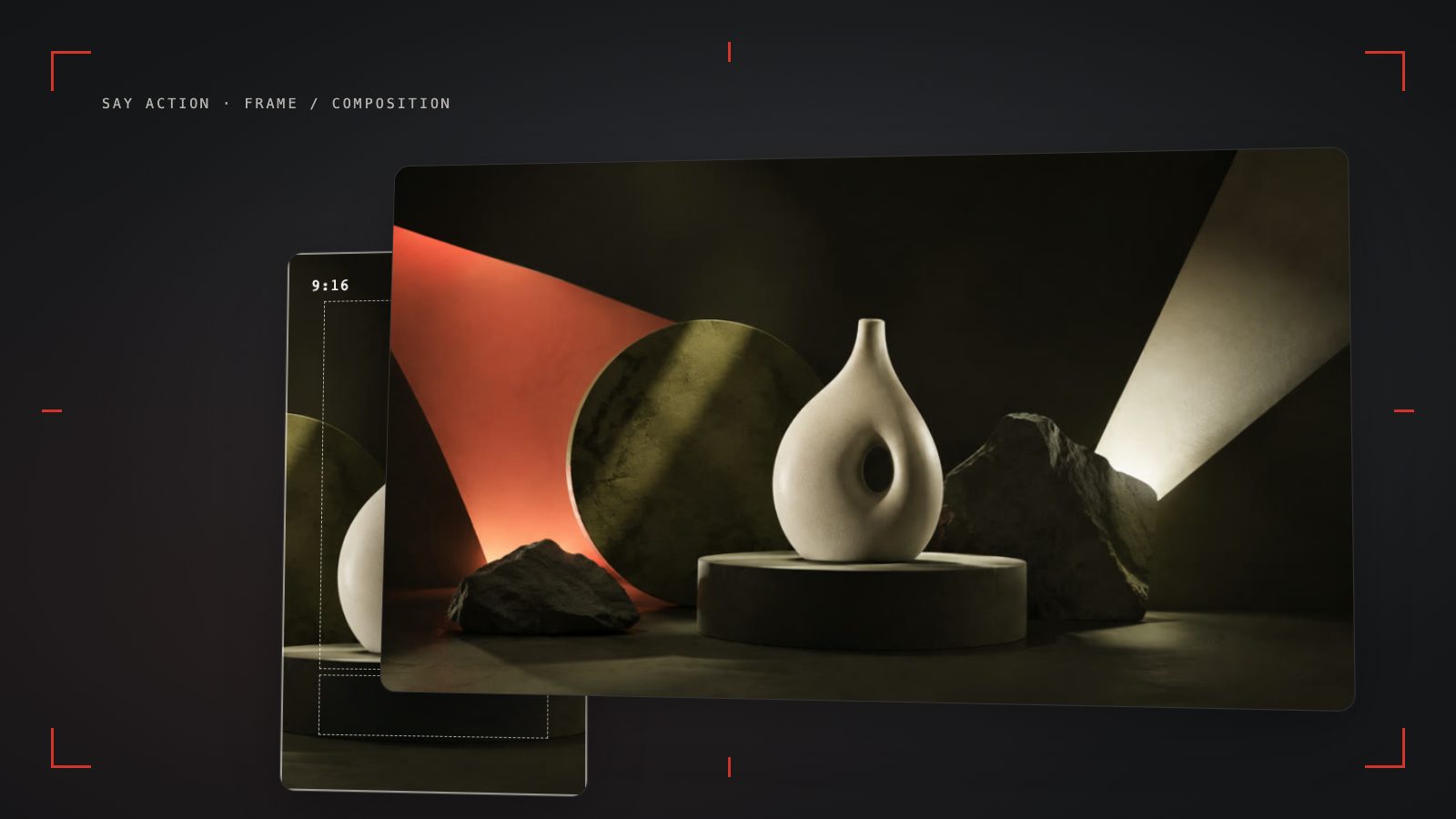
A 9:16 frame is narrow and tall. Two people standing side by side may fit comfortably in landscape and lose half a face in portrait. Lateral movement can carry a subject out of frame. Decide whose reaction, which prop and which action must remain readable before making a keyframe.
For dialogue, try depth, an over-the-shoulder view or separate reaction shots instead of squeezing every character into one frame. If a letter carries the plot, keep both the hand and letter readable. A good-looking face is only part of the shot.
Check safe areas against the destination
Captions often occupy the lower frame, while buttons, avatars and titles can cover the edges. There is no single safe-area template for every platform. Overlay a reference for your destination in your video-editing software and check faces, hands, props and captions for collisions.
Reserve caption space away from essential action. If a character crouches or a prop drops toward the bottom, review the whole movement rather than only the first frame. Watch the export on a phone to check that the text and reactions remain readable.
Confirm the aspect ratio on the video node
Open the video node on the canvas and select the channel and model before checking aspect-ratio controls. The current Gemini Veo integration offers 16:9 and 9:16; Novita text-to-video requests offer 16:9, 9:16 and 1:1. Image-input modes and other channels can have different constraints. Follow the node's actual capabilities and the provider's documentation.
For an image-led shot, prepare a portrait composition before connecting it to a model that accepts that input. If using first and last frames, plan both at the same aspect ratio with deliberate subject placement. A model without a last-frame input cannot use it as an end-frame control.
See available models, resolutions, and estimated credits on the creation page. The final credit charge is shown before you submit.
Review what a landscape-to-portrait crop removes
Try a 9:16 crop in your video-editing software first. If the characters, props and eyelines remain intact, adjust the crop shot by shot. If essential action sits at opposite edges, cropping removes story information; recompose and regenerate that shot.
Stretching changes the proportions of people and objects. Changing the output ratio alone also does not preserve a landscape composition. For a shot that needs another attempt, keep its dialogue and action, rewrite the framing for portrait and regenerate only that clip.
Test one shot and review the full movement
Choose a representative storyboard shot with movement and a prop. Describe the intent, such as “portrait medium shot, subject stays in frame, static camera”, then create a video node from the row. Watch the result from start to finish for exits, headroom, gestures and caption space.
Change the factor causing the problem. If the subject leaves the frame, revise the action or camera position; if captions cover the face, adjust framing or caption placement. Generating another version of a completed but unsuitable shot is a new task, so check its cost first.
When the upstream explicitly reports failure, reserved credits are refunded; tasks with unclear network status stay pending review to avoid double settlement.
Connect your own API channels and third-party relays
In model-channel settings, enter the Base URL and API key, then configure the protocol, model IDs and required headers from your provider's documentation. Check the image and video modes you need before generating. Paths, resolutions and first/last-frame inputs depend on the connected channel. An adaptation request for an unsupported channel is not a compatibility guarantee.
BYOK supports a custom API endpoint, model key and headers. For OneAPI, NewAPI or another relay, select the OpenAI, Gemini or Claude protocol that matches its actual API, then check model IDs and image/video endpoint support. Not every relay or private protocol works automatically. BYOK model calls have no platform model markup or platform generation-credit deduction; workspace access and provider usage are still billed separately.
Connect only trusted providers and use HTTPS in production. Custom requests are forwarded through the authenticated backend; required prompts, reference assets and credentials take part in the request. Never put API keys, passwords or secret-bearing headers in public canvases, screenshots or support requests.
Frequently asked questions
Does every video model support 9:16?
No. The channel, model and input mode determine available ratios. Check the controls on the video node.
How many pixels should I reserve for captions?
There is no universal pixel value. Check the destination interface, caption size and export dimensions against faces, hands and essential props.
Can I crop landscape video to portrait?
Try the crop, then check whether the essential action survives. Recompose shots whose important information sits at both edges.
Can I connect OneAPI, NewAPI and custom headers?
BYOK supports a custom API endpoint, model key and headers. For OneAPI, NewAPI or another relay, select the OpenAI, Gemini or Claude protocol that matches its actual API, then check model IDs and image/video endpoint support. Not every relay or private protocol works automatically. BYOK model calls have no platform model markup or platform generation-credit deduction; workspace access and provider usage are still billed separately.