
What RunningHub Is: Cloud ComfyUI Without Local Hardware Demands
When producing episodic short dramas, using advanced ComfyUI setups gives you granular control over camera angles, character consistency, and motion pacing. However, self-hosting state-of-the-art image and video models usually requires high-end graphics cards with substantial memory, along with time spent troubleshooting custom node dependencies, Python packages, and driver conflicts.
RunningHub solves this hardware barrier by hosting full ComfyUI environments on remote cloud infrastructure. Instead of buying expensive hardware or keeping a workstation running overnight, creators can execute complex workflows on managed cloud machines equipped to handle heavy open-source checkpoints, ControlNets, and diffusion models.
Beyond its visual web editor, RunningHub exposes an API that turns any saved workflow or community AI web app into an automated production endpoint. You send an API request containing your shot prompt, seed number, or reference image, and RunningHub handles the node calculations in the cloud before returning the generated media file. For episodic video creators, this approach separates creative storyboarding from hardware limitations.
RunningHub Workflow vs. WebApp: Core Differences and Where to Find IDs
Before sending API calls or wiring configurations, you must identify whether your target pipeline is a RunningHub workflow or an AI web app (webapp). While both run on ComfyUI under the hood, they expose different interfaces and use distinct identifiers in the API.
A RunningHub workflow is a full node graph. It exposes every individual node, such as model loaders, LoRA stacks, sampler parameters, and latent decoders. Advanced creators use raw workflows when they need specific camera movement control, character face preservation, or custom inpainting routines. To obtain the workflowId, open the workflow on RunningHub and find it in your browser's address bar. RunningHub officially recommends running the workflow manually once on the web platform to confirm it completes successfully before calling it via the API, as calling an unverified workflow often leads to errors.
A RunningHub WebApp wraps a workflow into a simplified form interface. It hides internal node connections and only displays specific user inputs, such as a text prompt box, a character reference upload field, and an aspect ratio selector. WebApps are useful when you want team members or writers to generate assets using a standardized visual style without accidentally modifying node connections. To get the webappId, open that AI web app's page; it can usually be found in the page URL.
When preparing your pipeline for automated generation, note down whether you have a workflowId or a webappId, because the API requires the corresponding ID type to pull parameter schemas correctly.
Understanding the Two RunningHub API Keys: Points Key vs. Enterprise Asset Key
A common hurdle when working with the RunningHub API is understanding how credentials are divided. RunningHub splits task execution from asset storage, which requires two separate keys depending on what your shot requires.
The Points API Key is your primary execution credential. You use this key to authenticate your account, query workflow parameters, submit text-only generation tasks, and check the completion status of your jobs. Every time a workflow runs, RunningHub deducts compute credits from your account balance via this Points Key.
The Enterprise Asset Upload Key is a dedicated credential used exclusively for binary media uploads. In short drama production, few shots rely solely on text prompts; you almost always need to feed in character face references, costume turnarounds, previous scene keyframes, or mask cutouts. RunningHub requires these input files to be uploaded to an enterprise asset bucket first before the workflow runs. The upload endpoint requires this Enterprise Key.
If your workflow takes reference images or videos and you only configure the Points Key, the API will fail when attempting to process the asset. To run production-ready drama workflows, generate both keys in your RunningHub personal center and store them safely.
Common RunningHub API Errors and Troubleshooting Steps
Automating cloud workflows can occasionally run into execution errors. When an API call fails or yields unexpected output, running through this practical troubleshooting checklist helps isolate the issue quickly.
Check for key mix-ups when receiving insufficient balance errors
If the API returns an insufficient points or unauthorized balance error while your account has active credits, check if you accidentally pasted the Enterprise Asset Upload Key into the Points Key field. The upload key cannot dispatch compute tasks. Also verify that you are connecting to the correct regional site (runninghub.cn vs. runninghub.ai) where your points were purchased.
Fetch workflow parameters before running jobs
Submitting a generation request to a newly added workflow without first fetching its parameters often leads to missing parameter errors. Always trigger the parameter pull action after pasting a workflowId or webappId so the system registers all exposed text, numerical, and input nodes.
Verify field mappings for prompts and seeds
If generated images ignore your shot descriptions or default to static placeholder text, inspect your field mappings. Ensure your shot prompt input is mapped to the positive text prompt node inside the workflow, and confirm that the seed field is mapped to the KSampler seed input rather than a fixed constant.
Supply the Enterprise Key when passing image or video inputs
When workflows fail at the image loading stage, the issue is almost always a missing or invalid Enterprise Asset Upload Key. Confirm that this key is filled in so reference pictures, character face sheets, or audio files can be uploaded and assigned temporary asset IDs.
Account for queue times on heavy video workflows
Large diffusion models for video generation require longer runtimes. If your API client times out, adjust the polling interval and request timeout to allow the cloud server adequate time to finish rendering frames during peak hours.
Connecting RunningHub to DramaCanvas Step by Step
While calling the RunningHub API through custom scripts works, managing standalone API requests across multiple episodic scenes quickly becomes disorganized. DramaCanvas includes a native RunningHub plugin that connects cloud workflows directly to your visual production workspace.
The integration securely handles parameter parsing, asset uploads, and status checks so you can focus on scene composition and visual continuity.
Enable the plugin in Plugins
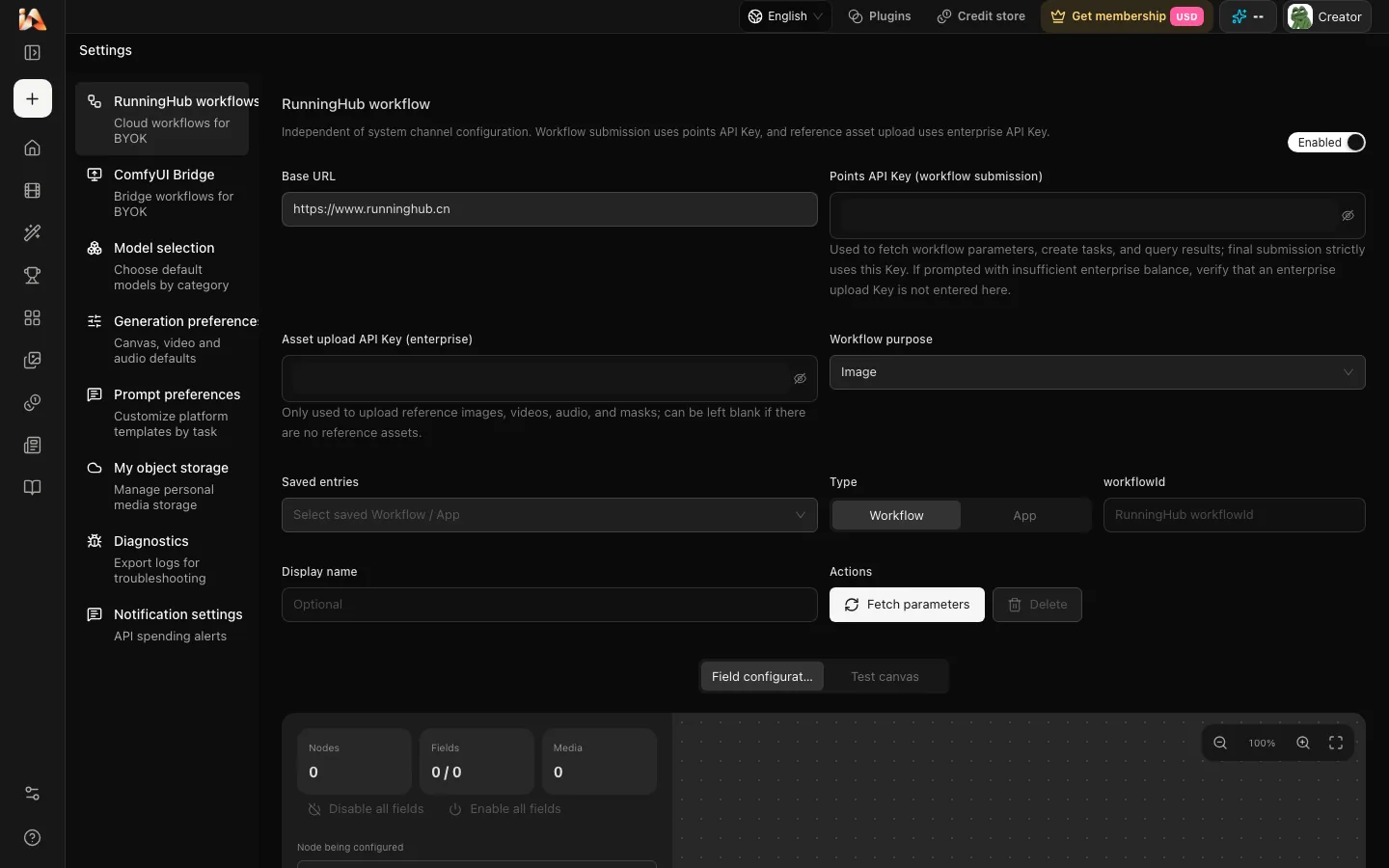
Open Plugins from your DramaCanvas navigation menu. Locate the built-in RunningHub workflow plugin and toggle it on. The plugin is open to all users without tier restrictions.
Open RunningHub settings and select your endpoint
Navigate to the RunningHub settings tab in your account settings. Choose your platform domain: select the China site (runninghub.cn) or the International site (runninghub.ai). If your studio routes traffic through a compatible custom proxy gateway, you can enter that address instead.
Paste your API credentials
Enter your RunningHub Points API Key in the designated field to handle task queries and generation triggers. Then paste your Enterprise Asset Upload Key so the canvas can transmit reference images, video clips, audio tracks, and drawn masks. Your keys are securely stored and the plugin does not expose them.
Add a workflow entry and fetch parameters
Click to add a new workflow item. Select its primary media output type (Image, Video, or Audio), enter a recognizable name such as 'Close-up Character Render', and paste your workflowId or webappId. Click the fetch parameters button to automatically discover exposed inputs.
Review field mappings and send a test request
Verify the mapped fields for your positive prompt, negative prompt, seed, and input media slots. Run a test request directly from the settings panel to confirm that RunningHub responds with a completed file, then save your configuration. You can register multiple workflows for different scene styles.
Running Cloud Workflows on the Canvas for Short Drama Shots
With your RunningHub configurations saved, you can add Workflow nodes directly into your storyboards alongside script cards, character reference images, and camera notes.
This visual setup lets you organize your shot pipeline directly on the board and connect reference assets across your scene sequence without re-uploading files in separate browser windows.
Switch your canvas to Professional mode
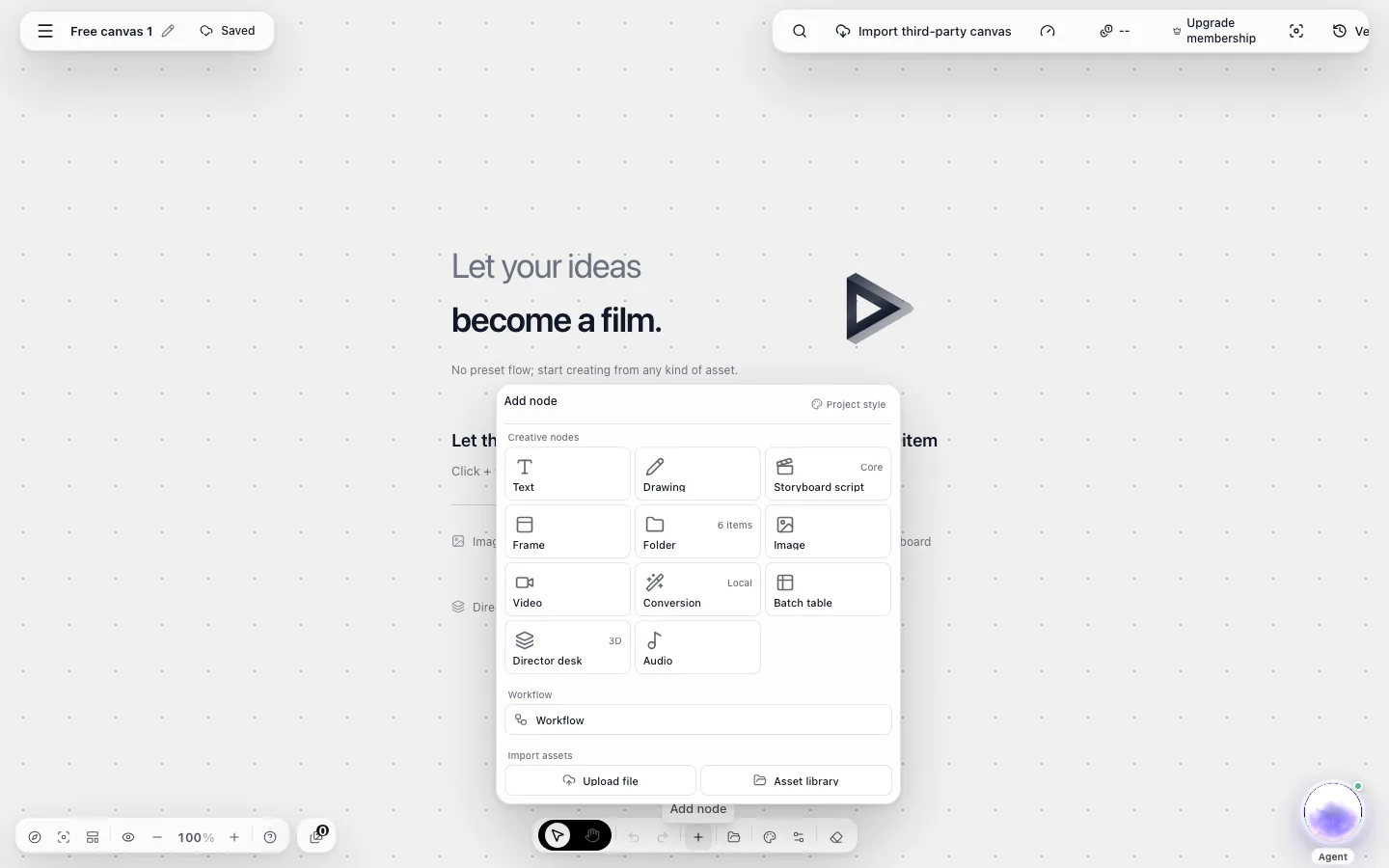
Look at the top bar of your DramaCanvas workspace. If your canvas is set to Simple mode, switch it to Professional mode. Professional mode displays advanced node creation options needed for technical production workflows.
Add a Workflow node to your scene
Open the Add Node menu on the canvas and select Workflow. DramaCanvas uses this unified workflow node for both cloud-based RunningHub pipelines and self-hosted ComfyUI Bridge connections.
Select your configured workflow template
In the workflow node settings, select the RunningHub workflow entry you registered earlier. Parameter fields come from your saved workflow configuration, and you can click the dice icon next to the seed field to randomize it.
Connect reference media and masks
Connect reference assets to the workflow node inputs on the canvas. Only reference images, reference videos, reference audio, and masks connected to the node will automatically populate workflow inputs according to your field configuration (routed through the Enterprise Asset Upload Key when uploads are required). Text cards or prompts cannot be connected into workflow inputs.
Execute the node and inspect the shot
Click the run button on the workflow node. DramaCanvas dispatches the job to RunningHub via API, tracks the cloud progress, and displays the finished image or video clip right on your canvas card, ready to be reviewed against your script sequence.
Billing Breakdown: How Credits and Costs Work
Clear pricing expectations are essential when planning multi-episode drama production. Running cloud workflows through DramaCanvas involves two separate systems, and understanding how they interact keeps your budget predictable.
Running workflows through RunningHub or ComfyUI Bridge does not deduct DramaCanvas credits. When you trigger a cloud task through the RunningHub plugin or run a local setup via ComfyUI Bridge, DramaCanvas does not deduct any platform balance. The software simply functions as your visual workflow interface.
RunningHub charges fees according to its own rules. You purchase and manage your compute points directly within your RunningHub account. If your account runs out of points, requests will fail; top up and try again.
For creators comparing production setups, local execution via ComfyUI Bridge is another option. With the Bridge plugin, workflows run entirely on your own computer or private server without deducting DramaCanvas credits or requiring RunningHub points, though you manage your own local hardware environment.
To manage your compute points efficiently on RunningHub, test character appearance, lighting prompts, and camera perspectives on lighter image workflows first. Once you confirm that the framing matches your visual vision, feed that generated image into heavier video diffusion workflows to avoid spending cloud points on misdirected scene drafts.
Frequently Asked Questions
What is a workflow in ComfyUI, and how does RunningHub run it?
A ComfyUI workflow is a modular visual graph where individual nodes handle specific parts of the generation process, such as prompt encoding, model loading, sampling, and upscaling. RunningHub replicates this node environment in the cloud so you can run the same workflow structures without maintaining local GPUs or installing custom libraries. When you call a workflow through the RunningHub API, the cloud runner executes each node in sequence and returns the final media output.
How do I use character reference images through the RunningHub API?
To use reference images, your RunningHub workflow must include an input node designed for image loading, such as an image upload or face reference node. You must also configure your Enterprise Asset Upload Key, which uploads the media file to RunningHub before the workflow runs. On the DramaCanvas board, connect a reference image to the Workflow node, and it will automatically populate the workflow input according to your field configuration (routed through the Enterprise Asset Upload Key when upload is required). Text cards or prompts cannot be connected into workflow inputs.
How much does cloud ComfyUI cost on RunningHub, and does DramaCanvas charge extra?
Running workflows through RunningHub or ComfyUI Bridge does not deduct DramaCanvas credits. RunningHub charges fees according to its own rules. You can monitor your point balance and top up directly through your RunningHub account dashboard.
Should I use a raw RunningHub workflow or an AI web app (webapp)?
Use a raw workflow when you need complete control over sampling steps, LoRA weights, camera trajectory models, and character consistency nodes for custom shot production. Choose an AI web app (webapp) when you want a streamlined interface with fixed inputs for repetitive generation tasks where underlying node configurations do not need adjustments. Both formats are supported in DramaCanvas by entering either the workflowId or webappId.
Can I self-host ComfyUI instead of using RunningHub?
Yes. If you have a workstation or private server with sufficient graphics hardware, you can use the built-in ComfyUI Bridge plugin in DramaCanvas instead of RunningHub. The Bridge connects your local ComfyUI instance directly to the canvas Workflow node, allowing you to run your own API workflows locally without deducting DramaCanvas credits or purchasing third-party cloud compute points.
Why does my task fail with an insufficient balance error when I have points?
This error most frequently happens when the Points API Key field contains your Enterprise Asset Upload Key, which cannot be used to pay for compute tasks. It can also occur if your account is registered on RunningHub's China site (runninghub.cn) but your settings are pointed to the International site (runninghub.ai), or vice versa. Double-check your key placement and regional domain setting to ensure requests reach the account holding your active points.