
Production workflow
How to Create an AI Storyboard for a Short-Form Drama: From Script to Vertical Shots
Break dialogue and action into shots, check portrait framing and character references, then review clips before handing them to an editor.
On this page
The roles of a script and storyboard in short-form drama
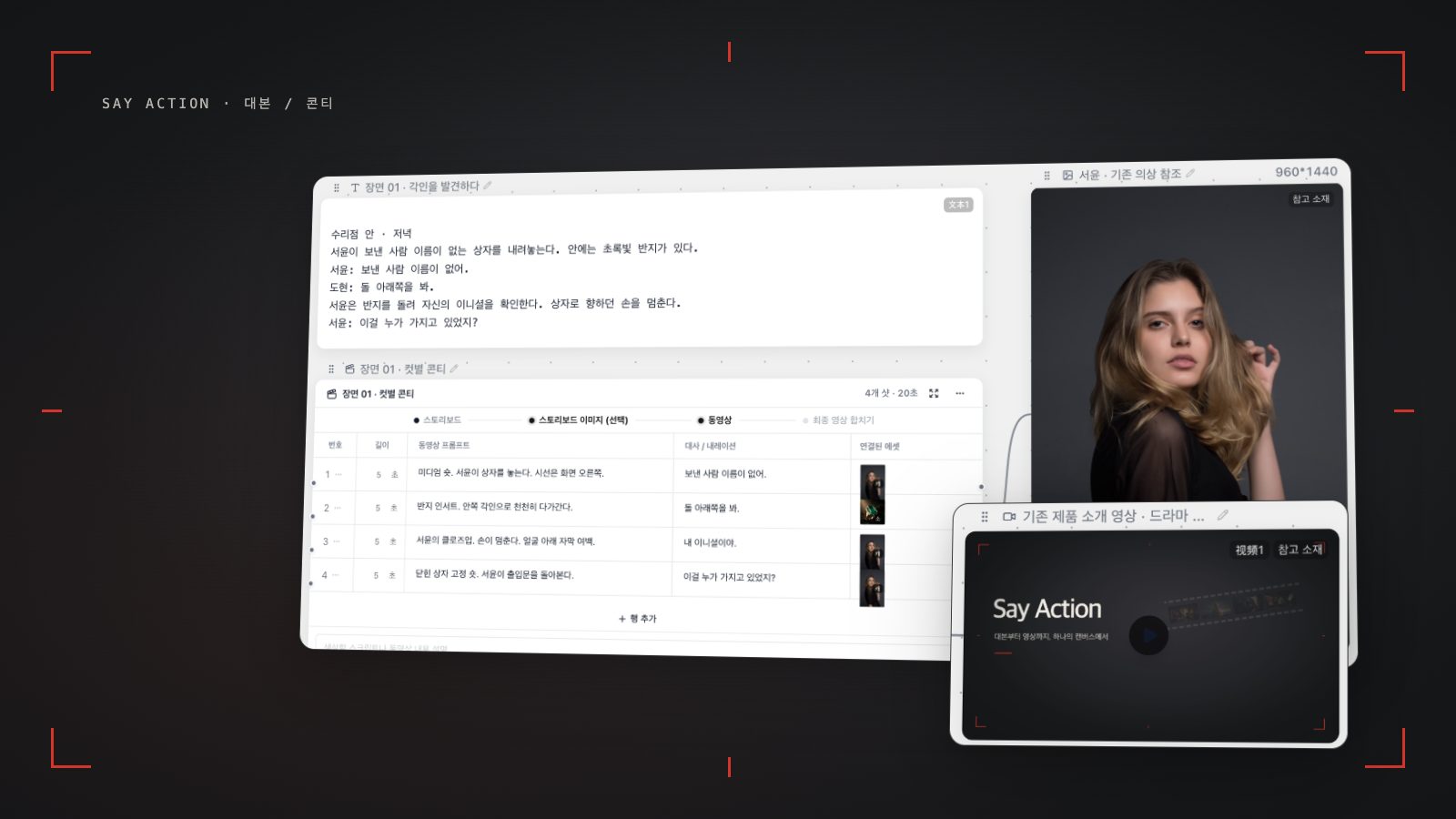
To create a storyboard for a short-form drama, divide the script's dialogue and action into scene-by-scene shots and decide what viewers need to see and hear in each one. Finalize the script first, mark the characters, locations, actions and dialogue, then review portrait framing and reference images for every shot. AI can help draft and visualize the plan, but the creator still needs to check the scene's meaning and continuity and make the final editing decisions.
The script carries the story and dialogue; the storyboard prepares that story as units of screen action. A shot list can record scene number, characters, action, dialogue, shot size, camera movement, aspect ratio and needed references. Treat the storyboard as a working document that helps the team understand each scene and hand it to the next production step, not as a finished video or a substitute for shooting instructions.
Organize dialogue, action and shot structure
A shot is easier to review when it contains one clear on-screen action. If a character opens a door, notices a letter on a table and looks out the window, consider splitting the sequence where the action or reaction changes instead of putting everything in one row. Record spoken words as dialogue and keep action lines for observable details such as expression, movement and setting.
After receiving a draft, check that dialogue order and essential information are preserved and that each shot describes a specific character and action. Revise or combine rows that repeat the same moment or give abstract directions that cannot be shown on screen. Then check for story links such as a transition, reaction shot or insert, and use the approved shot list as the basis for image and video work.
Portrait framing and subtitle space
Compose portrait shots so the character and action read clearly in a narrow frame. In dialogue, check the eyelines of both speaker and listener; when a hand or prop matters, make sure it does not fall outside the frame. Whether 9:16 is available depends on the video model and connection, so verify support in the actual generation settings.
Keep faces, important props and essential story information away from edges that subtitles or platform UI may cover. Those areas vary by platform, so do not treat a safe zone as a universal fixed rule. Mark subtitle space in the storyboard and check it again in the editing stage against the intended publishing environment.
Character references and continuity checks between shots
Keep approved appearance notes and reference images for recurring characters together. Record what should persist across shots, such as wardrobe, hairstyle, props and scene lighting, and check whether the model accepts those references as inputs. Support for reference images or first and last frames depends on the model and adapter.
When reviewing results, compare more than faces: check wardrobe, cast size, eyelines, hand actions, backgrounds and continuity between adjacent shots. If a shot drifts, identify which input may have changed, adjust its description or reference and redo only the needed work. A reference image helps guide and review a result; it does not lock or guarantee an identical face.
Generation costs and organizing clips for editing
Before moving from storyboard to video, check the model, aspect ratio, image inputs, duration and estimated cost. Say Action shows an estimated credit amount before a platform generation is submitted. The service fee covers the workspace, not model usage. Provider API charges are separate. BYOK supports a custom API endpoint, model key and headers. For OneAPI, NewAPI or another relay, select the OpenAI, Gemini or Claude protocol that matches its actual API, then check model IDs and image/video endpoint support. Not every relay or private protocol works automatically. BYOK model calls have no platform model markup or platform generation-credit deduction; workspace access and provider usage are still billed separately. See the [pricing guide](/pricing) for current rates and scope. Do not copy fixed price or credit figures into this article; consult the current guidance.
Organize generated clips by shot number and scene, and record approval status and open review items for the editor. Check each file's duration and aspect ratio, then finish cuts, dialogue, sound, subtitles and pacing in editing software. A successful generation is not a finished episode, so review the edit for missing reaction shots and transitions.
When the upstream explicitly reports failure, reserved credits are refunded; tasks with unclear network status stay pending review to avoid double settlement.
Connect your own API channels and third-party relays
In model-channel settings, enter the Base URL and API key, then configure the protocol, model IDs and required headers from your provider's documentation. Check the image and video modes you need before generating. Paths, resolutions and first/last-frame inputs depend on the connected channel. An adaptation request for an unsupported channel is not a compatibility guarantee.
BYOK supports a custom API endpoint, model key and headers. For OneAPI, NewAPI or another relay, select the OpenAI, Gemini or Claude protocol that matches its actual API, then check model IDs and image/video endpoint support. Not every relay or private protocol works automatically. BYOK model calls have no platform model markup or platform generation-credit deduction; workspace access and provider usage are still billed separately.
Connect only trusted providers and use HTTPS in production. Custom requests are forwarded through the authenticated backend; required prompts, reference assets and credentials take part in the request. Never put API keys, passwords or secret-bearing headers in public canvases, screenshots or support requests.
Frequently asked questions
Can I create a storyboard from a short-form drama script?
Yes. Separate dialogue from action, divide scene actions and reactions into shots, then check dialogue order and what can actually be seen on screen. A creator should review and revise an AI-generated draft.
Does every video model support 9:16?
No. Aspect-ratio options depend on the model and connection settings, so check the current inputs in the video node. Avoid finalizing a portrait plan on the assumption that support is available.
How can I check character face consistency?
Prepare approved character references and appearance notes, then compare faces as well as wardrobe, props, eyelines and backgrounds across shots. References can guide inputs and review, but they do not guarantee the same face.
Where do I edit video after making a storyboard?
Download generated clips organized by shot number and finish cuts, dialogue, sound, subtitles and pacing in your external video-editing software. Check Say Action's current generation-cost and failed-task guidance before submitting work.
Can I connect OneAPI, NewAPI and custom headers?
BYOK supports a custom API endpoint, model key and headers. For OneAPI, NewAPI or another relay, select the OpenAI, Gemini or Claude protocol that matches its actual API, then check model IDs and image/video endpoint support. Not every relay or private protocol works automatically. BYOK model calls have no platform model markup or platform generation-credit deduction; workspace access and provider usage are still billed separately.