Black Friday Banner 2026: Make Website Banners and Email Headers With AI (8 Prompts)

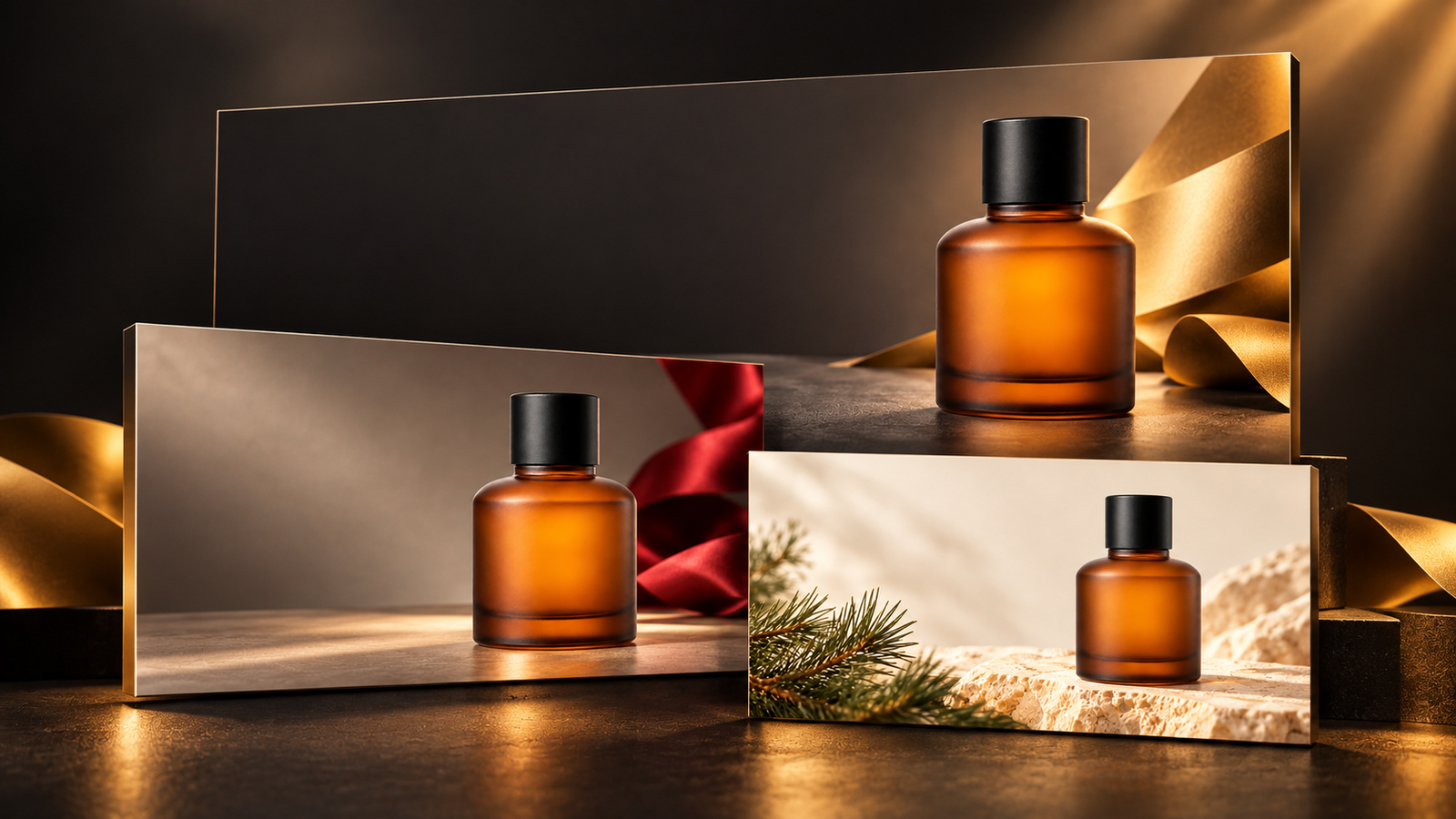
You can build a full Black Friday set, homepage banner plus promo email header, from a single product photo. The trick is to let the AI make only the background: product on one side, clean empty space on the other, with the headline, discount and promo code added later in your design tool. Below: how to do it on the DramaCanvas canvas, which aspect ratio to pick, 8 copy-ready prompts, and the right way to add countdowns and promo codes.
No product photo yet? Start with AI product photography from one phone photo. Need a matching 15-second video ad? See how to make a Black Friday ad.
How should you split the work on a Black Friday banner?
Let the AI make the background and let your design tool handle the text.
AI is great at scenes and light but unreliable at lettering: a wrong discount, promo code or date confuses customers or simply doesn't work. The safe approach has two steps: generate a background with clean empty space on the canvas, then download it and add the exact headline, discount and button in your design tool.
Your website banner and email header can share one look, the same product photo, colours and empty-space direction, just at different aspect ratios.
How do you generate a banner background on the canvas?
Upload the product photo, connect it to a new image node, pick the ratio, write the prompt and generate.
Step 1: Upload the product photo and connect it
Click Add node in the toolbar at the bottom of the canvas, choose Upload file, pick your product photo and click Add to canvas (1). Add an Image node and drag a line from the connection point on the right of the photo's node to it. In the prompt, type @ and pick Image 1 from the menu to reference the photo. In the prompts below, replace [Image 1] with that reference.
Step 2: Pick a wide ratio in Image settings
Choose GPT Image 2.5 under the node, open Image settings and pick the ratio under Size or aspect ratio: 21:9 for a large homepage hero, 16:9 for regular banners and email headers. Start with Resolution at 1K.
Step 3: Write the prompt, check the credits, generate
Paste one of the prompts below and adapt it to your product. The generate button shows the credits for this image; check it, then click. When the result is in, check three things: the product's shape and colour, whether the empty area is clean enough, and whether any text or garbled lettering crept in.
Step 4: Download and add your text
Save the image you like with the download button on the node. In your design tool, place the headline, discount, promo code and button in the empty area, then crop to your site's and email's actual width.
Which aspect ratio should a banner use?
Use 21:9 for a large homepage hero and 16:9 for regular banners and email headers.
| Use | Ratio | Empty space | Watch out for |
|---|---|---|---|
| Homepage hero banner | 21:9 | Left two-thirds | Phones crop it narrow; keep the product closer to the centre |
| Regular website banner | 16:9 | Left half | Crop to your site's real size |
| Email header | 16:9 | Top or centre | Emails are narrow; use larger text |
| Countdown section background | 16:9 | One block in the middle | Add the countdown with a timer feature |
| Landscape social cover | 16:9 | Top left | Platforms compress images; keep the subject off the edges |
8 copy-ready Black Friday banner prompts
All prompts use GPT Image 2.5. Pick the ratio under Size or aspect ratio; the ratio in the prompt is just a composition hint. Prompts with [Image 1] need the product photo connected first.
01 · Homepage hero, product on the right (16:9)
[Image 1] is the product reference. A 16:9 landscape promo background with the whole product in the right third and a large, flat warm-grey wall on the left with no props. A few out-of-focus deep red ribbons behind it on the right, soft side light, product outline and colours kept. The left side is reserved for a headline; no text, numbers, prices, promo codes, logos or watermark.02 · Extra-wide festive empty space (21:9)
[Image 1] is the product reference. A 21:9 extra-wide banner with the whole product at the far right, a matte dark-grey surface in the foreground and a little warm gold paper decoration on the right; the left two-thirds are clean and untextured. Keep the product's shape and visible parts, soft studio light, product not touching the edge. No text, numbers, prices, discounts, promo codes or watermark.03 · Email header with space in the centre (16:9)
[Image 1] is the product reference. A 16:9 email header background with the whole product in the lower right, a few pine sprigs in the lower left, and clean beige empty space across the top and centre. Keep the product's original colours and shape, bright soft light, decorations not covering the product. No text, numbers, sale prices, promo codes or watermark.04 · Countdown background (16:9)
A 16:9 festive background in a dark charcoal gradient with a deep red fabric band on each side and a few blurred gold paper flecks along the bottom, leaving one large flat empty area in the middle. No clocks, dials or flip boards, and no numbers, text, symbols, prices or watermark.05 · Promo code card background (16:9)
[Image 1] is the product reference. A 16:9 shopping-season background with the whole product on the left and a bright, flat beige area on the right with a very faint shadow around its edge, for a promo code added later. Keep the product's colours and visible structure, no other products. No card text, dashed characters, numbers, letters, prices, promo codes or watermark.06 · Landscape social cover (16:9)
[Image 1] is the product reference. A 16:9 landscape cover with the whole product in the lower middle, slightly right, on a matte deep green background, clean space in the top left and on both sides, a few soft warm lights in the distance. Product colours true to the original, outline not lost in the light. No headline, prices, discount numbers, dates, promo codes, logos or watermark.07 · Deep red papercraft wide banner (21:9)
A 21:9 extra-wide festive banner background with deep red folded papercraft only on the far right; the left and centre are flat light beige with no bright spots or dense texture. Soft light, depth from the paper shadows, empty area for layout later. No text, letters, numbers, countdown, prices, promo codes or watermark.08 · Composition that crops well on mobile (16:9)
[Image 1] is the product reference. A 16:9 banner with the product slightly right of centre, its whole outline and margins on both sides clearly visible, a clean light-grey background on the left and a few deep red ribbons only at the far right. Keep the product's colours and visible parts, soft side light, subject kept compact so a narrow mobile crop is easy. No text, prices, numbers, promo codes or watermark.How do you write prompts that keep the empty space clean?
Say where the product goes, where the empty space goes, and what to leave out.
| Prompt | Problem | Result |
|---|---|---|
| "Make a Black Friday banner saying 50% off everything with code BF2026" | Asks the AI to write exact text and numbers | The text is likely wrong and the empty space isn't controlled |
| "Product in the right third, large clean empty area on the left, no text at all" | Position, empty space and limits are all defined | Much more likely to give you a background ready for layout |
If texture or bright spots appear in the empty area, add "left side flat, no texture, no bright spots" and generate again. If decorations cover the product, use fewer of them or add "decorations don't cover the product".
How do you add countdowns and promo codes without mistakes?
Add them in your design tool and proofread every character.
- Promo code: use a clear sans-serif font, large enough, on a high-contrast spot. Copy and test the code yourself before sending.
- Discount and end date: match the offer rules exactly and state the time zone.
- Countdown: images don't change. On your site, place a timer component over the empty area; in email, use your email tool's countdown feature or swap the image daily.
- Buttons: build "Shop now" in your web or email editor, not in the image, or it won't be clickable.
How many credits does a banner set cost?
GPT Image 2.5 at 1K is 2 credits per image, so trying all 8 prompts once costs 16 credits. Prices below are live on 2026-10-29:
| Resolution | Per image | 8 images |
|---|---|---|
| GPT Image 2.5 1K | 2 credits | 16 credits |
| GPT Image 2.5 2K | 3 credits | 24 credits |
| GPT Image 2.5 4K | 4 credits | 32 credits |
For a large homepage hero, render the final at 2K or 4K. Each retake is charged again; go by the number on the button before generating.
What are the limits of this approach?
- Text and numbers go on afterwards: lettering in generated images isn't reliable.
- Product details can drift: logos, labels and small type can warp, so compare important images with the real product.
- No automatic resizing: you get one image; crop it to your site's and email's actual width.
- Static images don't count down: you need your site's or email tool's timer feature.
Frequently asked questions
Can the AI write the promo code and discount into the banner?
We don't recommend it. Text and numbers in generated images often come out wrong, and one wrong letter in a promo code means customers can't use it. Have the AI generate only the background with empty space, then add the headline, discount and code in your design tool and proofread them.
Can my website banner and email header be the same image?
Share the look, not the file. Website banners usually work at 21:9 or 16:9, while email headers are usually 16:9 cropped to your email width. Generate each from the same product photo and colour palette so the whole campaign looks consistent.
Can I put a countdown timer in the image?
An image is static and won't count down. Generate a background with empty space in the middle, then add the countdown with your website's or email tool's timer feature, or swap in a new image each day.
How many credits does a banner background cost?
With GPT Image 2.5, each image is 2 credits at 1K, 3 at 2K and 4 at 4K. Trying each of the 8 prompts once at 1K costs 16 credits. Go by the number shown on the generate button.
Start with your product photo and prompts 01 and 03 to make one 1K website banner and one email header. Once the empty space and colours look right, render the finals at 2K or 4K and add the headline, discount and promo code in your design tool.