Black Friday Ad 2026: Make a 15-Second AI Video Ad From One Product Photo

You can make a vertical Black Friday ad for TikTok, Instagram Reels or YouTube Shorts from a single product photo. The trick is to split 15 seconds into three 5-second shots: use the photo to generate each shot's first frame, check the product still looks right, then animate each shot and join them on the timeline. Below are the full steps on the DramaCanvas canvas, a 3-shot plan with copy-ready prompts, two alternative concepts, and what the whole ad costs in credits.
No product photo yet? Start with AI product photography from one phone photo. New to the canvas? Read the infinite canvas guide first.
What kind of 15-second ad can one product photo make?
A three-beat product spot: see the product, see it in use, see the call to action.
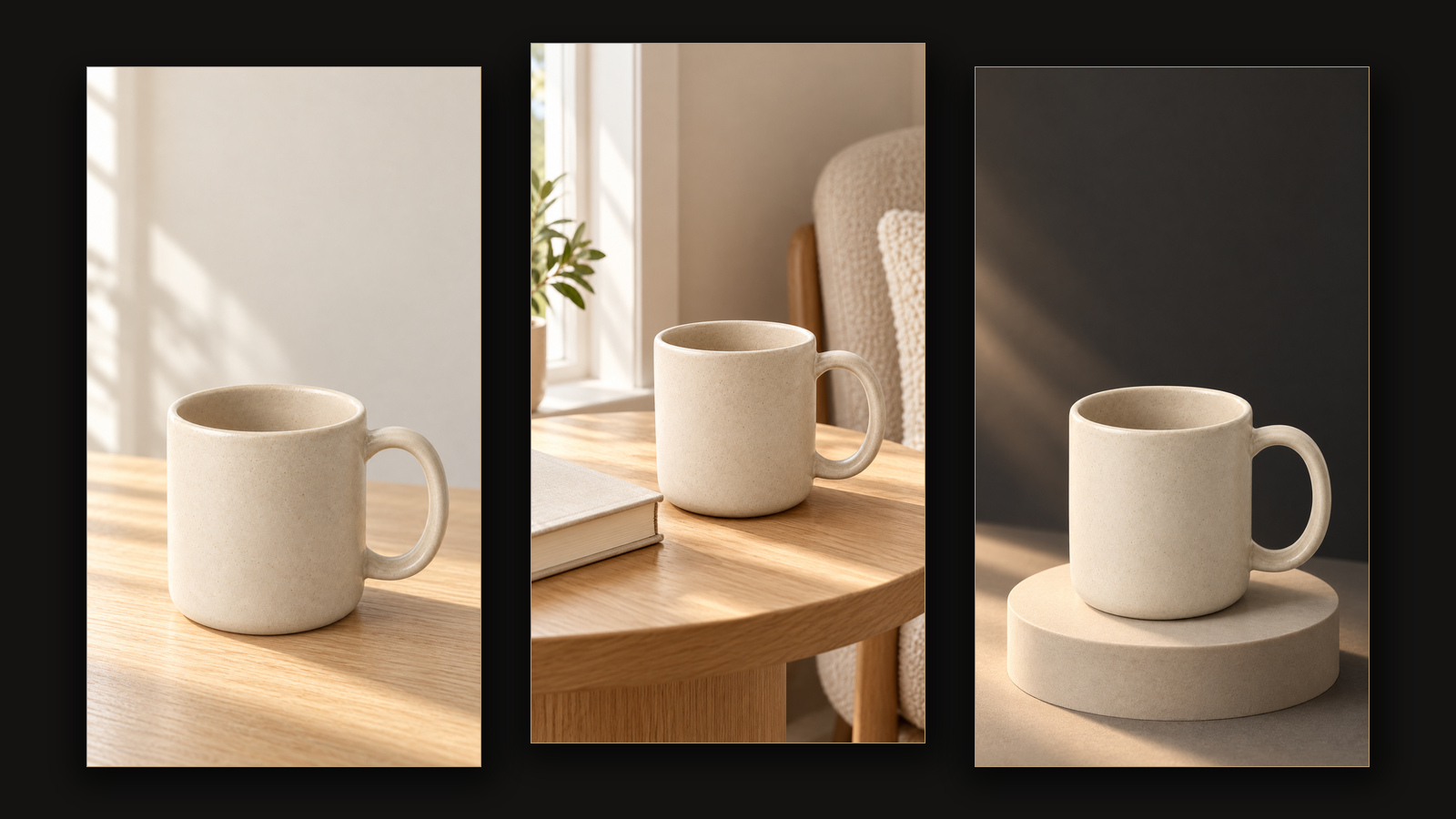
In a Black Friday feed, people decide in the first two or three seconds whether to stop scrolling. So shot 1 makes the product instantly readable. Shot 2 places it in a real setting and answers "where would I use this?". Shot 3 goes back to the product with a large clean area at the top, where your discount and "Shop now" will sit.
All three shots use the same product photo as a reference, with the same light and colour palette. That is what makes it look like one ad rather than three unrelated clips.
What's the difference between a first-frame prompt and a motion prompt?
The first-frame prompt describes how the shot starts. The motion prompt describes what happens next.
- First frame (image prompt): where the product sits, the background, where the light comes from, and whether to leave space at the top. It produces a still image, so you can check the shape, colour and handle position before spending credits on video.
- Motion (video prompt): one camera move only, such as "slow push-in", plus clear instructions that the product stays still, nothing is added and there are no cuts.
Keep them separate. Motion in the image prompt makes the frame messy; a new scene in the motion prompt can pull the video away from the first frame.
How do you make the three clips on the canvas?
Set up a storyboard script, generate each first frame, then each video, then export from the timeline.
Step 1: Create a storyboard script with three rows
Click Add node in the toolbar at the bottom of the canvas, choose Storyboard script, then click Edit full screen at the top right of the node. Click Add shot three times and set each row to 5 seconds. In the column settings, turn on the image prompt and video prompt columns, then paste the first-frame prompts below into the image prompt and the motion prompts into the video prompt.
Step 2: Choose Create first frame first and connect the product photo
Open More actions on the storyboard script, set Video input mode to Create first frame first, then click Create 3 image nodes. Use Add node → Upload file to add your product photo, then drag a line from the connection point on the right of the photo's node to each of the three new image nodes. In the first-frame prompts, [Image 1] refers to this photo: delete the placeholder, type @ and pick Image 1 from the menu.
New image nodes reuse your most recent image settings; writing 9:16 in the prompt doesn't make them vertical. Select each of the three image nodes and set the ratio to 9:16 and the resolution to 1K.
Step 3: Generate and check each first frame
Back in the full-screen editor, tick one shot and click Generate first frame. Compare the result with the original photo: has the shape, colour or handle position changed? Has any text or a second product appeared? Only rewrite and regenerate the shot that is wrong.
Step 4: Set the video options first, then confirm and generate
Confirm first frame and generate submits straight away, so set your options before you click it. Open More actions → Create 3 video nodes, select each video node and, in Video settings, pick the model, set Aspect ratio to 9:16, Duration to 5 and Resolution to 480P. The panel shows the credits per shot: 35 credits for 5 seconds of Seedance 2.0 Mini at 480p. Then go back to the full-screen editor, tick all three shots and click Confirm first frame and generate.
Step 5: Check the timeline and export
Once all three clips are ready, select any video node and click Open editor in the toolbar above it. The timeline brings in all three clips. Check the order, look for black frames at the joins and confirm the total is about 15 seconds, then click Export video to download an MP4. Download video on a single node only saves that one clip, not the whole ad.
The 3-shot plan for a 15-second ad
The example product is a plain ceramic mug with no printing. For your own product, swap "rim, handle" for the parts that are actually visible in your photo, and don't let the AI invent features the photo doesn't show.
| Shot | Time | What the shot does | What you add in editing |
|---|---|---|---|
| 01 | 0–5 s | Show the product: mug centred on a table, slow push-in | A hook line, e.g. "Upgrade your first coffee of the day" |
| 02 | 5–10 s | Put it in use: side table in a reading corner, gentle pan | One line about how it's used |
| 03 | 10–15 s | Back to the product: dark background, warm light, empty space at the top | Discount, end date, "Shop now" |
01 · Show the product (0–5 s)
[Image 1] is the only product reference. Vertical 9:16. The whole ceramic mug sits slightly below centre on a light wooden table, handle to the right, with the rim, body and handle matching the reference. Plain light beige wall behind, the top half of the frame clean, soft side light from a window. Only one mug. No drink, steam, packaging, text, numbers, logos or watermark.One continuous 5-second shot. The camera pushes in slowly and slightly. The mug and table stay completely still, with the rim, body, handle, colour and light matching the first frame. Do not rotate the object, do not cut, do not add liquid, text or props.02 · Put it in use (5–10 s)
[Image 1] is the only product reference. Vertical 9:16. The same ceramic mug on a light wooden side table in a home reading corner, handle to the right, next to a closed book with a blank cover, mug fully visible. Keep the product's outline and colour, soft side light from a window, neutral beige background. No people, drink, steam, text, numbers, logos or watermark.One continuous 5-second shot. The camera pans slowly and slightly to the right. The mug and book stay still, with the outline, handle position, count and light matching the first frame. No hands, no liquid, no new objects, no cuts, no text.03 · Back to the product, space for the offer (10–15 s)
[Image 1] is the only product reference. Vertical 9:16. The whole ceramic mug on a low beige plinth in the lower middle of the frame, handle to the right. Dark charcoal background with a soft warm light along one edge, and a large clean empty area across the top of the frame. Keep the rim, handle and colour. No gift box, freebies, text, prices, discount numbers, logos or watermark.One continuous 5-second shot from a locked-off camera. The mug and plinth stay completely still; only the warm background light brightens slightly and then holds. The product's shape and colour match the first frame. No rotation, no warping, no new objects, no cuts, no text.What other 15-second concepts can you try?
Keep the same 3-shot structure and change the setting. The two concepts below give the prompts for the middle shot only; reuse shots 1 and 3 from above and match their background colour.
Option A · Gift feel: shot 1 product close-up, shot 2 a blank gift box beside the product, shot 3 product with empty space. The box is set dressing only, so don't imply it comes with the order.
[Image 1] is the only product reference. Vertical 9:16. The whole product on the right side of a light beige table, with an empty unprinted gift box and a deep red ribbon behind it on the left, kept separate so the product is not covered. Soft warm light, product shape and colours kept, empty space at the top. No text, prices, discount numbers or logos.One continuous 5-second shot. The camera pushes in slowly on the still product; the gift box and ribbon stay where they are. Product outline and colours unchanged. Do not open the box, do not add freebies, no cuts, no text.Option B · Everyday feel: shot 1 an ordinary desk, shot 2 a corner of the home, shot 3 a neutral background with space. Real use instead of exaggerated demos; works well for homeware, stationery and small appliances.
[Image 1] is the only product reference. Vertical 9:16. The whole product on a light wooden side table at home, an empty chair behind it, beige wall and soft window light, product in the lower middle of the frame, empty space at the top. Keep the product's shape, colour and visible parts, no added accessories. No text, numbers, logos or watermark.One continuous 5-second shot. The product and furniture stay still while the camera pans gently to the left. Product outline, colour and parts match the first frame. No people, hands, liquid or new objects, no cuts, no text.How do you write prompts so the product doesn't warp?
First frame: product + position + light + empty space. Motion: one camera move + product stays still + nothing added.
| Prompt | Problem | Result |
|---|---|---|
| "Make a 15-second Black Friday ad, spin the mug, show all its features and write 50% off" | Asks for rotation, a feature demo and exact text at once | The product warps, the text is likely wrong, and there's nothing specific to check |
| "One continuous 5-second shot, slow push-in, mug stays still, no cuts, no text" | One move, with what to keep and what to avoid spelled out | Easy to check; small changes can still happen, so watch the whole clip before using it |
What if the product warps or the shots don't match?
Find which shot and which part went wrong, change only that, and generate again.
- The product warps during motion: make the camera move smaller, or lock the camera and only change the light. Avoid spinning, picking up or opening the product.
- The three shots don't match in colour: describe the same light and palette in all three first frames, put the results side by side and redo the first frame of the one that's off.
- Garbled text appears: write "no text" in both the first-frame and motion prompts and add your text in editing.
- A second product appears: say "only one" in the first-frame prompt, and check whether the extra item is already in the first frame.
How many credits does a 15-second ad cost?
Three first frames plus 15 seconds of video come to 111 credits with Seedance 2.0 Mini at 480p.
First frames with GPT Image 2.5 at 1K cost 2 credits each, so 6 credits for three. Video is charged per second. The table uses live prices on 2026-10-29:
| Video model and resolution | Per second | 3 shots × 5 s | Plus 3 first frames (6 credits) |
|---|---|---|---|
| Seedance 2.0 Mini 480p | 7 credits | 105 credits | 111 credits |
| Seedance 2.0 Mini 720p | 10 credits | 150 credits | 156 credits |
| Kling 4 720p | 7 credits | 105 credits | 111 credits |
| Kling 4 1080p | 12 credits | 180 credits | 186 credits |
Retakes aren't included: add the cost of a shot each time you redo it. Before generating, go by the credits shown on the button.
What are the limits of this approach?
- The product can warp in motion: a correct first frame doesn't guarantee a correct clip. Watch every clip from start to finish.
- Text and prices are added afterwards: generated text isn't reliable, so add your offer in an editing app and proofread it.
- The total may not be exactly 15 seconds: each clip can be slightly longer or shorter. Check the timeline before exporting.
- Not proof of real performance: don't use generated footage to "show" heat retention, waterproofing or cleaning results. Ad platforms may treat that as misleading.
- Sound comes separately: add licensed music and voice-over in editing.
Frequently asked questions
Can one product photo really become a 15-second ad?
Yes, as three 5-second product shots. The photo locks in the shape and colour, and each shot uses one simple camera move. If you need to show real hands-on use, exact performance or complex action, film it instead.
Can the AI write the price and discount into the video?
We don't recommend it. Text inside generated footage often comes out wrong. Leave clean empty space in the shot and add the price, discount and call to action in your editing app, then proofread every character.
Is Download video the same as exporting the whole ad?
No. Download video saves a single clip. Once all three clips are ready, select any video node, click Open editor, check the order and length in the timeline, then click Export video.
How many credits does a 15-second ad cost?
Three first frames with GPT Image 2.5 at 1K cost 6 credits. Video with Seedance 2.0 Mini at 480p is 7 credits per second, so 105 credits for 15 seconds, 111 credits in total. At 720p it is 10 credits per second, 156 credits in total. Always go by the number shown on the generate button.
Start with one clean product photo, lock the opening frame of each shot with Create first frame first, run the whole ad at 480p, then render your final version at 720p. Add the price, discount and call to action last, in your editing app.