AI Room Design for Black Friday 2026: See a Sofa, Lamp or Rug in Your Room Before You Buy (8 Prompts)

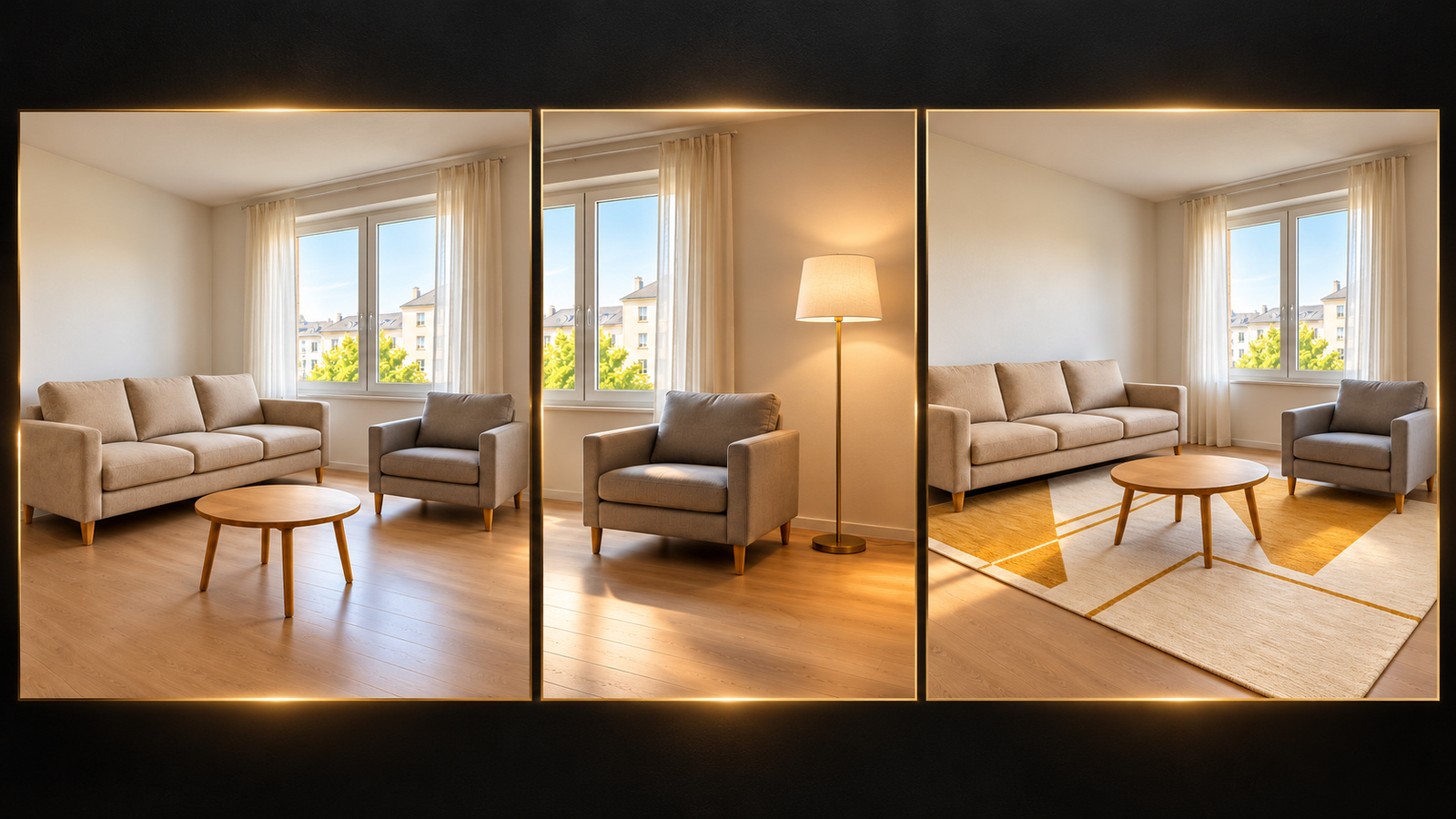
Eyeing a Black Friday sofa but not sure how it will look in your living room? With one photo of your room and the product image, AI can place that piece in your space so you can check the color and style first. This guide covers how to shoot the room, the steps on the DramaCanvas canvas, 8 prompts you can copy, and what each image costs.
It helps you judge style and color. It can't measure. Whether a piece fits is still a job for a tape measure.
What can a furniture preview show, and what can't it?
It shows the piece's color, material and style next to your existing decor, and roughly where it would sit. It can't show exact size, real footprint or whether the walkway stays wide enough.
The AI draws the piece into your photo following its perspective and light. The size only looks plausible and isn't calculated from real dimensions. So use it to choose between colors and styles, not to decide between a two-seater and a three-seater.
How should you photograph your room?
Stand in a corner, hold the phone at chest height, and get the whole wall and floor where the piece will go into the frame.
- Even light: daylight with the curtains open works best. Avoid backlight and a single warm lamp.
- Straight viewpoint: keep the phone level, not tilted up or down. The straighter the perspective, the more natural the placed piece looks.
- Clear the spot: empty the wall or floor area where the sofa or rug will go.
- Use your own home: don't use someone else's room or a showroom photo from the web.
For the product, a white-background shot or a styled photo from the store both work. What matters is that the piece is complete and the color is accurate.
How do you place furniture in your room on the canvas?
Connect your room photo and the product image to a new Image node, insert each one from the @ menu, then pick the model and ratio and generate.
1. Upload both photos
Click Add node in the toolbar at the bottom of the canvas, choose Upload file, select your room photo and the product image together, then click Add to canvas (2). Two Image nodes appear on the canvas.
2. Add a new Image node and connect both
Add another Image node. Drag a line from the room photo's node to it first, then from the product image's node. The first connection becomes Image 1 and the second becomes Image 2.
3. Insert both images with @
In the new node's prompt box, type @ and insert Image 1 and Image 2 from the menu. In the prompts below, [Image 1] means the room and [Image 2] means the furniture. After pasting a prompt, replace each placeholder with the matching reference from the @ menu. Typing the text by hand doesn't link the photo.
4. Choose the model, ratio and resolution
Pick a model under the node (GPT Image 2.5 is a good first choice), open Image settings, and set Size or aspect ratio close to your room photo: 4:3 for a typical landscape phone shot, 16:9 for a wider one. Start with 1K under Resolution.
5. Generate and compare
Check the credits on the Generate button before you click it. When the image is ready, compare it with your original photo: did the walls, doors, windows, floor or existing furniture change? Do the color and shape match the product? If it looks right, save it with Download image.
How do you write a placement prompt?
Formula: which room [Image 1] is + what to keep + which piece [Image 2] is + where it goes and which way it faces + which details of the piece to follow + what must not change + ratio.
| Prompt | What happens | Fix |
|---|---|---|
| "Put this sofa in my home" | No position or keep rule, so the walls and floor may change too | Reference each image with @, name the spot and what to keep |
| "[Image 1] is my living room, keep the walls and windows; [Image 2] is the sofa, place it against the empty left wall" | Clear roles you can check against | Still compare every detail, and don't trust the size |
| "Redecorate my living room in a Scandinavian style, then add the sofa" | The AI will redesign the whole room | Do one thing at a time: add the piece, don't redecorate |
8 Black Friday furniture placement prompts
Each prompt is one generation. After pasting, swap [Image 1] for your room photo and [Image 2] for the product from the @ menu, and set the same ratio under Size or aspect ratio.
01 · Sofa against the wall · 4:3
[Image 1] is my living room. Preserve its walls, doors, windows, floor, existing furniture and camera angle. [Image 2] is the sofa reference. Place one sofa against the empty wall on the left, facing the room center, without blocking doors. Match the room light and contact shadows. Make a 4:3 illustrative preview, with no measurements or text.02 · Floor lamp reading corner · 4:3
[Image 1] is the room. Preserve the walls, windows, floor and existing chair. [Image 2] is the floor lamp. Place one lamp in the open space behind and to the right of the chair, showing its shade and base. Do not invent sockets or cable routing. Keep the daylight. Make a 4:3 placement preview without text or measurement marks.03 · Rug in front of the sofa · 16:9
[Image 1] is the living room. Keep the architecture, sofa, coffee table and camera angle. [Image 2] is the rug reference. Place one rug in front of the sofa, under the coffee table, with the front sofa feet resting on its near edge. Keep it flat on the floor and match the light. Use 16:9, with no text or dimension marks.04 · New dining table · 16:9
[Image 1] is the dining room. Preserve the room and viewpoint, replacing only the existing central table. [Image 2] is the new table reference; follow its tabletop outline, color and leg arrangement. Keep the existing chairs, add none, and keep legs separate. Match the indoor light. Make a 16:9 illustrative preview without text or dimensions.05 · Christmas tree spot · 4:3
[Image 1] is the living room; preserve the architecture and existing furniture. [Image 2] is the decorative tree reference. Place one tree in the empty corner to the right of the window, with its top and base visible, without blocking curtains or walkways. Add no gifts or extra lights. Use the room light and a 4:3 frame, with no text or measurements.06 · Entryway sideboard · 4:3
[Image 1] is the entryway. Preserve doors, walls, baseboards, floor and viewpoint. [Image 2] is the sideboard reference. Place one sideboard against the empty right wall without blocking a doorway. Keep the visible door count and leg positions; add no objects on top. Match light and shadows. Use 4:3 without text or dimensions.07 · Bedside lamp · 4:3
[Image 1] is the bedroom. Keep the bed, bedside tables, windows, walls and viewpoint. [Image 2] is the table lamp reference. Put one lamp on the left bedside table with its base fully supported, adding no second lamp and changing no furniture. Follow the lamp color and outline and the room light. Use 4:3 without text or measurements.08 · Armchair by the window · 16:9
[Image 1] is the living room. Preserve the windows, walls, floor and existing furniture. [Image 2] is the armchair reference. Place one chair in the open space by the window, facing the room center, separate from furniture and clear of the walkway. Follow its back shape, leg count and color. Use the original lighting and 16:9; add no footstool, people, text or measurements.What if the room changes or the furniture looks wrong?
Compare with your room photo and the product image, find what changed, then change one instruction and generate again.
| Problem | Likely cause | Fix |
|---|---|---|
| Wall color, floor or windows changed | The prompt didn't say what to keep | Add "keep the walls, doors, windows, floor and camera angle" |
| Existing furniture moved or vanished | The chosen spot was already taken | Pick an empty spot, or add "keep existing furniture in place" |
| The piece blocks a door or walkway | No placement limits | Add "don't block doors or walkways" |
| Wrong color or shape | The product photo has a color cast, or the detail isn't named | Use a product photo with accurate color and name the color and leg structure |
| The piece floats or cuts into the wall | The photo is tilted, or the spot is vague | Use a straighter photo and say "standing on the floor against the wall" |
What can't this workflow do?
It isn't a tape measure: the size only looks plausible. Measure before you decide whether a piece fits.
Light changes how color looks: the room's lighting affects how the piece's color appears. Trust the product details.
Room details may shift: the AI follows your photo, but corners, baseboards and small objects can change.
Place one piece at a time: adding several at once makes mistakes more likely. Place one, then use the result as your new room photo.
How many credits does one preview cost?
GPT Image 2.5 costs 2 credits per image at 1K, 3 at 2K and 4 at 4K.
Trying each of the 8 setups once at 1K is 16 credits. Re-generating your 2 favorites at 4K for a closer look adds 8 credits. The number on the generate button before you submit is the final cost.
| Model | 1K | 2K | 4K |
|---|---|---|---|
| GPT Image 2.5 | 2 credits / image | 3 credits / image | 4 credits / image |
| Nano Banana 2 | 4 credits / image | 5 credits / image | 6 credits / image |
| Nano Banana 2.1 | 4 credits / image | 5 credits / image | 6 credits / image |
| Nano Banana Pro | 5 credits / image | 6 credits / image | 7 credits / image |
Shopping for clothes too? See our AI clothes changer guide to try a piece on yourself first. Selling rather than shopping? See AI product photography for Black Friday.
Frequently asked questions
Can the image tell me whether the sofa will fit?
No. The furniture's size only looks plausible; it isn't calculated from real measurements. Measure the wall and walkways with a tape measure and compare them with the product dimensions.
What if the AI changes my room?
Say "keep the walls, doors, windows, floor, existing furniture and camera angle" in the prompt, and place only one piece at a time. If it still changes, use a room photo with even light and a straighter viewpoint.
Can I add several pieces at once?
Add one at a time. When you're happy with the result, use the generated image as your new room photo and place the next piece.
How many credits does one preview cost?
With GPT Image 2.5, 2 credits per image at 1K, 3 at 2K and 4 at 4K. Trying all 8 setups in this guide once at 1K is 16 credits. The number on the generate button before you submit is the final cost.
Take one daylight photo of your living room, pick the Black Friday sofa or lamp you've been eyeing, and try it once with GPT Image 2.5 at 1K. If the color and style work, grab a tape measure, check the dimensions, then order.