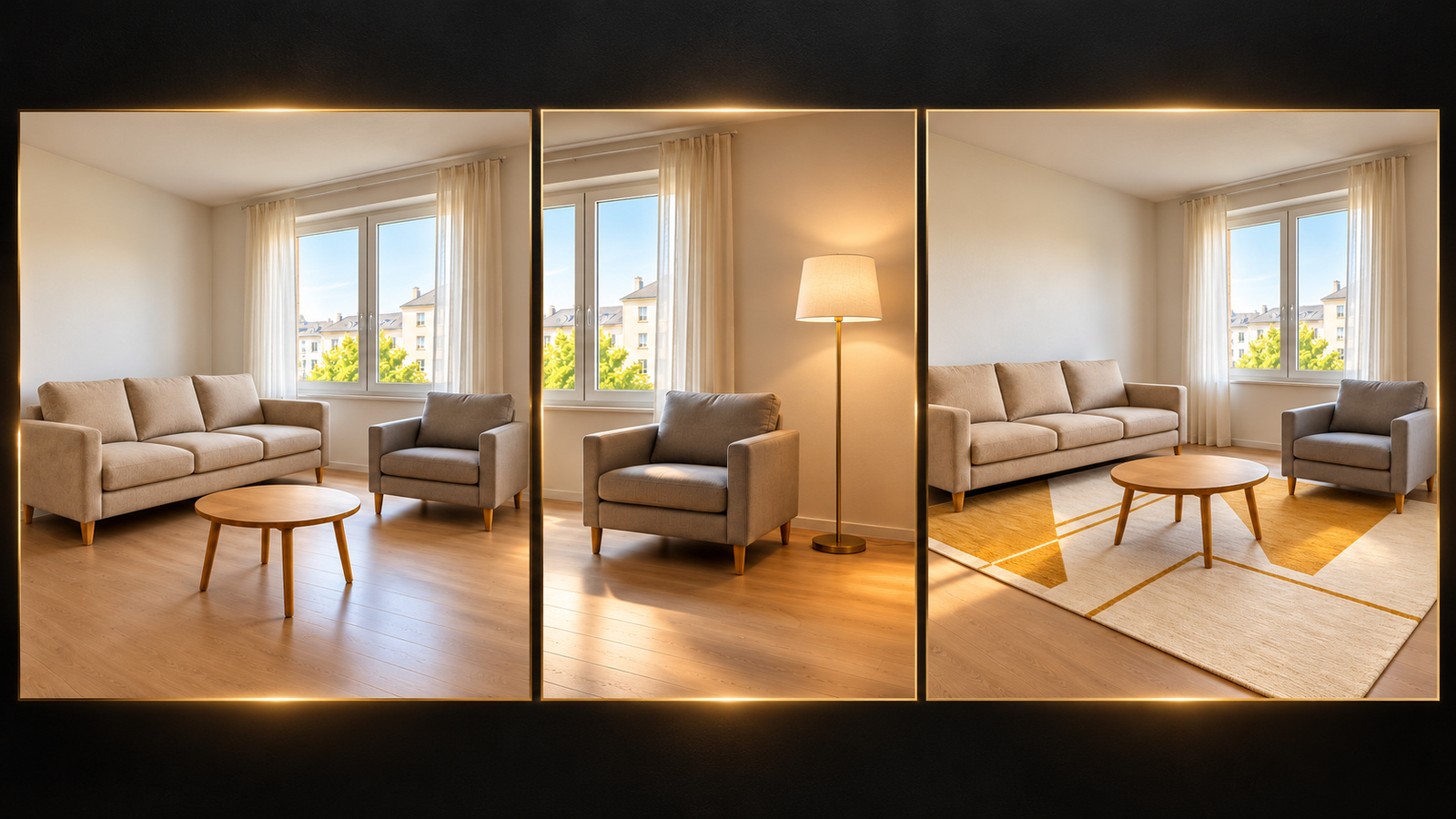
AI Product Photography for Black Friday 2026: Main Images, Lifestyle Shots and Banners From One Photo

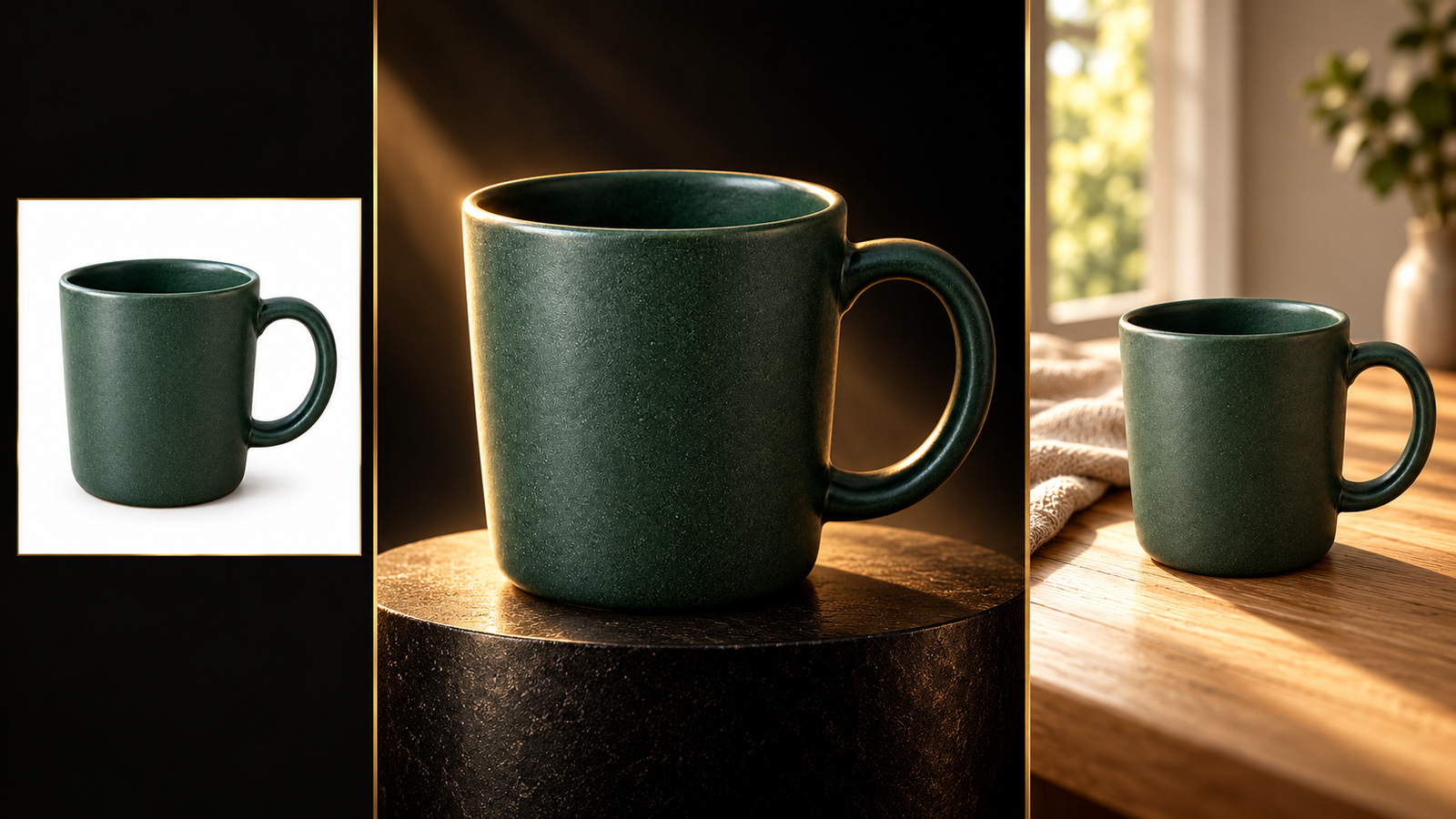
You can build a full Black Friday image set from a single phone photo of your product. Drop that photo onto the DramaCanvas canvas as a reference, then generate one layout at a time: a white-background main image, lifestyle scenes, a vertical cover and a banner. This guide covers the exact steps, which aspect ratio to pick for each placement, 10 prompts you can copy, and what each image costs.
Need more than one photo in the same image, like a product plus a model? The wiring works the same way as in our multi-reference group photo guide. New to the canvas? Start with the infinite canvas guide.
What Black Friday images can you make from one phone photo?
One product photo can produce four common assets: a white-background main image, lifestyle scenes, a vertical cover and a banner background.
The difference is composition, not stretching one image into different sizes. A main image needs the product centered with margins on all sides. A lifestyle shot needs a setting such as a tabletop, a window or a gift box. A vertical cover needs empty space above and below for text. A banner puts the product on one side and leaves the other side for a headline and a button. So each asset gets its own ratio, its own prompt and its own generation.
How should you shoot the product photo?
Get the whole product in frame, keep the color accurate and show the main parts.
- Full outline: don't crop corners, handles or heels. The AI will fill in cropped parts, and what it fills in rarely matches the real thing.
- True color: soft daylight from a window is the safest. Avoid warm bulbs and beauty filters.
- Plain background: a tabletop or a white wall is fine. The less clutter, the easier it is for the AI to tell which object is the product.
- One product per photo: if several products sit together, the AI may blend them.
How do you generate your first product image on the canvas?
Upload the product photo, connect it to a new Image node, reference it with the @ menu, pick the model and ratio, then generate.
1. Upload the product photo
Click Add node in the toolbar at the bottom of the canvas, choose Upload file, select your photo and click Add to canvas (1). An Image node with your original photo appears on the canvas.
2. Add a new Image node and connect it
Add another Image node for the new picture. Drag a line from the connection point on the right of the product photo node to the new node. An image that just sits nearby without a connection is not used as a reference.
3. Reference the photo with @
In the new node's prompt box, type @ and pick Image 1 from the menu. The prompts below use the placeholder [Image 1]. After you paste a prompt, replace [Image 1] with the reference you insert from the @ menu. Typing the text by hand does not link the photo.
4. Choose the model, ratio and resolution
Pick a model under the node (GPT Image 2.5 is a good first choice), open Image settings, choose the ratio for this layout under Size or aspect ratio, and start with 1K under Resolution. All four image models covered here accept reference images (up to 8) and offer 1:1, 4:5, 9:16, 16:9 and 21:9.
5. Generate, compare, download
Before you click Generate, check the credits shown on the button. When the image is ready, put it next to your original photo. If the shape, color and parts all match, save it with Download image. If not, change one instruction and generate again.
Which aspect ratio should you use for each placement?
Match the ratio to the placement: 1:1 for main images, 4:5 for feed posts, 9:16 for vertical covers, 16:9 or 21:9 for banners.
The table below is a composition guide, not any marketplace's official spec. Amazon, Etsy, Shopify themes and TikTok Shop each set their own pixel, background and text rules, and they change. Check the current rules before you publish.
| Asset | Ratio | Composition |
|---|---|---|
| Main listing image, first product image | 1:1 | Product centered, margins on every side |
| Instagram feed post, Pinterest-style card | 4:5 | Product low, space at the top for a headline |
| Reels or TikTok cover, Stories | 9:16 | Product in the middle, space above and below |
| Website hero, store homepage | 16:9 | Product on one side, copy space on the other |
| Wide banner, email header | 21:9 | Product at the edge, large clear area in the middle |
How do you write a product photo prompt?
Formula: reference the photo + what must stay the same + frame and product position + background and light + where to leave space + what must not appear.
| Prompt | What happens | Fix |
|---|---|---|
| "Make a Black Friday product photo" | No reference, position or text rule, so the result is unpredictable | State the reference, position, background and "no text" |
| "[Image 1] is the product, 1:1, white background, centered, no text" | Clear input you can check against | Still compare every detail with the original |
| "Make a poster that says Black Friday 50% OFF" | Text will likely warp and the number may be wrong | Leave empty space and add the copy in a design tool |
10 Black Friday product photo prompts
Each prompt is one generation. After pasting, swap [Image 1] for the reference from the @ menu and set the same ratio under Size or aspect ratio.
01 · White-background main image · 1:1
[Image 1] is the only product reference. Create a square product photo on white, showing only this one product from the reference. Keep its outline, color, openings and the position of visible parts. Product complete and centered with margins on every side, seamless pure white background, soft even light, a light natural shadow underneath. Do not add packaging, accessories, decorations, prices, promo text, any text or watermarks, and do not add features the reference does not show.02 · Everyday tabletop · 4:5
[Image 1] is the product reference. 4:5 vertical lifestyle photo. The complete product sits on the right side of a light wood tabletop next to a small piece of linen, with a soft-focus home window behind it. Keep the product's color, shape and visible parts, soft side light from the window, product as the clear subject, clean wall space at the top left. No text, numbers, prices, logos or watermarks, and no added accessories.03 · Winter window · 4:5
[Image 1] is the product reference. 4:5 vertical. The product stands on a low table in front of an indoor window, with blurred winter tree shadows outside and a little beige knit fabric on the table. Product fully visible, outline and colors unchanged, soft winter side light, the fabric does not cover the product. No text, prices, symbols, trademarks or watermarks, and do not suggest the product keeps you warm.04 · Gift box styling · 1:1
[Image 1] is the product reference. Square holiday product photo. The product stands beside an open, plain beige gift box with a deep red satin ribbon falling naturally. The product is not inside the box, so its size is not misrepresented. Keep the product's outline, color and visible details, soft studio light, product complete and unobstructed. The box is background styling only and must not look like a free gift. No text, prices or watermarks.05 · Dark holiday mood · 16:9
[Image 1] is the product reference. 16:9 banner product photo. The product sits in the right third of the frame against a deep charcoal background, with a soft warm-gold edge light and a few plain geometric paper pieces on the floor. Product complete with a clear outline, color and visible structure unchanged, a flat clean empty area on the left. Holiday shopping mood only, with no prices, discount numbers, letters, logos or watermarks.06 · Vertical cover · 9:16
[Image 1] is the product reference. 9:16 vertical. The product stands on a beige pedestal slightly below the middle of the frame, with a soft light-gray gradient background. Keep the full outline and visible parts, clean empty space at the top and a margin at the bottom, warm white soft light. Do not add more products or free gifts. No text, prices, discount numbers, trademarks or watermarks.07 · Material close-up · 1:1
[Image 1] is the product reference. Square close-up that only enlarges the materials and surfaces already visible in the reference. Keep the edge structure and original color, and do not invent the back, ports, internal parts or unseen textures. Neutral gray background, soft side light, no strong glare hiding the surface. No text, prices, logos or watermarks.08 · Holiday sideboard · 16:9
[Image 1] is the product reference. 16:9 horizontal home product photo. The complete product sits in the middle of an ordinary sideboard, with only blurred pine branches and plain paper stars in the distance. Decorations do not touch the product, warm beige wall behind. Keep the product's shape, color and visible parts, soft evening indoor light. No text, prices, discount numbers or watermarks, and no other products or brand marks.09 · Minimal paper set · 4:5
[Image 1] is the product reference. 4:5 vertical product photo. The complete product stands in front of a beige surface, with two low deep-red paper arches behind it as a holiday set, not overlapping the product. Keep the product's original color, shape and visible details, soft studio light, empty space at the top. No text, prices, trademarks or watermarks, and the paper arches must not merge into the product.10 · Wide banner background · 21:9
[Image 1] is the product reference. 21:9 extra-wide banner background. The complete product sits in the right quarter of the frame, with a large flat warm-gray area across the left and center and a blurred deep-red ribbon behind the product on the right. Keep the product's outline, colors and visible parts, soft side light and a light contact shadow. Do not duplicate the product or add accessories. No text, numbers, prices, logos or watermarks.What if the label, color or parts change?
Compare with the original, find exactly what changed, then change one instruction and generate again.
| Problem | Likely cause | Fix |
|---|---|---|
| The product turned into something else | The reference wasn't inserted, or the photo is cluttered | Re-insert the photo from the @ menu, or use a cleaner photo |
| Color is off | The scene lighting is too warm or too dark | Add "keep the reference color" and ask for soft white light |
| Extra accessories or a second product | The scene description mentions related items | Remove those words and add "no accessories, only one product" |
| Logo or label text is warped | Image models struggle with small exact text | Use a clean image and add branding in a design tool |
| Part of the product is cut off | The ratio fights the product position | Use a wider ratio, or add "product complete, margins on every side" |
If reflective, transparent or small-print packaging still fails after a few careful comparisons, switch to a real photo shoot or manual compositing. Don't list an image you know is wrong.
How many credits does one product image cost?
GPT Image 2.5 costs 2 credits per image at 1K, 3 at 2K and 4 at 4K.
One 1K test of each of the 10 prompts above is 20 credits. Re-generating your 3 favorite layouts at 4K adds 12 credits. The number on the generate button before you submit is the final cost.
| Model | 1K | 2K | 4K |
|---|---|---|---|
| GPT Image 2.5 | 2 credits / image | 3 credits / image | 4 credits / image |
| Nano Banana 2 | 4 credits / image | 5 credits / image | 6 credits / image |
| Nano Banana 2.1 | 4 credits / image | 5 credits / image | 6 credits / image |
| Nano Banana Pro | 5 credits / image | 6 credits / image | 7 credits / image |
What can't this workflow do?
It can't guarantee a perfect match with the real product: the AI follows your photo, but small parts, textures and exact proportions can shift. Check every detail before you list.
It can't write accurate text for you: prices, discounts, logos and ingredient lists belong in a design tool.
A ratio is not a marketplace spec: this guide gives composition ratios only. Check each marketplace's current pixel, background and text rules before you publish.
It can't recover angles you didn't shoot: if the photo has no back view, any generated back is a guess and shouldn't be used as a detail image.
Frequently asked questions
Is one phone photo of my product enough?
It is enough to start. One sharp, complete photo with accurate color works as a reference for white-background and lifestyle shots. Anything the photo doesn't show, such as the back, ports or small print, is a guess and shouldn't be used as a real product detail.
If I write 9:16 in the prompt, will the image come out vertical?
Not necessarily. Set the ratio under Size or aspect ratio in Image settings. The ratio in the prompt only guides composition, so keep the two the same.
Can the AI generate my logo and label too?
It's better not to. Text and logos in generated images often come out warped. Generate a clean image without text, then add your exact logo, price and promo copy in a design tool.
How many credits does one product image cost?
GPT Image 2.5 costs 2 credits per image at 1K, 3 at 2K and 4 at 4K. Nano Banana 2.1 costs 4 at 1K, 5 at 2K and 6 at 4K. The number shown on the generate button before you submit is the final cost.
Shoot one clean product photo, then try the main image, a lifestyle scene and a vertical cover with GPT Image 2.5 at 1K. Re-generate the layouts that work at 2K or 4K, and add your price and copy in a design tool.