AI Clothes Changer for Black Friday 2026: Virtual Try-On With One Photo Before You Buy (8 Prompts)

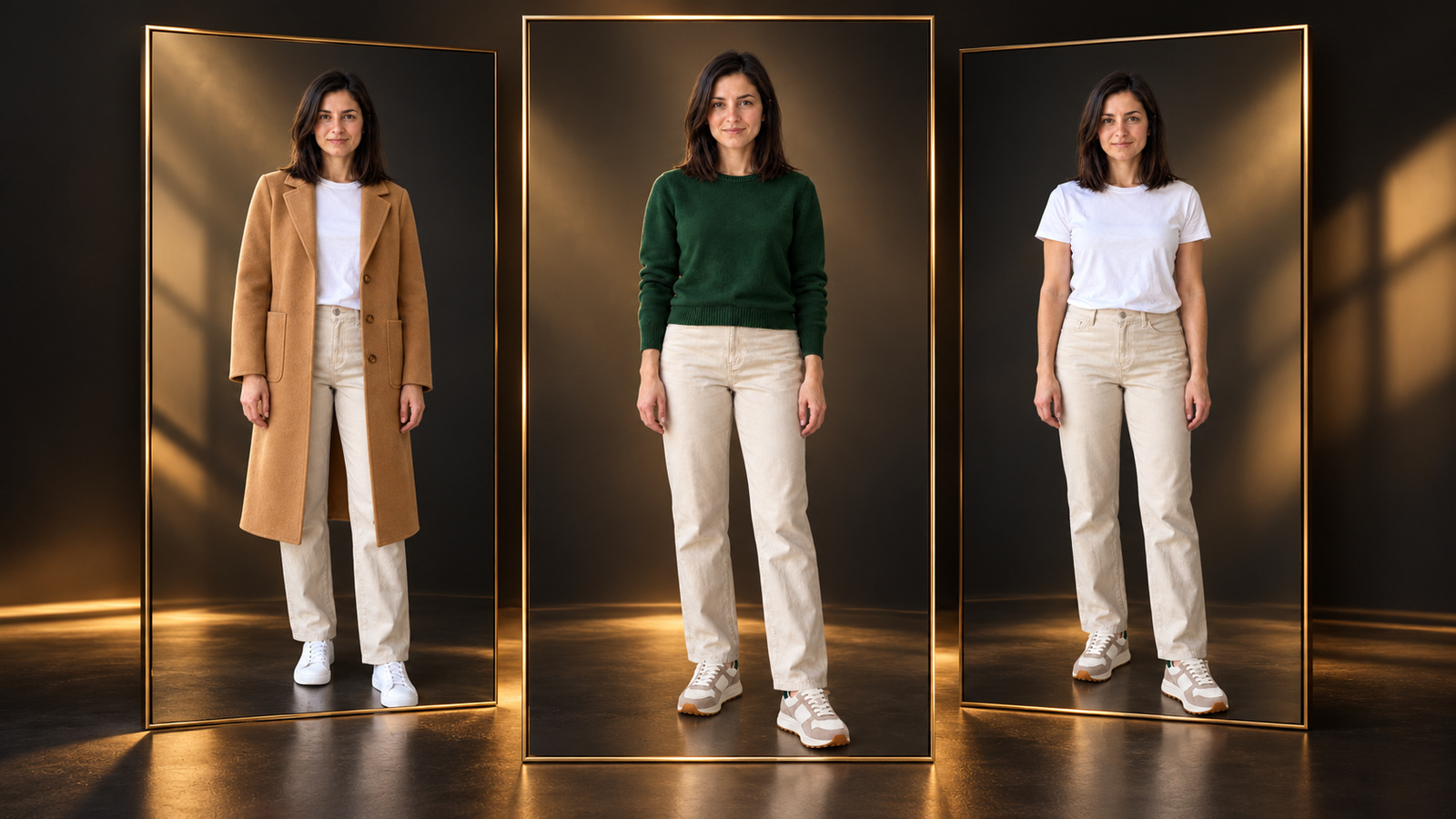
Eyeing a Black Friday coat but not sure the color or cut will suit you? With one photo of yourself and the product image, AI can show that piece on you before you check out. This guide covers how to take the photo, the steps on the DramaCanvas canvas, 8 prompts you can copy, and what each image costs.
It helps you judge color, style and how an outfit comes together. It can't tell you whether a size will fit. That's worth saying up front.
What can an AI clothes changer show, and what can't it?
It shows the item's color, style and how it looks with the rest of your outfit. It can't show whether the size fits, how thick the fabric is or exactly where the hem falls.
The AI draws the item onto your photo and follows your body shape, so the clothes almost always look like a perfect fit. That is exactly why you shouldn't pick a size from it. Treat it as a color and styling preview, not a fitting-room mirror.
How should you take your photo?
Stand facing the camera in even light, with the area you're trying on fully visible.
- Tops, jackets and bags: a waist-up photo is enough. Keep your shoulders and arms uncovered.
- Pants, long dresses and shoes: use a full-length photo with both feet in frame.
- Wear simple, close-fitting clothes: a bulky coat makes it hard for the AI to read your real shape.
- Keep the background plain: less clutter means less chance of it blending into the clothes.
- Only use your own photo: don't upload photos of friends, family or celebrities.
For the product, a flat-lay or a model shot from the store both work. What matters is that the item is complete and the color is accurate.
How do you put the clothes on yourself on the canvas?
Connect your photo and the product image to a new Image node, insert each one from the @ menu, then pick the model and ratio and generate.
1. Upload both photos
Click Add node in the toolbar at the bottom of the canvas, choose Upload file, select your photo and the product image together, then click Add to canvas (2). Two Image nodes appear on the canvas.
2. Add a new Image node and connect both
Add another Image node. Drag a line from your photo's node to it first, then from the product image's node. The first connection becomes Image 1 and the second becomes Image 2.
3. Insert both images with @
In the new node's prompt box, type @ and insert Image 1 and Image 2 from the menu. In the prompts below, [Image 1] means you and [Image 2] means the product. After pasting a prompt, replace each placeholder with the matching reference from the @ menu. Typing the text by hand doesn't link the photo.
4. Choose the model, ratio and resolution
Pick a model under the node (GPT Image 2.5 is a good first choice), open Image settings, and set Size or aspect ratio to match the prompt: 4:5 for waist-up, 9:16 for full-length. Start with 1K under Resolution.
5. Generate and compare
Check the credits on the Generate button before you click it. When the image is ready, compare it with your original photo: has your face, hair or body changed? Do the color, neckline and length match the product? If it looks right, save it with Download image.
How do you write a try-on prompt?
Formula: who [Image 1] is + what to keep + which item [Image 2] is + what to swap + which details of the item to follow + what must not change + ratio.
| Prompt | What happens | Fix |
|---|---|---|
| "Put this outfit on me" | It's unclear which image is you, so your face may get swapped too | Reference each image with @ and name the one item to swap |
| "[Image 1] is me, keep my face and body; [Image 2] is the coat, swap only the coat" | Clear roles you can check against | Still compare every detail |
| "Make me look slimmer in it" | The AI will reshape your body | Drop the request and add "do not change my body proportions" |
8 Black Friday try-on prompts
Each prompt is one generation. After pasting, swap [Image 1] for your photo and [Image 2] for the product from the @ menu, and set the same ratio under Size or aspect ratio.
01 · Long coat · 4:5
[Image 1] is my own portrait. Keep my face, hair, body proportions, pose and background. [Image 2] is the coat reference. Show me wearing it open, keeping my original inner layer and lower clothing, with no added belt. Follow the coat color, collar, pockets and visible length; do not reshape my body. Use 4:5 with no text or added logos.02 · Crew-neck sweater · 4:5
[Image 1] is me. Keep my face, hair, body and pose. [Image 2] is the crew-neck sweater reference. Replace only the top, following its neckline, cuffs, color and visible knit texture. Keep my lower clothing and background. Let the sweater hang naturally; do not slim my body or add jewelry. Use 4:5 with no text or new logos.03 · Holiday dress · 9:16
[Image 1] is my full-length photo. Keep my face, hair, body proportions, stance and background. [Image 2] is the dress reference. Replace my outfit with that dress, following its neckline, length, color and visible folds. Do not alter my waist or leg length, or add slits or transparent fabric. Show the feet and hem in 9:16, without text or new logos.04 · Cropped puffer jacket · 4:5
[Image 1] is my photo. Keep my face, hair, body, pose and background. [Image 2] is the cropped puffer jacket reference. Show me wearing it, following its quilting, sleeve length, collar and color. Keep my lower clothing; add no hood, fur trim or belt. Do not shrink my body to suggest volume. Use 4:5 with no text or new logos.05 · Straight-leg pants · 9:16
[Image 1] is my full-length photo. Keep my face, top, body proportions and stance. [Image 2] is the straight-leg pants reference. Replace only the pants, following the waistband, leg width, color and visible length. Keep my shoes. Do not lengthen my legs, narrow my waist or invent details. Use 9:16 with feet visible, no text or measurements.06 · Sneakers · 9:16
[Image 1] is my full-length photo. Keep my face, body, clothes, stance and background. [Image 2] is the shoe reference. Replace only my shoes, following their upper color, sole outline and visible laces. Keep both feet naturally grounded without reshaping them to fit. Add no extra shoes. Use 9:16, with no text or new logos.07 · Shoulder bag · 4:5
[Image 1] is my photo. Keep my face, hair, body, clothes and background. [Image 2] is the shoulder bag reference. Place one bag naturally on my right shoulder, with the whole bag visible and the strap outside my body. Follow its outline, color and visible hardware; add no logos or pockets. Use 4:5, with no text or prices.08 · Layered cardigan · 4:5
[Image 1] is my photo. Keep my face, hair, body, inner layer and lower clothing. [Image 2] is the cardigan reference. Show it worn open over my inner layer, following its button count, neckline, color and sleeve length. Do not reshape my body or add jewelry. Keep my pose and background. Use 4:5 without text, new logos or prices.What if your face, body or the clothing details change?
Compare with your photo and the product image, find what changed, then change one instruction and generate again.
| Problem | Likely cause | Fix |
|---|---|---|
| The face looks like someone else | The two references are swapped, or the face is small in the photo | Re-insert the references so [Image 1] is you; use a photo with a clearer face |
| Your body looks slimmer or taller | The prompt asks for a flattering look | Remove it and add "do not change my body proportions" |
| Your pants changed too | The prompt didn't say "only" | Add "swap only the top, keep my lower clothing" |
| Wrong color or neckline | The product photo has a color cast, or the detail isn't named | Use a product photo with accurate color and name the neckline and color |
| Shoes or hem are cut off | A waist-up ratio was used | Switch to 9:16 with a full-length photo |
What can't this workflow do?
It can't judge size or fit: the clothes follow your body in the image, so you can't tell if they run large or small. Use the size chart and your own measurements.
Fabric is only an approximation: thickness, drape and sheen may differ from the real thing. Trust the product details.
Your face and body may not match exactly: the AI follows your photo, but details can shift. Keep these images for yourself rather than posting them as real photos.
Use only your own photo: making outfit images of someone else needs their consent.
How many credits does one try-on cost?
GPT Image 2.5 costs 2 credits per image at 1K, 3 at 2K and 4 at 4K.
Trying each of the 8 outfits once at 1K is 16 credits. Re-generating your 2 favorites at 4K for a closer look adds 8 credits. The number on the generate button before you submit is the final cost.
| Model | 1K | 2K | 4K |
|---|---|---|---|
| GPT Image 2.5 | 2 credits / image | 3 credits / image | 4 credits / image |
| Nano Banana 2 | 4 credits / image | 5 credits / image | 6 credits / image |
| Nano Banana 2.1 | 4 credits / image | 5 credits / image | 6 credits / image |
| Nano Banana Pro | 5 credits / image | 6 credits / image | 7 credits / image |
Selling rather than shopping? See AI product photography for Black Friday to turn one product photo into listing images. For several people in one image, the wiring is the same as in our multi-reference group photo guide.
Frequently asked questions
Can an AI clothes changer tell me which size to buy?
No. The image shows color, style and how the piece goes with your outfit. It can't show fit. Check the product's size chart against your own measurements.
Can I try clothes on a friend's or a celebrity's photo?
Don't. Use only your own photo. Making outfit images of someone else needs their consent.
What if my face or body changes?
Say "keep my face, hair, body proportions and pose" in the prompt, and remove words like "slimming" or "flattering". If it still changes, use a front-facing photo with even light and generate again.
How many credits does one try-on cost?
With GPT Image 2.5, 2 credits per image at 1K, 3 at 2K and 4 at 4K. Trying all 8 outfits in this guide once at 1K is 16 credits. The number on the generate button before you submit is the final cost.
Take one front-facing photo in even light, pick the Black Friday coat you've been eyeing, and try it once with GPT Image 2.5 at 1K. If the color and styling work, check the size chart before you order.