
Nano Banana Pro: What It Is, How to Use It, and Ready-to-Copy Prompts

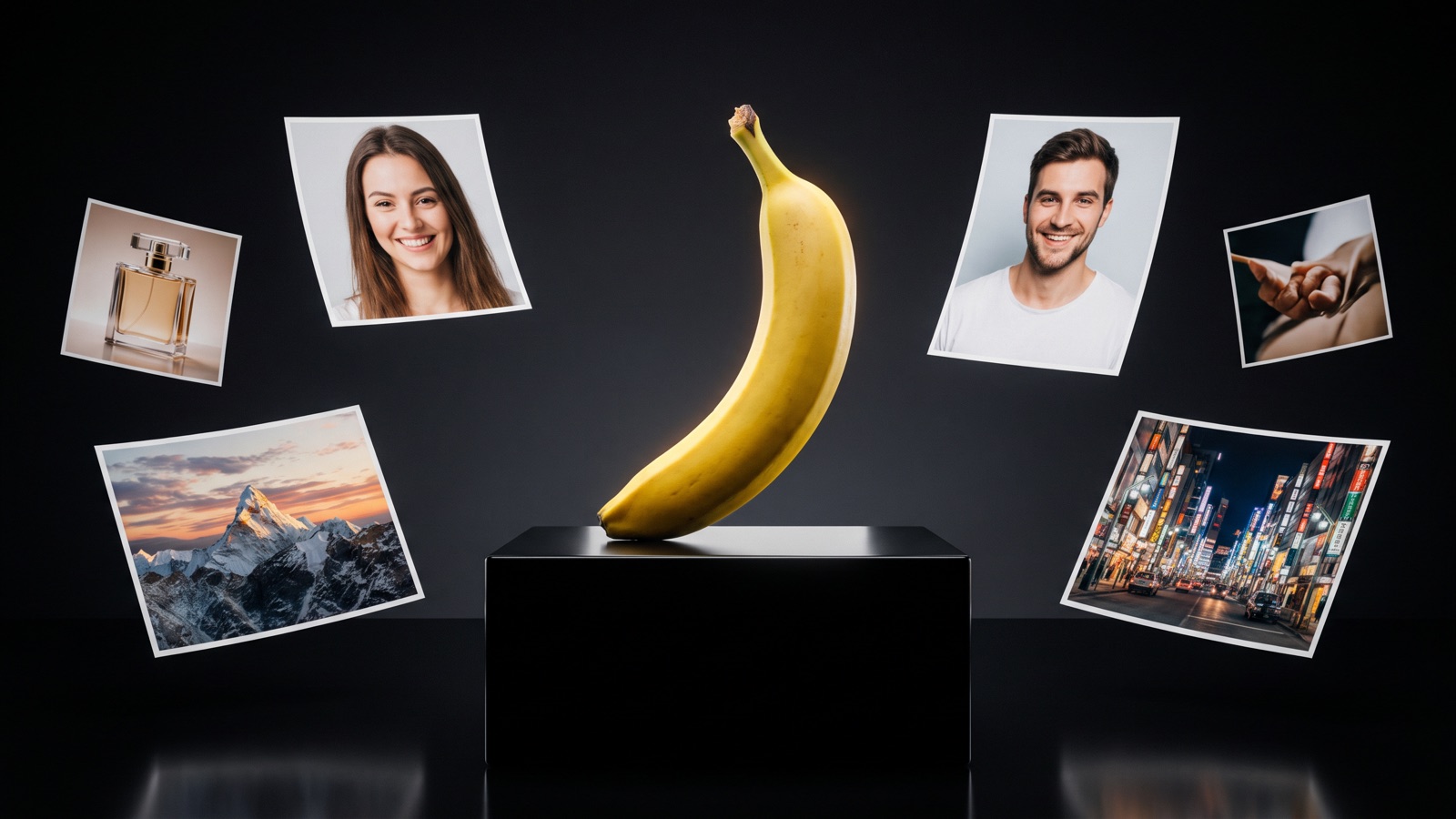
Developed by Google, Nano Banana Pro is recognized for its in-image typography and multi-image reference reasoning ([Google DeepMind](https://deepmind.google/models/gemini-image/pro/)). In DramaCanvas, you can select Nano Banana Pro directly on Image nodes to generate character reference sheets, short drama keyframes, promotional posters with clear text, and product stills. This guide outlines the exact node parameters available in the workspace, walks through a five-step canvas workflow, and provides ten prompts you can copy immediately.
What is Nano Banana Pro, who developed it, and what are its key capabilities?
Nano Banana Pro is an image generation model developed by Google as part of its Gemini family ([Google DeepMind](https://deepmind.google/models/gemini-image/pro/)). Built on Gemini 3, the model is designed to create and edit images with precision and control.
Google's official documentation highlights three primary capabilities:
In-image text rendering
Nano Banana Pro generates sharp, legible text for posters, signs, packaging, and diagrams ([Google AI Studio](https://ai.google.dev/gemini-api/docs/image-generation)). Enclosing short phrases in double quotation marks gives the clearest results.
Multi-image reference reasoning
The model accepts reference images alongside text prompts. Creators can provide a character portrait or style reference to guide the output image.
Natural language instruction following
Rather than requiring comma-separated keyword tags, the model follows descriptive English sentences detailing subjects, lighting, materials, and camera perspectives.
In DramaCanvas, you can select Nano Banana Pro directly from the model selector on any Image node without managing external cloud accounts or developer API keys.
Which Nano Banana settings can you configure on DramaCanvas?
When you create an Image node on DramaCanvas, the prompt panel and inspector provide direct controls tailored to the active model. DramaCanvas hosts several models from the Nano Banana family, each configured for distinct production requirements.
The table below breaks down the options available across the Nano Banana lineup on DramaCanvas (as of October 2026):
| Model Name in UI | Output Resolution | Supported Aspect Ratios | Reference Image Inputs | Specifications |
|---|---|---|---|---|
| Nano Banana Pro | 1K | Common ratios like 1:1, 9:16, and 16:9; the node shows the full list before you generate. | Supported (wire upstream Image nodes) | Settings appear before generation |
| Nano Banana 2.1 | 1K, 2K, 4K | 11 aspect ratios | Up to 8 reference images | Asynchronous generation |
| Nano Banana 2 | 1K, 2K, 4K | Available ratios appear before generation | Supported | Settings appear before generation |
| Nano Banana | 1K, 2K, 4K | Available ratios appear before generation | Supported | Generate and edit |
Here is how each parameter functions on DramaCanvas:
- Resolution (Quality): On DramaCanvas, Nano Banana Pro is offered at 1K. For 2K or 4K, pick Nano Banana 2.1. - Aspect ratio: Common ratios like 1:1, 9:16, and 16:9; the node shows the full list before you generate. Use 9:16 for vertical short drama keyframes, 16:9 for horizontal video keyframes, and 1:1 for profile avatars or product stills. - Reference images: Wire one or more upstream Image nodes into the left input port of a Nano Banana Pro node. The model analyzes facial features, color palettes, and garment cuts from the connected inputs to inform the output image. - Generation count: Choose between 1 and 15 variations per generation request in the prompt panel. - Post-generation toolbar: Hovering over an image reveals editing tools: "Inpaint" for local adjustments, "Crop" for framing, "Resize" for dimensions, "Lighting" for directional presets, and "Grid Split" for separating composite results.
How do you use Nano Banana Pro on the infinite canvas?
Building visual assets with Nano Banana Pro follows a structured five-step process on the infinite canvas. Each step uses clear toolbar actions and node connections.
1. Add an Image node to the canvas
Click "Add node" on the bottom toolbar, select "Creative nodes", and choose "Image". Alternatively, right-click any empty canvas area, select "Add node", and choose "Image".
2. Select Nano Banana Pro in the model selector
Click on the newly created Image node to open its floating prompt panel. In the model dropdown menu, navigate to image models and click Nano Banana Pro.
3. Connect reference images if using your photo as a reference
To use your own photo as a reference, click "Upload file" under "Import assets" on the bottom toolbar. Upload your portrait to one Image node, then drag a connection wire from its right output anchor to the left input anchor of a second Image node where you type your prompt.
4. Set aspect ratio and type your prompt
In the prompt panel, select your aspect ratio (such as 9:16 for vertical short drama frames or 1:1 for avatars). Type your prompt in natural English prose, enclosing any words you want rendered inside double quotation marks.
5. Click Generate and review your asset
Click the upward arrow submission button at the bottom of the prompt panel to generate, then inspect facial details and text spelling. Use "Inpaint" on the floating toolbar to adjust details, or drag a wire to a downstream Video node running Seedance 2.5 or Kling 3.0 to animate the frame.
For a comprehensive guide to navigating the canvas, creating frames, and using keyboard shortcuts, visit our infinite canvas beginner guide.
How do you write effective prompts for Nano Banana Pro?
Writing prompts for Nano Banana Pro is different from prompting older open-source models. The model responds best to structured natural prose describing physical properties: materials, optical lenses, real light sources, and spatial layouts.
Use this five-part formula to structure your prompts:
[Subject & Core Identity] + [Wardrobe / Props / In-Image Text in Quotes] + [Environment & Spatial Setting] + [Lighting & Atmosphere] + [Camera Lens & Medium Details]Here is how each component directs the model:
- Subject & Core Identity: State who or what the primary focus is, referencing connected upstream inputs when providing a reference. - Wardrobe, Props & Text: Detail specific garments, accessories, or objects, enclosing required in-image words in quotation marks like "DARK ROOM" or "SPECIAL ROAST". - Environment & Setting: Describe background elements, wall textures, and depth layers to prevent flat compositions. - Lighting & Atmosphere: Specify real lighting hardware or natural light, such as "on-camera direct flash", "golden hour side sunlight", or "soft 3200K tungsten lamp". - Camera Lens & Medium: Name real focal lengths and photographic mediums, such as "85mm portrait lens at f/2.0" or "35mm color negative film snapshot".
Individual generation results vary across runs and model checkpoints, so test prompts with single stills before scaling production.
The table below contrasts vague prompt phrasing with specific, structured descriptions:
| Use Case | Vague Prompt (Less Effective) | Specific Prompt (Recommended) | Additional Information Provided to the Model (as of October 2026) |
|---|---|---|---|
| Executive Headshot | Professional businessman in an office, high quality | Waist-up portrait of an executive in a charcoal wool blazer and white shirt, seated in a modern wood-paneled office. North window light, 85mm lens at f/2.8. | Specifies subject attire, room materials, directional light angle, lens focal length, and depth of field. |
| Short Drama Keyframe | Detective walking in the rain, moody movie shot | Medium full shot of a detective in a wet beige trench coat walking down an alleyway at night. Wet asphalt reflecting neon signs, 35mm framing. | Replaces mood words with concrete reflections, clothing wetness, neon hues, and wide camera framing. |
| Promotional Poster | Coffee shop sale poster with words | Vertical poster for a coffee shop. Steaming pour-over mug on an oak counter. Centered above, white serif text reads "ROASTED DAILY". Dark wall backdrop, directional side spotlight. | Defines the exact phrase in quotation marks, font classification, layout position, background space, and lighting angle. |
| Luxury Product Photo | Perfume bottle on a table, studio lighting | Macro photograph of a square amber glass perfume bottle with a black metal cap on a dark slate rock. Water mist on right edge, directional spotlight, 100mm lens. | Provides bottle geometry, glass color, cap material, pedestal texture, atmospheric mist, and focal length. |
| Holiday Visual | Spooky Halloween costume photo | Snapshot of a person in an olive green canvas jacket and plain white ceramic mask on a wooden porch. Direct on-camera flash casting wall shadow, glowing jack-o'-lantern, 35mm grain. | Describes exact garment cut, mask material, direct flash physics, background shadow, and period film grain. |
The following ten prompt templates are organized into five production categories. When generating personal avatars or business portraits with reference images, only use photographs of yourself or assets you own; never upload photos of others without their explicit permission. Always inspect the rendered lettering immediately after generation, as image models can occasionally misplace characters.
1. Executive studio portrait (using reference likeness)
Best for: Professional LinkedIn profile photos, corporate team directories, and formal executive bios where you connect your own photo as a reference node.
Use the connected photo as the face reference and keep the same face. A polished waist-up corporate portrait of the subject wearing a tailored navy blue wool blazer over a crisp white collared shirt. Neutral light gray studio backdrop, soft diffused key light, gentle rim light, 85mm portrait lens at f/2.8, natural skin texture.Variations to try: Swap tailored navy blue wool blazer for charcoal cashmere crewneck sweater, or change the backdrop from light gray studio backdrop to a blurred contemporary office interior with floor-to-ceiling windows.
2. Casual outdoor golden-hour lifestyle portrait
Best for: Personal social media avatars, lifestyle editorial profiles, and authentic creator portfolio images.
Use the connected photo as the face reference and keep the same face. A natural medium close-up portrait of the subject wearing an oatmeal-colored knit cardigan over a gray t-shirt, standing on a tree-lined city sidewalk. Warm golden-hour backlight filtering through maple leaves, soft forward fill, 50mm lens at f/1.8, creamy background blur.Variations to try: Swap oatmeal-colored knit cardigan for a vintage brown suede jacket, or replace the city sidewalk with a rustic wooden park bench beside a quiet lake.
3. Neo-noir detective crime drama keyframe
Best for: Establishing the opening shot of an urban mystery, police procedural, or psychological thriller series in a vertical 9:16 aspect ratio.
A vertical 9:16 medium shot of a focused female detective in a dark gray wool overcoat, standing under a flickering streetlamp on an empty wet city street at night. Background features soft neon signs in crimson and amber, cool rain mist on asphalt, directional rim lighting, 35mm wide-angle framing.Variations to try: Swap focused female detective for a weary male courier holding an unmarked envelope, or change the street setting to a dimly lit subway station platform with tile walls.
4. High-stakes corporate boardroom confrontation keyframe
Best for: Opening frames of modern business thrillers, romance dramas, and family succession stories where emotional tension drives the scene.
A dramatic 16:9 two-shot inside an executive boardroom at twilight. On the right, a business executive in a charcoal pinstripe suit stands with hands on a glass conference table; on the left, an opposing partner sits in silhouette. Panoramic window shows an illuminated city skyline, warm spotlights, 35mm lens.Variations to try: Swap the boardroom for a luxury penthouse living room beside a marble fireplace, or replace the pinstripe suit with a minimalist black evening gown.
5. Artisan cafe promotional poster with text layout
Best for: Coffee shops, bakeries, and boutique retail stores announcing seasonal products or morning hours on social feeds and printed window cards.
A vertical 3:4 promotional poster for a specialty coffee shop. In the center, a ceramic cup of flat white coffee rests on an oak table next to roasted beans. Centered in the upper negative space, bold dark brown typography reads "SLOW ROAST". Morning window sunlight, plaster wall backdrop.Variations to try: Swap "SLOW ROAST" for "FRESH BAKED", or replace the coffee cup with a rustic sourdough loaf on a linen napkin.
6. Indie thriller film teaser poster with headline typography
Best for: Short film title cards, festival submissions, and fiction book covers requiring moody typography integrated into the image plane.
A vertical 2:3 teaser poster. A lone figure in silhouette stands at the end of a misty suspension bridge in thick dawn fog. Centered across the lower third in weathered white block lettering, bold typography reads "NO EXIT". Desaturated cyan palette, cold morning light, 35mm film still.Variations to try: Swap "NO EXIT" for "THE LAST SHIFT", or replace the suspension bridge with a desert highway stretching toward distant stormy mountains.
7. Luxury glass perfume bottle product still life
Best for: High-end fragrance marketing, cosmetics landing pages, and luxury packaging concept reviews.
An eye-level studio product photograph of a rectangular amber glass perfume bottle with a brass collar and crystal cap, resting on a dark slate rock. Fine water mist drifts across the edge, directional spotlight focused on the liquid interior creating refractions, charcoal backdrop, 100mm macro lens at f/4.0.Variations to try: Swap amber glass perfume bottle for a cylindrical frosted glass bottle with a matte black pump, or change the dark slate rock to a warm travertine stone pedestal.
8. Minimalist botanical skincare dropper bottle
Best for: Organic cosmetic brands, beauty e-commerce banners, and skincare routine showcases.
A top-down 45-degree angle product photograph of a matte green glass serum bottle with a white rubber dropper top, resting on a round beige ceramic tile beside a fresh rosemary sprig. Diffused softbox lighting from the upper left, neutral cream backdrop, clean reflections, 90mm lens aesthetic, sharp labels.Variations to try: Swap the rosemary sprig for a fresh slice of green cucumber, or replace the round beige ceramic tile with a shallow rippling pool of clean clear water.
9. Vintage direct-flash Halloween costume portrait
Best for: Retro holiday avatars, festive party invitations, and autumn social media posts. For extended costume workflows and video animation tips, check our Halloween AI prompt guide.
A candid 35mm color flash photo of a person wearing an oversized dark brown leather jacket and plain white ceramic mask, standing against a dark wooden porch wall at dusk. Harsh on-camera direct flash creating black drop shadows, glowing carved jack-o'-lantern on a wooden crate, 35mm snapshot grain.Variations to try: Swap plain white ceramic mask for a pointed black wool witch hat, or replace the dark wooden porch with a rustic hay bale in an autumn pumpkin patch.
10. Cozy evening Christmas market portrait
Best for: Holiday greeting cards, seasonal family avatars, and December promotional banners. For winter scenes and retail flyers, explore our Christmas AI prompt guide.
A warm eye-level portrait of a smiling person wearing a burgundy knit beanie, cream turtleneck sweater, and tartan scarf, holding a steaming red ceramic mug with both hands. European outdoor holiday market backdrop with glowing golden fairy lights, pine garlands, soft falling snowflakes, 85mm portrait lens at f/2.0.Variations to try: Swap burgundy knit beanie for a dark green shearling coat, or replace the ceramic mug with a paper parcel tied with brown twine and a cinnamon stick.
When should you switch from Nano Banana Pro to another model?
While Nano Banana Pro is well-suited for high-precision stills, character references, and typography posters, specific production demands call for alternative models on the canvas:
- Switch to a video model when you need movement: Nano Banana Pro produces still images. Drag its right output wire into a Video node running Seedance 2.5 for atmospheric audio scenes, Kling 3.0 for high motion, or MiniMax H3 for facial close-ups. - Pick Nano Banana 2.1 for 2K or 4K: On DramaCanvas, Nano Banana Pro is offered at 1K. For 2K or 4K, pick Nano Banana 2.1. - Switch to GPT Image 2.5 for transparent backgrounds: To isolate a character or prop with no background, select GPT Image 2.5 and enable "Transparent background". - Switch to Nano Banana for generation and editing: If your workflow calls for both image generation and editing within the same model, switch to Nano Banana.
Frequently asked questions
Can I upload my own photo as a reference in Nano Banana Pro?
Yes. Click "Add node", select "Image", upload your portrait to one Image node, and wire its output anchor to a second Image node where you select Nano Banana Pro. In your prompt, instruct the model to use the connected photo as the face reference, while specifying new clothing, environments, or lighting. Never upload photos of other people without their permission.
Can Nano Banana Pro generate long paragraphs of text on posters?
It can attempt longer text, but image models produce the most reliable results with short phrases of one to four words enclosed in quotation marks, such as "SPECIAL ROAST" or "OPEN DAILY". For dense event schedules or long paragraphs, generate clean negative space on the canvas first and typeset the final copy in a dedicated graphic design tool.
Why does Nano Banana Pro output at 1K resolution on the canvas?
On DramaCanvas, Nano Banana Pro is offered at 1K. For 2K or 4K, pick Nano Banana 2.1.
How do I animate a keyframe from Nano Banana Pro into a video clip?
Click "Add node" on the bottom toolbar, select "Video" under "Creative nodes", and drag a wire from your Image node's output anchor to the Video node's input anchor. In parameters, set the still as "Start frame", pick `Seedance 2.5` or `Kling 3.0`, enter a camera motion prompt like "slow push-in", and click generate.
How do I fix a flawed hand or minor facial artifact on a generated image?
Hover over the image and click "Inpaint" on the floating toolbar. Paint over the flawed area, type a correction instruction like "clean natural hand with five relaxed fingers", and submit the instruction and painted mask to generate an edited image. **Next step:** Click "Add node" on the bottom toolbar, select "Image" under "Creative nodes", choose Nano Banana Pro from the model dropdown, and paste any prompt above to render your first frame. To connect multiple shots into a sequence, continue to our infinite canvas beginner guide. **Sources** - [Google DeepMind: Gemini 3 Pro Image – Nano Banana Pro](https://deepmind.google/models/gemini-image/pro/) - [Google AI Studio: Image Generation with Gemini API](https://ai.google.dev/gemini-api/docs/image-generation)