Halloween Short Film Ideas 2026: Make a 60-Second AI Horror Short

You can produce a complete 60-second narrative horror short for Halloween on DramaCanvas by structuring six cause-and-effect shots on an interactive storyboard rather than hoping a single prompt generates a coherent movie. Instead of settling for a static costume photo or wrestling with inconsistent character faces across random video clips, linking a project script to verified first frames gives you director-level control over every beat. In about twelve minutes, you will get a ready-to-copy 6-shot script, production-ready image and motion prompts, a verified credit budget, and timeline assembly steps for TikTok, Instagram Reels, X, and YouTube Shorts.
What kind of story works best for a 60-second AI horror short?
A successful 60-second vertical short requires one recognizable protagonist, a single enclosed location, one unsettling phenomenon, and a comedic twist. Cramming multiple character dialogues or sweeping location changes into a vertical video prompt overwhelms generative engines and leads to erratic visual jumps.
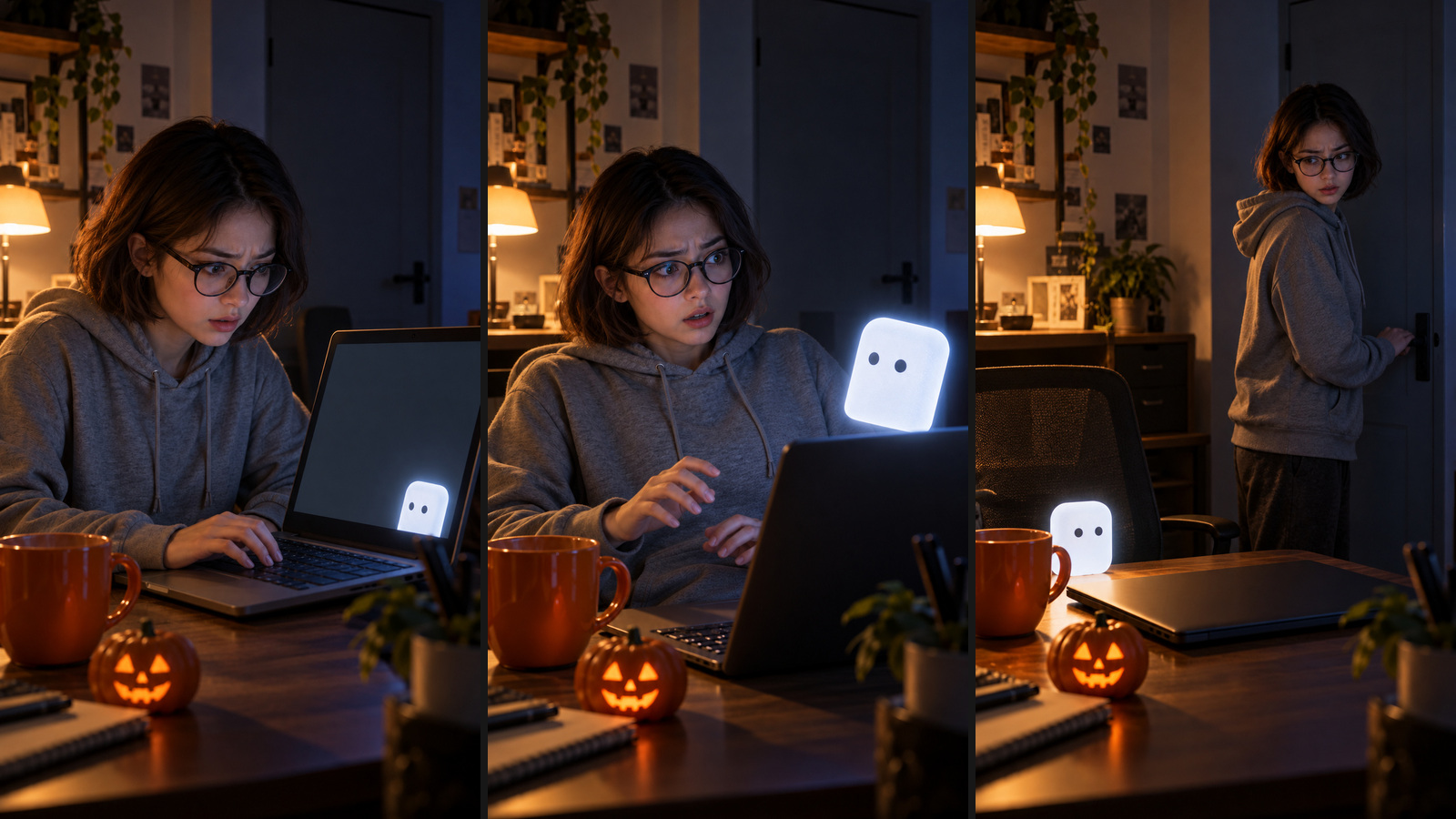
Our featured scenario, titled The Dialog Box Wants to Clock Out, centers on an adult worker finishing late-night edits in a dark office decorated with an orange mug and a small glowing jack-o'-lantern. When an eerie white notification box with two black dot eyes glides off the laptop screen and hovers onto the desk, fear turns into shared exhaustion as the entity requests coffee and snaps the laptop shut.
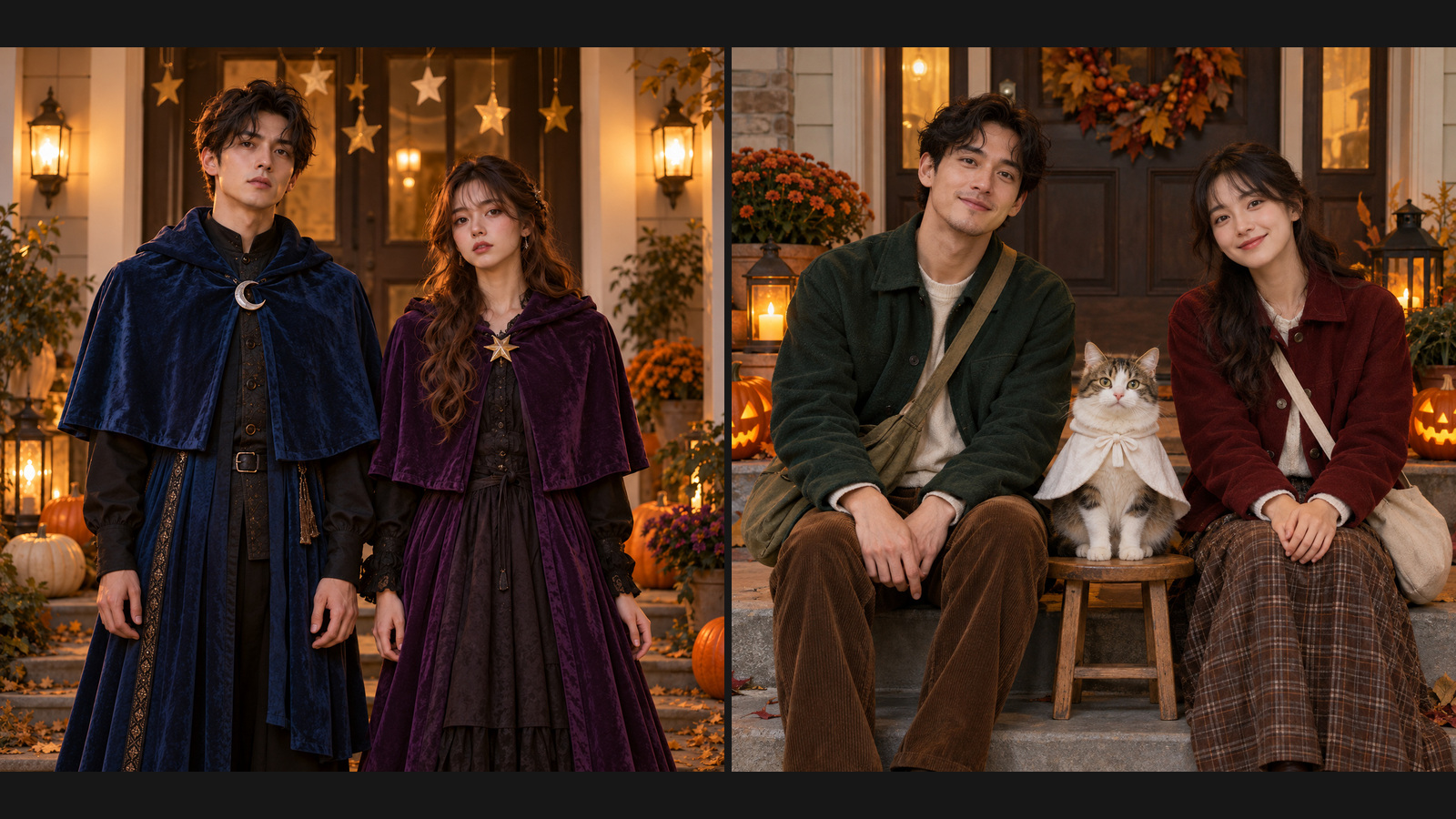
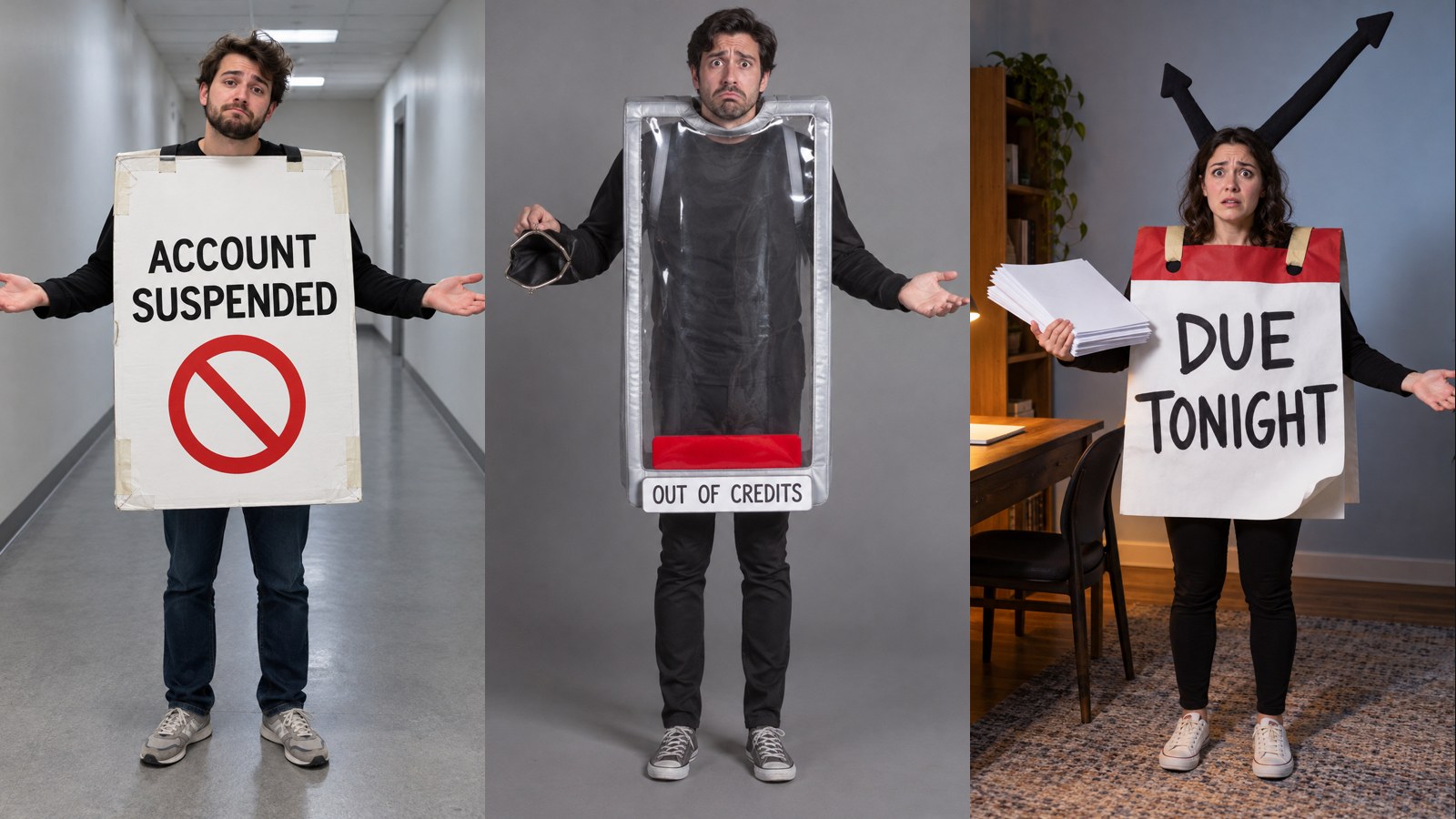
If you prefer static character portraits before committing to motion, explore our guide on scary Halloween costume photos. For creators looking to design promotional title cards or release announcements alongside their short, see our companion roundup of Halloween poster ideas, or browse curated atmosphere references in our list of Halloween AI prompts.
How do you set up your script and canvas before splitting shots?
Place your narrative foundation on the canvas before touching video settings, because DramaCanvas requires project settings and an assigned art style before it allows automated shot breakdown. Setting up your story foundation takes less than two minutes.
1. Create your narrative nodes
Click "Add node" on the bottom toolbar, open the creation menu, and add a "Text" node alongside a "Storyboard" node. Drag the connecting handle from your Text node to the Storyboard node to establish it as your project setting.
2. Define character traits and project style
Open the Text node and enter your core premise, character attributes, and visual atmosphere. Explicitly define your protagonist as an adult worker with ear-length dark brown hair, round wire-rimmed glasses, and a grey hoodie in an office illuminated by a warm desk lamp and cool screen light.
3. Lock stylistic constraints
Specify that the scene contains no gore, no legible on-screen typography, and no brand logos. Missing project style attributes will cause the system to halt storyboard generation, so confirm your art style before requesting a scene breakdown.
How do you turn a 6-shot script into 6 vertical video clips?
Turning your narrative into finished video clips follows a five-step path from table entry to timeline export.
1. Populate the six-shot storyboard table
Click "Select text model" on the Storyboard node, enter your script prompt, and click "Generate storyboard", then confirm the action in the prompt dialog. If you prefer to bypass text model charges and maintain exact narrative control, click "+ Add first shot" or "Add row" to paste our verified six-shot table directly into the fields.
2. Switch input mode to first frames
Navigate to "Video input mode" inside your Storyboard node settings and select "Generate first frame first". Open the node's action menu and choose "Create 6 image nodes", which creates a corresponding image node on the canvas for each shot.
3. Generate and inspect your starting images
Click "Generate unfinished storyboard images" to render your visual starting points. Inspect each image to verify that the protagonist's glasses, hoodie color, orange mug, and the blank white dialog box remain consistent across all six compositions.
4. Confirm first frames and render video clips
Click "Confirm first frame and generate" on each inspected shot. The interface prevents video generation if a first frame is missing or unverified, allowing you to catch issues before generating video.
5. Assemble on the timeline and export
Click "Merge 6 videos" or select "Timeline editor" to open the multi-track timeline dialog. Arrange shots 01 through 06 sequentially, trim edge pauses to lock in your exact 60-second runtime, and click "Export finished film" to download the finalized MP4 file.
What prompts should you use for first frames and motion?
Effective video generation separates static spatial layout from temporal movement. Your image prompt establishes the set, character appearance, and props, while your motion prompt dictates a single physical progression without camera acrobatics.
Use this structured formula for your starting frames:
[Framing & 9:16 Vertical Ratio] + [Subject Appearance & Wardrobe] + [Enclosed Setting & Time] + [Prop Placement & Handoff Points] + [Lighting Contrast] + [Tone & Negative Constraints]Apply this focused formula for your motion instructions:
[Camera Framing & Single Move] + [Primary Subject Action] + [Prop or Entity Reaction] + [Elements to Maintain from First Frame] + [Negative Motion Constraints]Review these prompt patterns to avoid common rendering mistakes:
| Prompt Input | Editorial Assessment | Root Pitfall & Suggested Fix |
|---|---|---|
| "Make a terrifying Halloween horror short about overtime." | Missing shots, framing, and narrative timing. | Break the scene into six concrete cause-and-effect shots with fixed camera positions. |
| "Protagonist leans back as the notification box floats smoothly onto the desk beside the cup, static camera." | Clear, verifiable single-action description. | Reliable starting structure; verify first frame before generating so you can catch issues before creating the video. |
| "The screen displays a detailed overdue error message while the character explains their code out loud." | Demands precise typography and lip synchronization simultaneously. | Remove on-screen lettering and spoken lines from the prompt; add titles and audio during post-production. |
Use this complete six-shot production table to configure your storyboard rows:
| Shot | Duration | Framing | Visual & Story Beats | Dialogue & Audio | First Frame Prompt | Motion Prompt |
|---|---|---|---|---|---|---|
| 01 (00:00–00:10) | 10s | Medium shot | Protagonist types late at night; a blank white box appears on screen. | "Just one last revision." / Keyboard clatter followed by a chime alert. | See Shot 01 code block below. | See Shot 01 code block below. |
| 02 (00:10–00:20) | 10s | Close-up | Hand moves mouse; the box follows the arrow cursor, then stops to look back. | "Why won't you close?" / Subtle mouse gliding sound. | See Shot 02 code block below. | See Shot 02 code block below. |
| 03 (00:20–00:30) | 10s | Medium close-up | Protagonist leans back; the box drifts off the screen surface onto the desk. | "Are you... working overtime too?" / Soft electric hum. | See Shot 03 code block below. | See Shot 03 code block below. |
| 04 (00:30–00:40) | 10s | Medium shot | Protagonist slides the orange mug over; the box nods in recognition. | "Coffee?" / Ceramic base scraping across wood. | See Shot 04 code block below. | See Shot 04 code block below. |
| 05 (00:40–00:50) | 10s | Medium close-up | The box hovers over the laptop and presses the lid shut; protagonist grins. | "You're more considerate than my boss." / Distinct laptop click. | See Shot 05 code block below. | See Shot 05 code block below. |
| 06 (00:50–01:00) | 10s | Wide shot | Protagonist waves goodbye from the door; the box dims beside the pumpkin. | "Don't send notifications tomorrow either." / Footsteps and faint chime. | See Shot 06 code block below. | See Shot 06 code block below. |
If you are using an AI text model to populate your Storyboard node automatically, copy this instruction prompt into your script field:
Generate an editable 6-shot storyboard script based on my exact breakdown. Title: The Dialog Box Wants to Clock Out. Total duration: 60 seconds across six 10-second shots in 9:16 vertical orientation. Maintain shot number, duration, framing, visual beat, dialogue, image prompt, and motion prompt without altering the narrative. Feature only one adult worker with ear-length dark brown hair, round wire-rimmed glasses, and a grey hoodie, alongside one textless white glowing dialog box with two dot eyes. Keep the dark laptop, orange mug, lit jack-o'-lantern, and closed door consistent. Dialogue is for post-production reference only. No gore, no readable software typography, and no commercial logos.Shot 01 prompt set
Copy these prompts into the image and motion fields for Shot 01:
9:16 vertical frame, realistic small office late at night. Adult overtime worker with ear-length dark brown hair, round wire-rimmed glasses, and a grey hoodie sits before a dark laptop with hands resting on the keyboard. An orange mug and a small lit jack-o'-lantern sit on the desk, closed door in background. In the lower-right corner of the laptop screen, a soft-white glowing rounded rectangular dialog box displays no text, featuring only two simple black dots as eyes. Warm desk lamp and cool screen glow, medium shot, clear facial features, absurd and non-gory, no readable text, trademarks, or watermarks.Single continuous shot, static camera. Protagonist slowly types on the keyboard, stops hands, and glances down toward the lower-right corner of the screen. The white dialog box gently pulses once. Maintain first frame character, clothing, desk items, and lighting without cutaways, extra characters, or generated text.Shot 02 prompt set
Copy these prompts into the image and motion fields for Shot 02:
9:16 vertical frame, realistic close-up of a laptop screen in a dark office. The screen shows a plain dark grey background, a standard white arrow cursor, and a soft-white glowing rounded rectangular dialog box with no text, showing only two black dots as eyes. In the foreground, an adult hand in a grey hoodie sleeve rests on an optical mouse, with the rim of an orange mug visible at desk edge. Cool screen glow, no real application interface, no readable text, trademarks, or watermarks.Static close-up on the screen. The hand slowly moves the mouse to the left; the white dialog box slides smoothly across the screen following the white arrow, pauses, and its two black dot eyes slowly turn toward the camera. Hand does not pass through the screen, no cutaways, no added popups or text.Shot 03 prompt set
Copy these prompts into the image and motion fields for Shot 03:
9:16 vertical frame, realistic small office late at night. Adult overtime worker with ear-length dark brown hair, round wire-rimmed glasses, and a grey hoodie leans back slightly behind the desk. Hovering just in front of the dark laptop screen is a soft-white glowing rounded rectangular dialog box with two black dot eyes, clean geometric shape, no arms or legs. Orange mug nearby, small lit jack-o'-lantern, closed door in background, mixed warm and cool light, medium close-up, no readable text, trademarks, or watermarks.Slow camera push-in. The textless white box preserves its clean rectangle shape and floats forward in a straight line off the screen edge, coming to rest beside the orange mug without intersecting the character or cup. Protagonist leans back slightly, preserving facial likeness and glasses, no cutaways, no generated text.Shot 04 prompt set
Copy these prompts into the image and motion fields for Shot 04:
9:16 vertical frame, realistic small office late at night. Adult overtime worker with ear-length dark brown hair, round wire-rimmed glasses, and a grey hoodie sits behind the laptop, one hand lightly resting against an orange mug. To the right of the mug hovers a soft-white rounded rectangular dialog box with two black dot eyes and no limbs. Small lit jack-o'-lantern on desk, closed door behind, medium shot, warm lamp and cool monitor light, puzzled yet relaxed expression, no readable text, trademarks, or watermarks.Static camera. Protagonist slowly slides the orange mug a short distance to the right across the desk surface and releases it. The white box bobs up and down once like a gentle nod. Mug remains upright, no extra fingers generated, character and lighting remain stable, no cutaways, no generated text.Shot 05 prompt set
Copy these prompts into the image and motion fields for Shot 05:
9:16 vertical frame, realistic small office late at night. Hovering directly above an open dark laptop is a soft-white glowing rounded rectangular dialog box with two black dot eyes. Adult overtime worker with ear-length dark brown hair, round wire-rimmed glasses, and a grey hoodie sits behind the desk with both hands lifted off the keyboard. Orange mug and lit jack-o'-lantern on the right, closed door behind, medium close-up, warm light, comical and non-gory, no readable text, trademarks, or watermarks.Static medium close-up. The white box slowly lowers downward, causing the laptop lid to smoothly fold shut underneath it. Protagonist keeps hands raised, eyes widening in surprise before settling into a warm smile. Laptop hinge structure stays solid, single closing action, no extra limbs, no cutaways, no generated text.Shot 06 prompt set
Copy these prompts into the image and motion fields for Shot 06:
9:16 vertical frame, realistic small office wide shot late at night. Adult overtime worker with ear-length dark brown hair, round wire-rimmed glasses, and a grey hoodie stands by the closed door on the right, looking back toward the desk. On the desk to the left, the dark laptop sits closed beside the orange mug, the lit jack-o'-lantern, and the soft-white rounded rectangular dialog box with two black dot eyes and no limbs. Warm desk lamp, calm and comedic, no readable text, trademarks, or watermarks.Static wide shot. Protagonist pauses at the door, raises a hand in a slow parting wave, then lowers it without opening the door. The white box sways gently side to side once as its glow dims, while the jack-o'-lantern remains lit. Maintain subject and prop positions, no cutaways, no added characters or generated text.What should you do when characters morph, props distort, or text glitches?
Troubleshoot rendering artifacts shot by shot rather than regenerating your entire timeline. When an issue occurs, you only need to redo that shot, saving both credits and editing time.
Character likeness shifts between shots
Connect a single approved character reference image to each first-frame image node before generating. Maintain strict keyword repetition across prompts: "ear-length dark brown hair, round wire-rimmed glasses, and a grey hoodie." If minor facial shifts persist, adjust your framing so Shot 02 highlights the screen and hand while Shot 06 captures a wide silhouette.
Objects distort during complex movements
Video models struggle when a character and an object move in conflicting directions simultaneously. If Shot 05 bends the laptop screen abnormally while closing, simplify the motion prompt to focus solely on the downward lid rotation with a static camera. Avoid instructions requiring hands to cross through or wrap around geometric props.
Garbled lettering appears on the notification box
Generative video models frequently produce distorted lettering when asked to simulate system error popups. Strip all references to words, error codes, and dialog titles from your prompts, describing the box exclusively as a "soft-white glowing rounded rectangular dialog box with two black dots as eyes." Overlay crisp, readable typography during post-production using your preferred video editor.
How many credits does a 60-second AI short film cost?
A 60-second short film composed of six 10-second shots requires an arithmetic baseline budget between 420 and 720 credits for video depending on your selected video engine, plus 24 credits for starting frames (totaling 444 to 744 credits). Verified on October 28, 2026, these figures represent public per-second catalog rates and serve as planning estimates rather than guaranteed final checkouts.
| Shot Number | Target Duration | Seedance 2.0 Mini 480p (7 credits/s) | Seedance 2.0 Mini 720p (10 credits/s) | Wan 3.0 720p (12 credits/s) | Kling 4 720p (7 credits/s) |
|---|---|---|---|---|---|
| Per shot | 10 seconds | 70 | 100 | 120 | 70 |
| Video subtotal | 60 seconds | 420 | 600 | 720 | 420 |
| Plus 6 first frames (Nano Banana 2, 4 credits each) | 24 credits | 444 | 624 | 744 | 444 |
| Best for | — | Testing the workflow, low-cost trial and error | Balance of quality and cost | Richer visual detail | Action performance, select as needed |
First-frame image generation uses Nano Banana 2 at 1K resolution, priced at 4 credits per image on the public rate sheet (6 × 4 = 24 credits). This budget excludes character exploration sheets, automated script splitting requests, sound design, and regenerations.
Alternative resolution budgets derived from public rates include Wan 3.0 at 480p (6 credits/s, totaling 360 credits for video) or 1080p (24 credits/s, totaling 1,440 credits), and Kling 4 at 1080p (12 credits/s, totaling 720 credits). Dynamic model availability and aspect ratio options should be verified directly in your workspace.
Always check the dynamic credit calculation displayed directly on the submission button before confirming any generation request.
What are the production limits of this 60-second AI workflow?
While this structured workflow maintains narrative progression and comedic timing, current generative video engines have concrete operational boundaries you must accommodate.
Strict personal identity retention is not guaranteed
Generating shots from text prompts and starting frames approximates character likeness but does not lock real-world facial identity across multiple clips. If your project demands an exact human match across all angles, you must use real-life video capture or manual post-production face replacement.
Exact typography requires external software
Models cannot reliably render specific interface words, operating system notifications, or brand fonts inside moving video. Attempting to force readable sentences into video prompts leads to visual gibberish; keep all computer screens graphic and textless, adding your typographic overlays during post-production.
Complex continuous interactions will distort
Actions involving multiple interlocking steps—such as opening a door while speaking and holding a coffee mug—frequently collapse into anatomical glitches. Limit each 10-second segment to one clear physical transformation, such as sliding a cup or lowering a screen lid.
Speech, audio tracks, and burned subtitles require post-processing
Generative video models do not reliably synchronize mouth shapes to script dialogue or output clean multi-track sound effects. Furthermore, while DramaCanvas provides timeline subtitle tools, export failures can fall back to raw video without burned text, so always inspect exported files or assemble dialogue and burned captions in dedicated video editing software.
Frequently asked questions
Can I skip generating first frames and jump straight to video?
No, this image-to-video workflow requires generating and approving the first frame of each shot to lock character appearance and desk layout before creating video clips. Direct text-to-video generation recalculates the room, protagonist, and props from scratch every time, causing dramatic visual shifts between consecutive shots.
Why is the short film structured into exactly six shots?
Six 10-second shots create a natural narrative arc with a setup, escalation, and punchline while keeping individual motion tasks simple enough to troubleshoot without wasting credits. Breaking a 60-second narrative into smaller chunks ensures that a failed motion render only costs you a single 10-second redo rather than an entire minute of video credits.
Does DramaCanvas automatically generate voiceover and subtitles?
No, video generation models do not guarantee accurate lip sync or on-screen typography. Treat dialogue and sound effects as post-production elements to add after downloading your video clips. DramaCanvas allows timeline subtitle editing and SRT import/export, but you should verify your final export to ensure captions burned correctly.
Does this workflow guarantee an exact 60-second final runtime?
No, submitting six 10-second generation requests does not guarantee an exact sixty-second export. Rendered clips can contain unusable startup frames, unexpected visual drift, or minor frame-rate variances. Arrange your assets in the timeline editor, trim unwanted heads and tails, and verify total project duration before clicking "Export finished film".
What should you do if the canvas price differs from the budget table?
Always trust the live credit cost shown on the submit button before confirming your request. Dynamic model availability, custom resolution tiers, and server pricing updates take precedence over estimated budget tables. If the live cost exceeds your planned budget, recalculate your six-shot total before clicking generate.
Start by locking your character traits in a Text node, approve each of your six first frames before generating motion, and assemble your clips on the timeline editor to trim your final 60-second cut. If you are creating your first short film, use Nano Banana 2 for first frames and Seedance 2.0 Mini 480p for video to test the entire workflow first, then switch to higher-definition models once you are satisfied with the result. Open DramaCanvas today to add your first Storyboard node and produce your Halloween short film.