AI Virtual Gift Try-On for Christmas 2026: Preview Gifts in a Room or Outfit Before You Buy (8 Prompts)

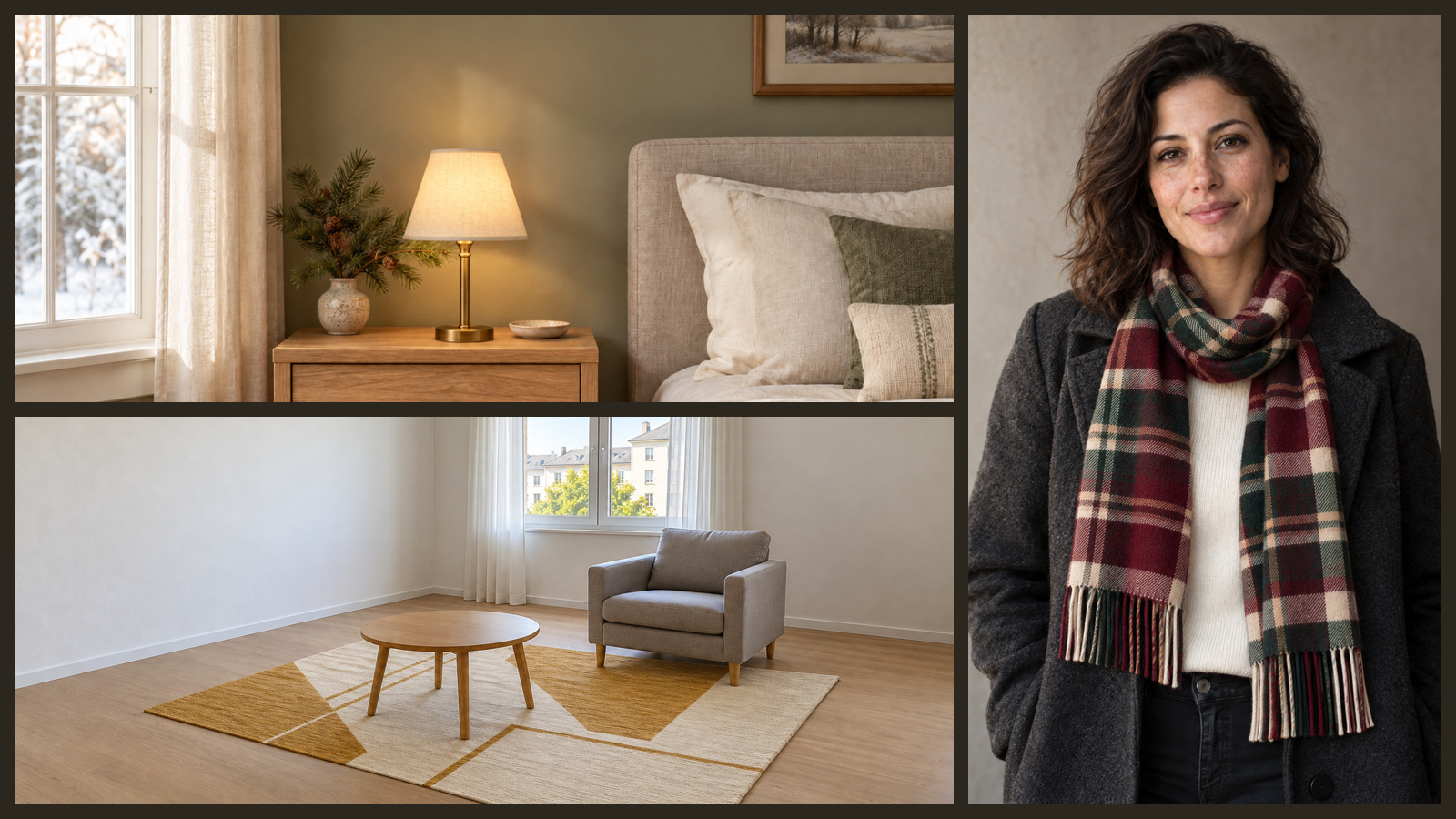
Picking a Christmas gift like an accent lamp, throw pillow, sweater, or scarf often comes with hesitation about how it will look in someone's home or on their frame. By connecting a photo of the recipient's space or an authorized portrait alongside the product image on the DramaCanvas canvas, you can preview the item in place before spending money. In about ten minutes, this guide walks through photo preparation, canvas wiring, 8 copy-ready prompts, credit costs, and the limits of AI previews.
It helps you judge color harmony, material interplay, and placement styling. It cannot verify dimensions, clearance, or fabric sizing.
What can an AI gift preview show, and what can't it?
An AI gift preview shows how a product's color palette, material texture, and general silhouette harmonize with an existing room or personal style. It cannot verify physical measurements, check weight tolerances, assess electrical wiring, or confirm clothing fit.
The AI synthesizes the gift into your reference image based on visual balance and perspective cues rather than physical dimensions. Because the system arranges items to appear natural, a previewed sweater will drape neatly and a previewed armchair will look properly scaled even if the actual items run small or oversized.
Use this workflow to choose between two scarf colors or decide if a bronze lamp coordinates with existing wood tones. Do not use it to decide whether a table lamp fits on a tight nightstand or whether a sweater runs small.
How should you prepare the room, portrait, and product photos?
Take clear, evenly lit photos that show the target area unobstructed, and confirm you have explicit permission before using anyone's likeness. Never scrape social media photos of friends or family to create surprise previews. A gift surprise does not replace consent, and using unauthorized photos compromises personal privacy.
For room gifts, stand squarely facing the target spot with your camera held at chest height. Keep daylight balanced, avoid heavy backlight, and leave the surface or floor area where the gift will rest clear of clutter.
For wearable gifts, use a waist-up portrait for scarves and sweaters, or a full-length shot for footwear and long coats. Wear simple, fitted clothing so the model can accurately map garments without distorting your natural frame.
For the gift reference, clean studio shots on plain backgrounds work best. If you need to isolate items from busy store graphics, consult our product photo preparation guide.
How do you place or try on a gift on the canvas?
Connect both the target photo and the gift product image into a single Image node, tag each source through the @ menu, and set your canvas parameters before clicking generate.
1. Upload both reference photos
Click Add node in the bottom toolbar, select Upload file, select your room or portrait photo alongside the product image, and click Add to canvas (2). Two separate Image nodes will appear on the canvas.
2. Add a new Image node and draw connections
Click Add node again and choose Image to create a generation node. Drag a connection line from your room or portrait node to the new node first, then drag a second line from the product node. The first connected source registers as Image 1, and the second registers as Image 2.
3. Tag both images using the @ menu
Click into the prompt field of the generation node, type @, and select Image 1 followed by Image 2 from the pop-up menu. In the prompts below, [Image 1] represents the room or person and [Image 2] represents the gift. Replace each bracketed placeholder with the actual mention tag from the menu, because plain text brackets do not connect the files.
4. Set the model, aspect ratio, and resolution
Select GPT Image 2.5 in the model dropdown below the node, then open Image settings from the settings summary below the prompt (for example 1:1 · 1K). Set Size or aspect ratio to match your base photo composition: 4:3 or 16:9 for room gifts, and 4:5 for upper-body try-ons. Under Resolution, select 1K for initial tests.
5. Generate and inspect the output
Review the credit cost printed on the ↑ button, then click it to run the node. Once rendered, compare the output side by side against both originals to verify that room architecture or facial features remained unchanged. If the composite meets your standards, click Download to save the file.
How do you write a gift preview prompt?
A gift preview prompt follows a strict formula: identify the base image role, state what to keep unchanged, identify the gift product, define the exact placement, list the gift details to replicate, and forbid modifications.
| Approach | What happens | Drawback / pitfall | Actionable fix |
|---|---|---|---|
| "Add this gift into the room" | The AI guesses which image is which and may restyle the entire space | Background walls, lighting, and existing furniture get rewritten | Name [Image 1] as the base room and specify that all walls and furnishings remain untouched |
| "Show my friend wearing this sweater" | The model may replace the face or alter body proportions | Unauthorized likeness modifications and distorted body shapes | State that [Image 1] is an authorized portrait, command strict preservation of face and build, and replace only the top garment |
| "Make the gift look festive with holiday lights" | The generator introduces random holiday decor that masks the actual gift | You cannot evaluate the actual item cleanly against the room | Keep the prompt focused strictly on the single gift item without adding extra holiday props |
8 Christmas gift preview prompts
Each prompt below represents a self-contained generation on the DramaCanvas canvas. Remember to delete [Image 1] and [Image 2] after pasting, insert both references via the @ menu, and align the node aspect ratio under Size or aspect ratio.
01 · Table lamp on side table · 4:3
[Image 1] is an authorized room photo. Keep the wall color, window, floor, side table, and existing lighting. [Image 2] is the sole table lamp gift reference. Place one lamp flat on top of the existing side table, preserving its visible lampshade silhouette, base geometry, and color scheme. Do not alter the side table, add electrical cords, or draw dimension lines. Use 4:3 aspect ratio with no text or logos.02 · Holiday throw pillow on sofa · 4:3
[Image 1] is an authorized living room photo. Keep the sofa fabric, cushion structure, wall, and ambient daylight. [Image 2] is the throw pillow gift reference. Place one pillow naturally against the right corner of the sofa, matching its visible outline, pattern, and color tone. Do not restyle the rest of the sofa or add extra holiday decorations. Use 4:3 aspect ratio with no text or brand marks.03 · Wool area rug before couch · 16:9
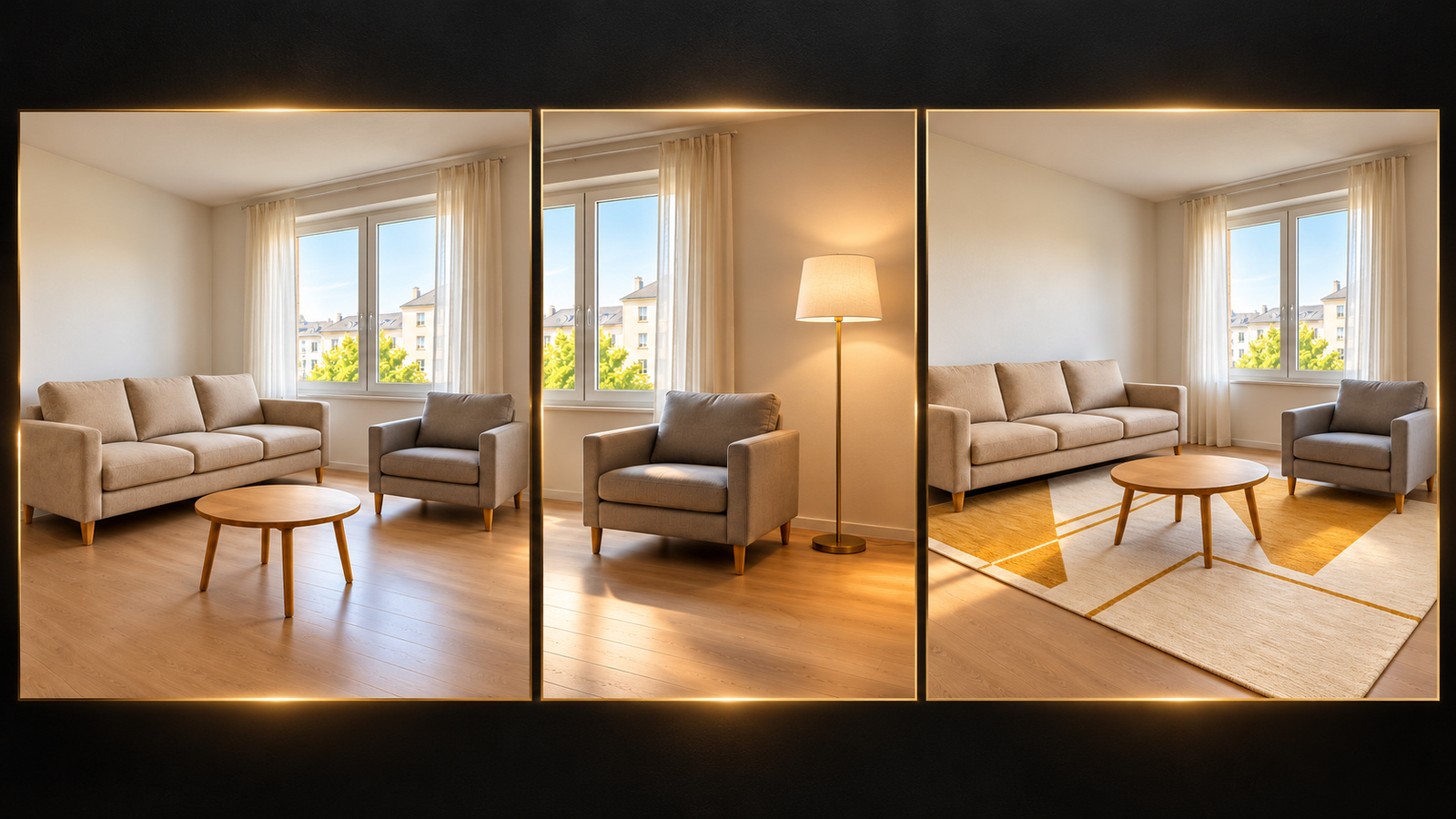
[Image 1] is an authorized living room photo. Keep the sofa, coffee table, walls, and camera perspective. [Image 2] is the area rug gift reference. Lay one rug on the floor in front of the sofa, slipping the front sofa legs over the near edge and centering the coffee table on top. Match the rug pattern, border, and pile texture without altering furniture shapes. Use 16:9 aspect ratio with no measurement lines or text.04 · Accent armchair in reading corner · 16:9
[Image 1] is an authorized room photo. Keep the room architecture, flooring, baseboards, and window trim. [Image 2] is the accent armchair gift reference. Place one armchair in the empty floor area beside the window, angled toward the room center, keeping all four chair legs grounded. Match the visible upholstery color, backrest shape, and armrest profile without blocking walkways. Use 16:9 aspect ratio with no text or added furniture.05 · Cashmere scarf · 4:5
[Image 1] is a portrait used with explicit consent. Keep the person's face, hair, body proportions, posture, and coat. [Image 2] is the cashmere scarf gift reference. Wrap one scarf naturally around the neck outside the coat collar, leaving the face and chin fully visible. Match the scarf weave, fringe, and color without reshaping the body or altering the background. Use 4:5 aspect ratio with no text or logos.06 · Crew-neck holiday sweater · 4:5
[Image 1] is a portrait used with explicit consent. Keep the person's face, facial features, hair, posture, and pants. [Image 2] is the crew-neck sweater gift reference. Replace only the upper top with this sweater, following its ribbed collar, cuff styling, color palette, and visible knit pattern. Hang the sweater naturally over the torso without slimming the waist or modifying the background. Use 4:5 aspect ratio with no text or added jewelry.07 · Buttoned cardigan over inner layer · 4:5
[Image 1] is a portrait used with explicit consent. Keep the face, hair, body proportions, inner t-shirt, and lower clothing. [Image 2] is the cardigan gift reference. Place this cardigan worn unbuttoned over the existing inner shirt, following its visible button stance, pocket placement, color, and hemline. Do not alter the person's body shape or change the background lighting. Use 4:5 aspect ratio with no text, logos, or price tags.08 · Minimalist pendant necklace · 4:5
[Image 1] is a portrait used with explicit consent. Keep the person's face, neck, hair, skin tone, clothing, and posture. [Image 2] is the pendant necklace gift reference. Place one necklace naturally resting on the collarbone area, matching the visible chain gauge, metal tone, and pendant silhouette. Do not add earrings, alter the neckline of the top, or smooth facial features. Use 4:5 aspect ratio with no text or brand overlays.What if proportions shift, the room alters, or the gift distorts?
When a generation deviates from your reference photos, isolate the single instruction that failed and adjust your prompt or input image before running another test.
| Problem | Common cause | Drawback / pitfall | How to fix |
|---|---|---|---|
| The room walls, flooring, or existing furniture change | Missing preservation constraints | You lose the real context of your recipient's home | Add "keep wall color, flooring, and existing furniture unchanged" and target only the empty space |
| The person's facial features or body shape alter | Missing likeness constraints or aesthetic adjectives | The preview ceases to represent the recipient | Specify "preserve face, hair, and body proportions without reshaping" and remove subjective styling words |
| The gift replaces multiple items or spreads across the frame | Unclear placement boundaries | Unrealistic styling that clutters the preview | Use restrictive phrasing such as "place only one item on the table surface" or "swap only the upper top" |
| Gift colors or materials appear inaccurate | Harsh base lighting or unmentioned design traits | You cannot judge the true color match | Use a white-background product reference and explicitly name the material, collar type, or shade in the prompt |
| The gift floats above surfaces or clips through walls | Conflicting camera perspective between the two inputs | Perspective distortion makes the gift look artificial | Supply a straight-on room photo and prompt "place resting flat on the floor surface" |
When must you check a size chart or physical measurements?
You must always consult manufacturer size charts and use a physical tape measure whenever clearance, weight, or fit determines whether the gift is usable.
AI-rendered placement only assesses aesthetic balance within a photographic frame. It cannot calculate cubic volume, verify whether an armchair clears a doorway, or guarantee that a medium sweater accommodates broader shoulders.
For home goods, measure floor space, doorway clearance, and electrical outlet proximity before buying. For wearables, compare the recipient's known chest, waist, and sleeve measurements against the retailer's published chart.
If you are planning major furniture purchases, read our Black Friday furniture preview guide for measuring guidelines and clearance rules. For dedicated fashion shopping with full-body outfits, explore our virtual try-on workflow.
How many credits does gift previewing cost?
Generating a gift preview with GPT Image 2.5 costs 2 credits per image at 1K resolution, 3 credits at 2K, and 4 credits at 4K.
Running a single preview comparison between two gift ideas at 1K costs exactly 4 credits. Testing all 8 gift concepts in this guide once at 1K costs 16 credits, and re-rendering your two favorite results at 4K adds 8 credits. The credit amount displayed on the Generate button before submitting is the final price charged to your balance.
| Model | 1K | 2K | 4K | Drawback / trade-off |
|---|---|---|---|---|
| GPT Image 2.5 | 2 credits / image | 3 credits / image | 4 credits / image | Higher resolutions require a separate generation run rather than in-place upscaling |
| Nano Banana 2 | 4 credits / image | 5 credits / image | 6 credits / image | Higher base credit consumption for preliminary draft checks |
| Nano Banana 2.1 | 4 credits / image | 5 credits / image | 6 credits / image | Double the credit cost of GPT Image 2.5 for initial 1K positioning tests |
| Nano Banana Pro | 5 credits / image | 6 credits / image | 7 credits / image | Premium credit pricing unnecessary for straightforward two-input gift previews |
If you need to connect more than two references across a broader room design, see our multi-reference canvas guide.
Frequently asked questions
Can an AI gift preview tell me if an item fits the space or recipient?
No. The AI preview shows color, style, and general placement, but does not calculate physical dimensions or sizing. Always check the seller's size chart and measure the actual room or body with a tape measure.
Can I use a friend's social media photo to preview a surprise gift?
No. Always get explicit permission before using someone's photo. A surprise gift does not justify using personal photos without consent. If you do not have permission, use a photo of yourself or a consenting model to judge scale and styling.
How accurate is the preview for lighting and materials?
The preview is a visual composition, not a simulation of real-world lighting or fabric weight. Check the manufacturer's technical specifications for lumen output, color temperature, and material composition before ordering.
How many credits does it cost to compare two gift options?
4 credits total. Using GPT Image 2.5 at 1K resolution costs 2 credits per image, so generating one room preview and one outfit preview costs 4 credits. The number shown on the generate button before clicking is the exact cost.
Take a clear photo of the intended room or an authorized portrait in natural daylight, pick two Christmas gift contenders, and connect them with GPT Image 2.5 at 1K on DramaCanvas. Once the color harmony and styling look right on canvas, confirm exact dimensions with a tape measure or size chart before ordering. Open this holiday workflow in DramaCanvas to run your first gift preview.