Christmas Product Photography 2026: AI Gift-Guide Images and a 15-Second Ad

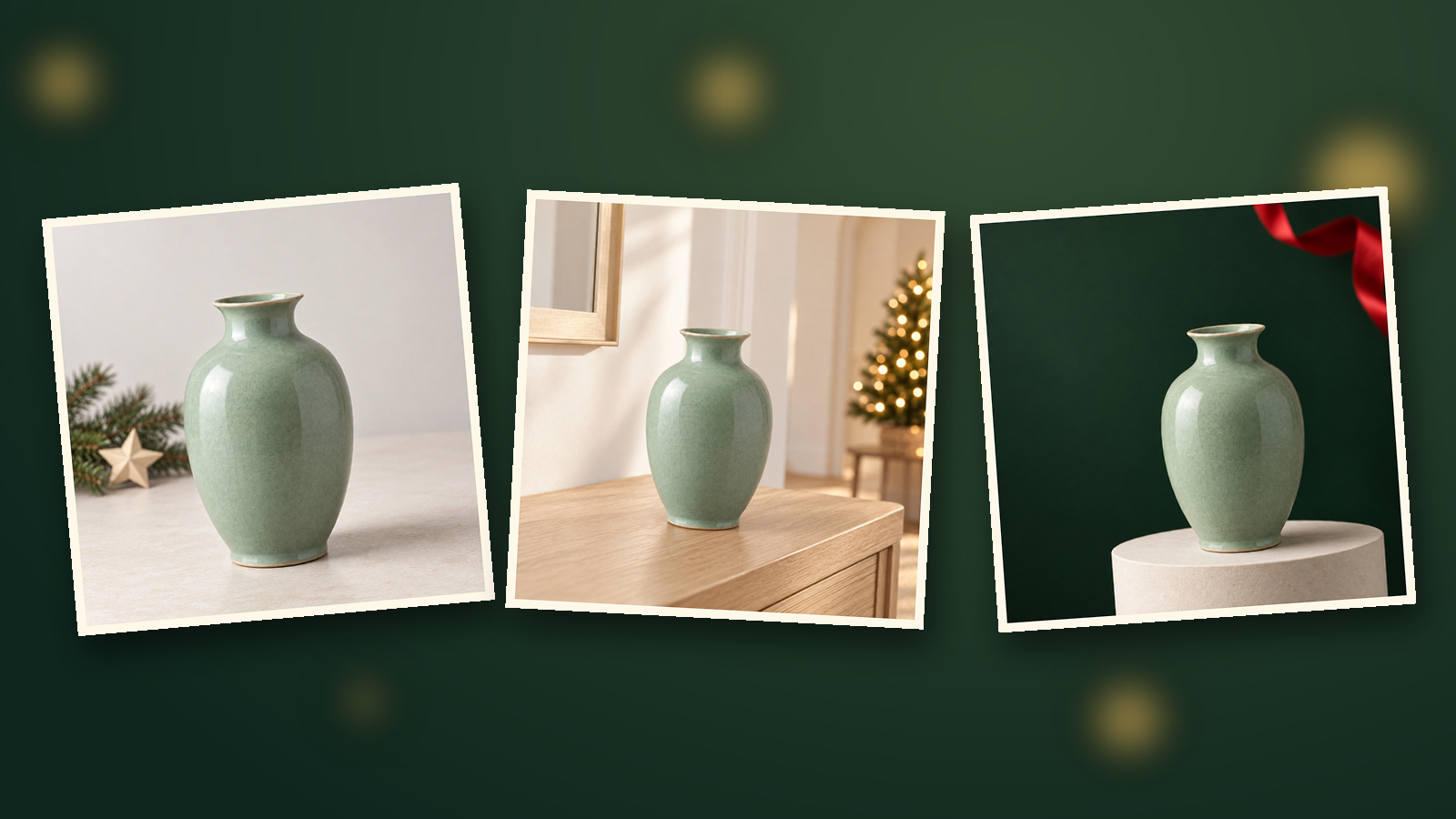
One product photo can be the starting point for three Christmas gift-guide images and a short ad: make the stills, check the merchandise, then animate them without suggesting extra packaging comes with the order. Below are nine prompts and the DramaCanvas steps, with a worked cost of 126 credits before retakes; check the on-page quote before submitting. Completion time depends on generation waits and corrections.
What can AI Christmas product photography change?
Change seasonal settings and layouts, then verify the product.
A Christmas gift guide should help shoppers picture where the item belongs. This example uses a plain ceramic bud vase: show it clearly, place it in a holiday entryway, then leave room for your store's message.
Decorations establish the season; real photographs and verified copy establish product facts. Photograph actual gift-set contents first.
What should your source photo show?
Show the full outline, accurate color and recognizable parts.
Include the vase's opening, neck and base without color filters. For other products, check their visible zippers, lids or controls instead.
Reshoot unclear details; see the source-photo and consistency guide for preparation.
How do you make three Christmas images on the canvas?
Connect the source to three Image nodes and reference it in each prompt.
1. Upload. Choose Add node → Upload file in the bottom toolbar, select the photo, then Add to canvas (1). An Image node appears.
2. Connect. Add three Image nodes; drag from the source node's right-hand connection point to each. Proximity alone doesn't establish a reference.
3. Reference the photo. After pasting each prompt, delete its [Image 1] placeholder, type @, and select the product photo from the menu. Check that the inserted reference points to your source.
4. Generate. Choose GPT Image 2 below each node. In Image settings, set Size or aspect ratio to 1:1 and Resolution to 1K; use prompts 01–03 and check the 2-credit quote before clicking ↑.
Writing “square” doesn't set the ratio. Compare results with the source before Download image or animation.
Which nine prompts should you copy?
Use 01–03 for stills, 04–06 for matching motion, and 07–09 as optional replacements.
A first frame starts the video. Keep scene descriptions in image prompts and movement in video prompts.
Formula: reference + preserved details + placement + Christmas setting + copy space + exclusions. Writing comparison, not an output test; reviewed October 29, 2026.
| Prompt approach | Use it? | Limitation or pitfall |
|---|---|---|
| “Unbox and spin the Christmas gift” | No | Invents unseen surfaces or packaging |
| “Use [Image 1], greenery behind, product complete” | Start here | Insert the real reference; inspect details |
| “Write ‘arrives by Christmas’” | Add later | Verify lettering and delivery terms separately |
For another product, substitute its visible parts and a suitable placement.
01 · Gift-guide opener · 1:1
[Image 1] is the only product reference. Square image: one complete unprinted ceramic vase below center on pale stone. Match the source angle, opening, neck, base and glaze color. Blurred Christmas garland and a red bow hang behind, clear of the product. Neutral white product lighting; space above. No flowers, boxes, accessories, duplicates, text, prices, new logos or watermarks.02 · Ready for Christmas guests · 1:1
[Image 1] is the only product reference. Square image: one complete unprinted ceramic vase on an oak entryway console. Match the source angle, opening, neck, base and glaze color. A small Christmas tree with warm lights is blurred across the room. Neutral white product lighting, no colored reflections; space above. No people, flowers, packaging, extra merchandise, text, prices, new logos or watermarks.03 · Gift-guide closing frame · 1:1
[Image 1] is the only product reference. Square image: one complete unprinted ceramic vase on a cream pedestal, lower half. Match the source angle, opening, neck, base and glaze color. Burgundy backdrop, blurred Christmas greenery at far upper right, clear space at upper left. Neutral white product lighting. No flowers, wrapping, boxes, accessories, gifts, text, prices, new logos or watermarks.04 · Motion for 01 · 5 seconds
One continuous 5-second shot. Push the camera forward slightly, keeping the complete vase and margins visible. Vase, garland and bow stay still. Preserve the first frame's opening, neck, base, glaze color and lighting. No rotation, unboxing, flowers, added objects, cuts or text.05 · Motion for 02 · 5 seconds
One continuous 5-second locked-camera shot. Only the distant Christmas lights brighten gently, then hold. Vase, console and tree stay still. Preserve the vase's lighting, glaze color, opening, neck and base from the first frame. No people, flowers, packaging, added accessories, cuts or text.06 · Motion for 03 · 5 seconds
One continuous 5-second shot. Slide the camera slightly right, keeping the vase complete and upper-left copy space clear. Vase, pedestal and greenery stay still. Preserve the first frame's product angle, opening, neck, base, glaze color and lighting. No rotation, extra merchandise, packaging, accessories, cuts or text.07 · Alternative: Christmas window display · 1:1
[Image 1] is the only product reference. Square image: one complete unprinted ceramic vase on an indoor cream shelf. Match source angle, opening, neck, base and glaze color. Blurred paper snowflakes on distant glass, clear of the product. Neutral white lighting; space above. No snow on merchandise, flowers, boxes, accessories, text, new logos or watermarks.08 · Alternative: Christmas email image · 1:1
[Image 1] is the only product reference. Square image: one complete unprinted ceramic vase at right on a cream tabletop. Match source angle, outline, parts and glaze color. A Christmas-tree shadow falls on the wall, never on the vase; left side clear. Neutral white lighting. No boxes, wrapping, other merchandise, flowers, text, prices, new logos or watermarks.09 · Alternative: Holiday shop counter · 1:1
[Image 1] is the only product reference. Square image: one complete unprinted ceramic vase on a pale gray shop counter. Match source angle, opening, neck, base and glaze color. A Christmas wreath hangs behind, clear of the product outline. Space above, neutral white lighting. No flowers, boxes, free gifts, extra merchandise, text, new logos or watermarks.How do you animate the images and export the ad?
Select each approved still as a Video node's start frame, then configure before generating.
1. Choose start frames. Add three Video nodes through Add node, connecting one still to each. Expand Parameters, select its Start frame, leave End frame unselected and enter the matching motion prompt, 04–06.
2. Configure. Choose Kling 3.0 below each node; open Video settings from the bottom parameter summary. Set Resolution: 720p, Size: 1:1, Seconds: 5, Generate audio: off.
Check the 40-credit quote before clicking ↑. Watch every clip throughout, checking the rim's shape, product outline and final frame.
3. Export. Select a video node; click Open editor in its floating toolbar. Check the three clips' order, remove unrelated timeline clips, inspect joins and actual duration, then Export video.
Download video saves one clip. Add verified offers, shipping copy and licensed music in an external editing app.
Prefer a storyboard table for the three shots?
Start with this route; don't repeat image generation after completing the manual route.
Choose Add node → Storyboard script → Edit full screen. Use Add shot for three rows, each 5 seconds; show Image prompt and Video prompt columns for 01–03 and 04–06.
Under More actions → Video input mode, choose Create first frame first, then Create 3 image nodes. Connect the source; check each reference, GPT Image 2, 1:1 and 1K. In full-screen editing, select one row and Generate first frame; repeat and inspect.
Use More actions → Create 3 video nodes; check start frames and video settings as above. Then select all three rows and Confirm first frame and generate, which submits immediately.
See the storyboard walkthrough for interface context; retain this article's Christmas prompts and Kling settings.
What if the vase changes shape or the scene implies free gift wrap?
Redo the affected still or clip, depending on where the error starts.
For a bad still, check its connection and reference, simplify decorations and regenerate before animation. For motion-only warping, reuse the approved still with a locked camera.
Remove colored light that changes the glaze, and invented packaging or extra merchandise. Don't rely on captions to explain away a misleading bundle.
What does the complete Christmas ad cost?
The main plan calculates to 126 credits using catalog prices checked October 29, 2026, excluding retakes. The on-page quote takes precedence.
GPT Image 2 at 1K costs 2 credits per image; silent Kling 3.0 at 720p costs 8 per second. Count reused stills once.
| What to make | Calculation | Total | Limitation or pitfall |
|---|---|---|---|
| Three stills only | 3 × 2 | 6 credits | No video included |
| One still plus one 5-second test clip | 2 + 5 × 8 | 42 credits | Tests one shot, not the full sequence |
| Three stills plus three 5-second silent clips | 6 + 3 × 5 × 8 | 126 credits | Retakes and external finishing excluded |
| Redo one silent 5-second clip | 5 × 8 | 40 credits | A replacement still costs extra |
Enabling 720p audio raises Kling 3.0 to 12 credits per second: 186 total. Keep audio off for this plan.
Three new GPT Image 2 stills at 4K add 12 credits, at 4 each. These are new generations, not guaranteed identical enlargements.
When should you use real product footage instead?
Film unboxing, assembly, handling and performance; use real images for dimensions.
Snow doesn't prove cold resistance; decorations don't establish order contents. Switch to real photography or compositing when packaging, transparency or small print fails inspection.
Christmas generation and export acceptance remain untested. These recipes and the square format don't guarantee results, channel compatibility or ad approval.
Frequently asked questions
Can I start with one product photo?
Yes. Keep the visible angle and parts from that photo; don't invent the back, interior or included accessories. Take another real photo when a detail isn't clear.
What does the three-image, 15-second package cost?
126 credits: 6 for three GPT Image 2 images at 1K, plus 120 for three 5-second Kling 3.0 clips at 720p with audio off. Retakes cost extra.
Can the product spin or unwrap itself?
Not in this workflow. One photo doesn't document hidden surfaces or packaging construction. Film those actions with the real product.
Should I generate an order-by-Christmas date in the image?
No. Confirm the date, destination restrictions and fulfillment terms for your store, then typeset the copy in your external design or editing app.
Approve the three stills before paying to animate them. Watch the entire sequence, then add accurate pricing, gift-wrap terms and shipping copy.