Christmas Short Film 2026: Tell a Coming-Home Story in 3 AI Shots (Storyboard and Prompts)

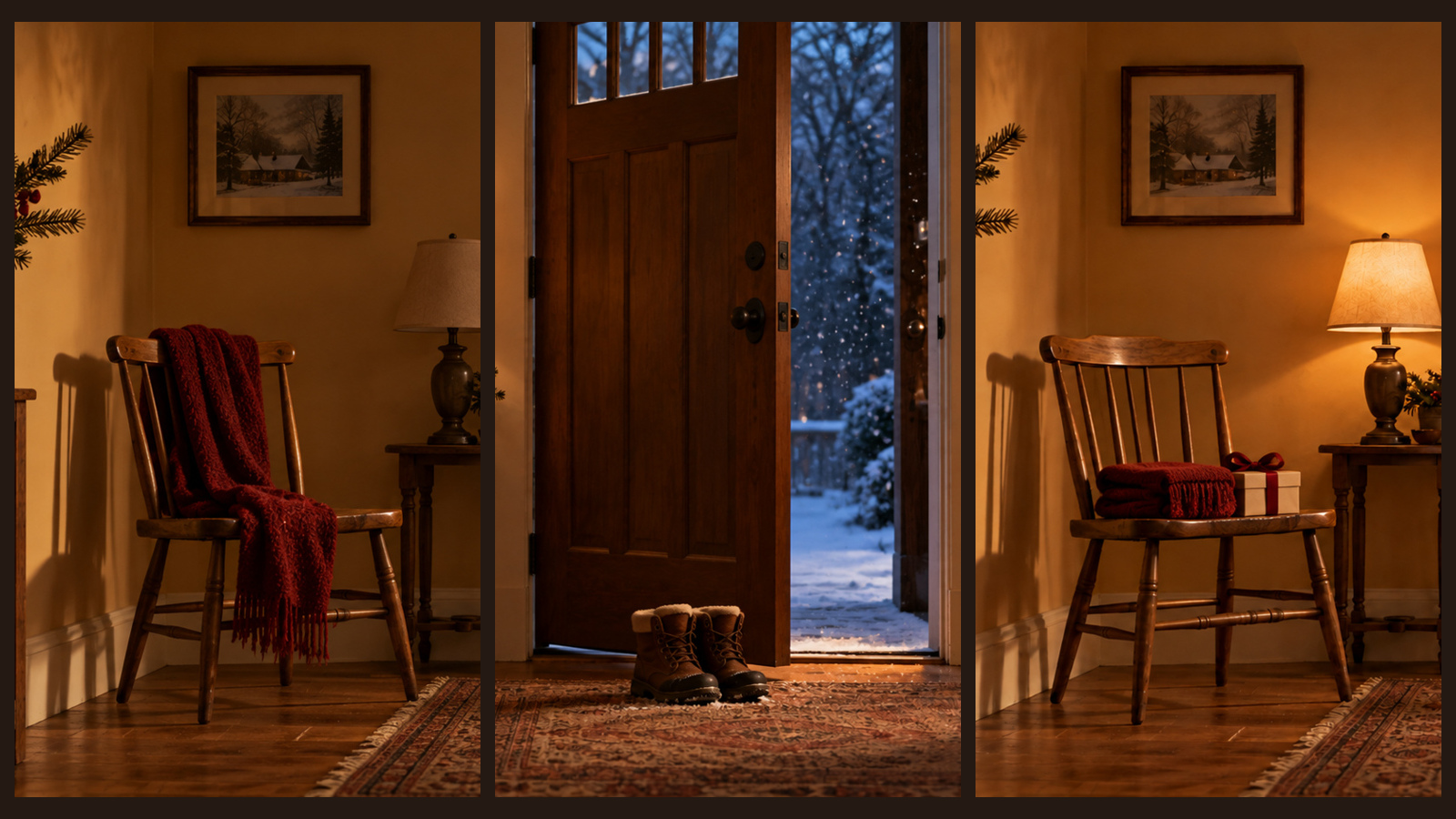
A Christmas short with a real story doesn't need actors. An empty chair, a pair of winter boots and a gift are enough to tell "I've been waiting for you to come home" in three 5-second shots, and with no people in frame, there are no faces to drift between shots. Below: the full 3-shot storyboard, copy-ready first-frame and motion prompts, and every step on the DramaCanvas canvas from storyboard to exported film.
For a longer multi-shot story, see the 60-second Halloween horror short. New to the canvas? Start with the infinite canvas guide.
How do you tell a full story in a 15-second Christmas short?
One idea per shot: waiting, coming home, the answer.
| Shot | Time | On screen | What it says |
|---|---|---|---|
| 01 Waiting | 0–5 s | A warm hallway, an empty chair with a deep red scarf, a lamp slowly coming on | Someone is waiting |
| 02 Coming home | 5–10 s | The door half open, a pair of winter boots on the mat, snow outside | They're back |
| 03 The answer | 10–15 s | The door closed, the scarf neatly folded on the chair, a small gift beside it | I remembered you too |
Viewers don't need to see anyone; the changing props let them fill in the story. Add the closing line, "Left a light on for you", and music in your editing app.
How do you set up the storyboard and make first frames on the canvas?
Create a storyboard script with 3 shots, choose Create first frame first, then generate and check the three first frames.
Step 1: Create a storyboard script with 3 shots
Click Add node in the toolbar at the bottom of the canvas, choose Storyboard script, then click Edit full screen at the top right of the node. Click Add shot three times and set each shot to 5 seconds. In the column settings, turn on the image prompt and video prompt columns, then paste the first-frame prompts below into the image prompt and the motion prompts into the video prompt.
Step 2: Choose Create first frame first and create 3 image nodes
Open More actions on the storyboard script, set Video input mode to Create first frame first, then click Create 3 image nodes. New image nodes reuse your most recent image settings, so select each one and set the model to GPT Image 2.5, the ratio to 16:9 and the resolution to 1K.
Step 3: Generate shot 1, then connect it to shots 2 and 3
Back in the full-screen editor, tick only shot 1 and click Generate first frame. When you're happy with it, drag a line from the connection point on the right of shot 1's image node to the image nodes of shots 2 and 3, and connect shot 2's image to shot 3 as well. That gives the [Image 1] and [Image 2] references in the later prompts something to point to, so the hallway, chair and scarf stay the same. Then generate shots 2 and 3.
Check every first frame: has the wall colour, chair or scarf colour changed, and has a person or any text appeared? Only rewrite and regenerate the shot that's off.
The 3-shot prompts for "Left a Light On for You"
First-frame prompts go in the image prompt, motion prompts in the video prompt. For [Image 1] and [Image 2], connect the reference images first, delete the placeholder, type @ and pick the image from the menu.
01 · Waiting (0–5 s)
A warm, cosy home hallway with an empty wooden chair, a deep red scarf draped over its back, and a small table lamp beside it that isn't on yet. The door is closed. Eye-level, locked-off composition, 16:9. No people, no text and no logos.One continuous 5-second shot from a locked-off camera. Only the small lamp slowly brightens; the scarf, door and furniture stay still. No people, no cuts, no text.02 · Coming home (5–10 s)
[Image 1] is the reference for the same hallway; keep the wall colour, the chair and the deep red scarf unchanged. The door is half open and a pair of ordinary winter boots now sits on the doormat. The lamp is on. 16:9, no people, no text.One continuous 5-second shot from a locked-off camera. The door stays half open, the light stays steady, and a little snow drifts down outside the door. No people, no new shoes, no cuts, no text.03 · The answer (10–15 s)
[Image 1] is the reference for the same hallway and [Image 2] is the reference for where the boots sit by the door. The door is now closed, the deep red scarf is neatly folded on the same chair, and a small gift box with no writing sits beside it. The lamp is on. 16:9, no people, no text.One continuous 5-second shot as the camera slowly pushes in on the chair and the gift box. The door, scarf and box never move. Don't open the box, no people, no cuts, no text.How do you set the video options before generating?
Create 3 video nodes and set them up, then go back to the storyboard to confirm and generate.
Open More actions → Create 3 video nodes. Select each video node, choose Seedance 2.0 Mini, click the settings summary under the input box, and set Resolution to 480P, Aspect ratio to 16:9 and Duration to 5. Each 5-second shot is 35 credits; check the button before generating. Then go back to the full-screen editor, tick all three shots and click Confirm first frame and generate.
To understand start and end frames, see the Kling AI guide.
How do you check the timeline and export the film?
Once all three clips are ready, select any video node and click Open editor in the toolbar above it. The timeline brings in the three clips. Check they run 01, 02, 03, look for black frames at the joins and confirm the total is about 15 seconds, then click Export video to download an MP4.
Add the subtitle and music in your editing app: a single closing line, "Left a light on for you", is enough, with licensed music underneath. The 15-second Black Friday ad walks through the same storyboard-to-timeline flow in detail.
How many credits does a Christmas short cost?
Three first frames plus three 5-second clips come to 111 credits with Seedance 2.0 Mini at 480p. Prices below are live on 2026-10-29:
| Option | First frames (3) | Video (3 × 5 s) | Total |
|---|---|---|---|
| Seedance 2.0 Mini 480p | 6 credits | 105 credits | 111 credits |
| Seedance 2.0 Mini 720p | 6 credits | 150 credits | 156 credits |
First frames use GPT Image 2.5 at 1K, 2 credits each. Redoing one 480p clip costs 35 credits, or 37 with its first frame. Go by the number shown on the button before generating.
What are the limits of this approach?
- Prop colours can drift: compare shots 2 and 3 with shot 1, and redo a first frame if the scarf colour or chair shape changes.
- The clips are silent: add subtitles, music and sound effects in your editing app.
- The total may not be exactly 15 seconds: each clip can be slightly longer or shorter; go by the timeline.
- Complex action doesn't suit this: opening doors or walking tend to warp, which is why this story only uses light, snow and a push-in.
Frequently asked questions
Does a Christmas short film need people on screen?
No. Props can carry the story: an empty chair means waiting, boots at the door mean someone is home, and a folded scarf with a gift is the answer. With no people, you don't have to worry about faces or clothes changing between shots.
Why make first frames first?
A first frame is a still image, so it's cheap and easy to check. Get the scene, props and colours right first, then spend credits on video, and you'll redo far fewer clips.
Can I change settings after clicking Confirm first frame and generate?
No. That button submits straight away. Set resolution, aspect ratio and duration on the video nodes first, then confirm in the storyboard.
How many credits does a 15-second Christmas short cost?
Three first frames with GPT Image 2.5 at 1K cost 6 credits. Video with Seedance 2.0 Mini at 480p is 7 credits per second, so 105 credits for 3 × 5 seconds, 111 credits in total. At 720p it's 156 credits in total. Go by the number on the button.
Start by making shot 1's first frame from the storyboard, then connect it to the other two once it looks right. When all three frames work, generate the clips together, export from the editor, and finish with "Left a light on for you" in your editing app.