Christmas Ecards 2026: 8 AI Prompts for Personal Cards and a 5-Second Animation

A good Christmas ecard starts with something the recipient recognizes: your dog's crooked ear, a favorite winter view, or a note that sounds like you. Use AI for the artwork, then add your own words.
These eight prompts include seven still designs and one motion prompt. Start with a 2-credit image; if you like it, a five-second animation brings the total to 42 credits.
Which card should you make?
Match the design to the person receiving it, then choose the format.
| Recipient | Starting idea | Aspect ratio |
|---|---|---|
| Coworker or client | Paper tree or understated botanical border | 1:1 or 16:9 |
| Partner or faraway friend | Two mugs or a snowy window | 4:5 or 1:1 |
| A child | A friendly picture-book bear | 4:5 |
| Family and close friends | Your pet or a family illustration | 1:1 |
| Someone who would enjoy a moving card | Paper tree with a gentle lighting change | 1:1, five seconds |
Write the greeting before generating. “Wish we were sharing a table this year” gives a faraway friend more than a generic paragraph; “Thanks for making this year a little easier” works for a teammate.
Use “Merry Christmas” or “Happy holidays” according to the recipient. Keep the message short enough to read on a phone.
How do you make the card artwork?
Generate one text-free image with GPT Image 2.5 at 1K for 2 credits.
1. Create the image. Click Add node in the bottom canvas toolbar and choose Image. Paste one of prompts 1–7 into the new node's prompt field.
2. Choose the settings. Select GPT Image 2.5 and open Image settings from the settings summary below the prompt (for example 1:1 · 1K). Set Size or aspect ratio to the prompt's ratio, and Resolution to 1K.
3. Generate and save. Check the quote, click the ↑ button that shows the credit cost, and see whether your actual greeting fits the empty area. Use Download to save the result, then add your words in your usual design app; keep a text-free copy if you want animation.
Eight Christmas ecard prompts to try
Use prompts 1–7 for artwork and prompt 8 for motion in a Video node.
Choose one design per generation. If it feels too busy, remove a prop before adding another instruction.
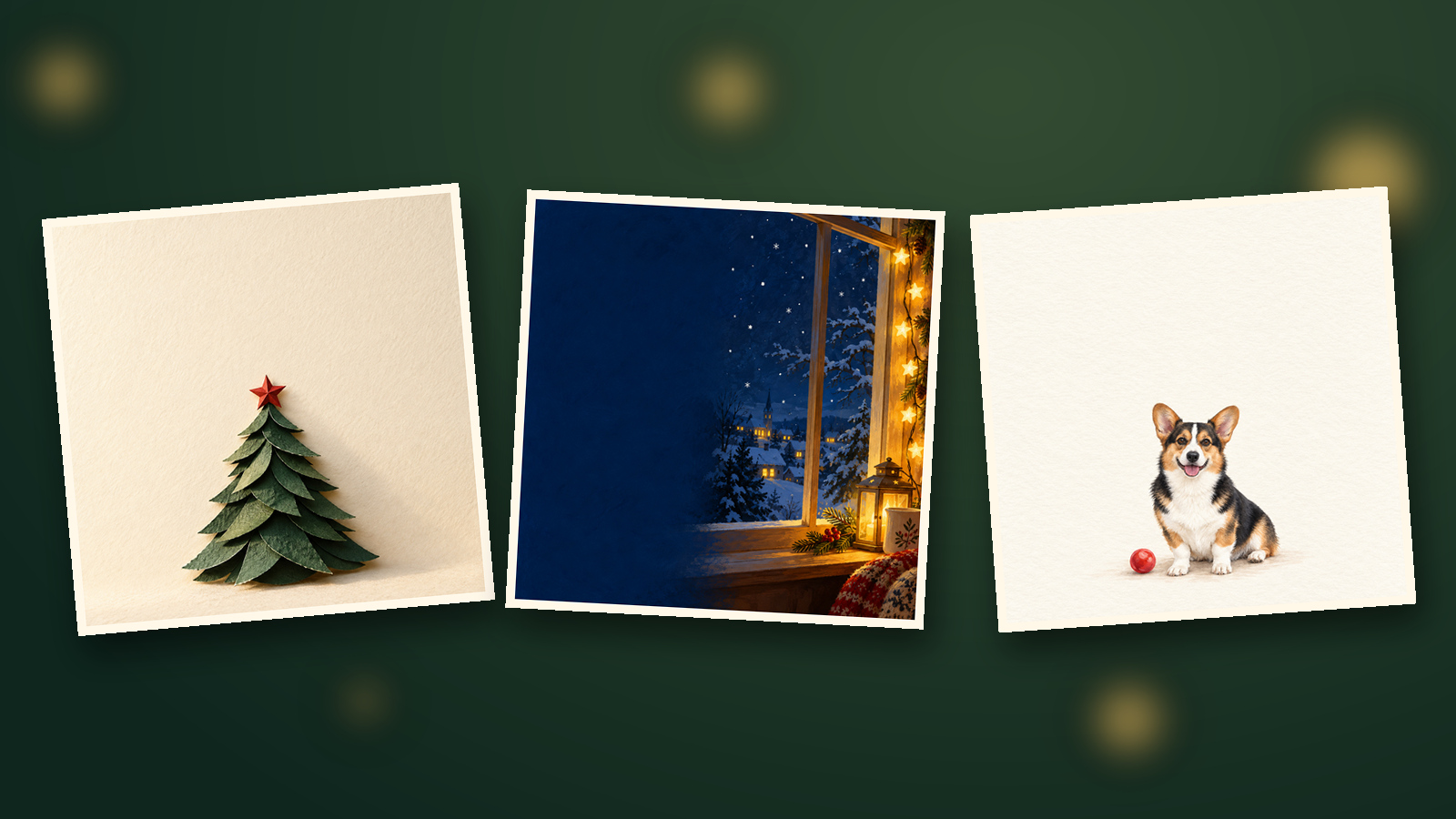
01 · For a coworker: a paper tree | 1:1
Leave the upper half for a short thank-you and your name.
Square 1:1 Christmas ecard artwork on textured ivory paper. One small tree made from layered forest-green paper sits in the lower half, topped with a tiny red paper star. Soft side lighting reveals the paper edges. Keep the upper half plain ivory for a greeting added later. No text, numbers, logos, or watermark.02 · For your partner: two mugs by candlelight | 4:5
A familiar little scene leaves room for a more personal note.
Portrait 4:5 Christmas card artwork in soft watercolor. Two plain ceramic mugs, one small candleholder, and a pine sprig sit at the lower right of a pale wooden table. Warm amber light, cranberry and cream colors, quiet evening mood. Keep the upper half pale and uncluttered. No people, lettering, numbers, branding, or watermark.03 · For a friend across the country: a winter window | 1:1
Add light-colored type to the dark blue area afterward.
Square 1:1 Christmas ecard illustration looking from a warm room into a snowy night. The window frame and a short strand of warm lights occupy the right side. Leave the left half a clean, deep blue area for a personal message. A few snowflakes outside only, restrained storybook texture. No people, Santa, text, or watermark.04 · For a niece or nephew: a bear with one gift | 4:5
One character and one present keep the card easy to read at a small size.
Portrait 4:5 Christmas card in colored pencil and gouache. One original friendly brown bear sits in the lower part of a snowy clearing with one small red gift box. Two tiny fir trees in the distance. Soft cheerful colors, simple shapes, pale blue empty space across the top third. No existing fictional characters, words, numbers, or watermark.05 · For a client: pine and muted gold | 16:9
This wide composition leaves space for a brief greeting in an email.
Landscape 16:9 Christmas ecard on fine ivory paper. A small forest-green pine sprig and one matte gold ornament sit in the lower right corner. A delicate gold arc appears only on the right. Soft studio light, restrained stationery aesthetic. Keep the left two-thirds clear. No lettering, numbers, logos, or watermark.06 · From your household: the family pet | 1:1
Use a photo that clearly shows the ears and facial markings.
Click Add node → Upload file, select the photo, then click Add to canvas (1). Connect that photo node to your target Image node, type @ in the target prompt, and select the matching thumbnail.
Replace [Image 1] below with that actual menu selection. The typed placeholder alone does not attach the photo.
Square 1:1 Christmas ecard. [Image 1] supplies the only pet's appearance: preserve its ear shape, nose color, facial markings, and coat pattern in a soft gouache illustration. Seat the pet in the lower half with one small red ball beside it. Keep the upper half clean cream. No costume, other animals, text, numbers, or watermark.07 · For the grandparents: a family illustration | 1:1
Upload two individual photos, connect both to the target, and insert each through @.
GPT Image 2.5 accepts up to eight reference images; this design uses two. Check the thumbnails before assigning left and right.
Square 1:1 Christmas ecard illustration. [Image 1] is family member A on the left; [Image 2] is family member B on the right. Preserve their separate face shapes, hairstyles, age features, and body proportions. Seat both on a pale bench in the lower half, hands on their own laps, with a small Christmas tree behind them to the right. Warm hand-painted style, plain cream space above. Exactly two people, no text or watermark.08 · Add motion: a gentle glow | 1:1, five seconds
Use this in a Video node with the text-free paper-tree image from prompt 1.
Square 1:1, one continuous five-second shot using the supplied paper-tree card as the first frame. Locked camera. The tree, red star, and paper remain still. Only the background's warm light gradually brightens during the first three seconds, then holds softly for two seconds. Keep the upper message area empty. No new objects, zoom, cuts, or lettering.How do you animate the card?
Connect the text-free artwork to a Video node and assign it as the First frame.
1. Select the frame. Choose Add node → Video, then connect your finished image to it. In the video prompt panel, expand Parameters, click First frame, and select the card.
2. Set up the clip. Choose Kling 3.0 and open Video settings from the settings summary below the node. Set Resolution to 720p, Size to 1:1, and Seconds to 5, with Generate audio off.
3. Generate and watch. Paste prompt 8, check the 40-credit quote, and click the ↑ button. Watch the entire clip for shifting paper edges or objects entering the message space, then use Download and add the greeting in your video editor.
The Kling AI guide explains frame controls in more detail. For a still card, finish with the downloaded image and your typography.
How many credits should you budget?
Budget 2 credits for one 1K still, or 42 for that still plus a five-second silent animation.
| Output | Calculation | Total |
|---|---|---|
| GPT Image 2.5, one 1K image | 1 × 2 | 2 credits |
| GPT Image 2.5, one 2K image | 1 × 3 | 3 credits |
| GPT Image 2.5, one 4K image | 1 × 4 | 4 credits |
| Kling 3.0, 720p, five seconds, audio off | 5 × 8 | 40 credits |
| One 1K still plus that clip | 2 + 40 | 42 credits |
| All seven still designs at 1K, animate one | 7 × 2 + 40 | 54 credits |
Each additional generation costs extra, including a new image at a higher resolution. Check the button quote and settings before submitting.
Limitations: what should you check before sending?
Compare the artwork with your sources, proofread the message, and preview the actual file.
| Issue | Useful next step |
|---|---|
| A face or pet marking looks slightly different | Compare with the source; use a clearer reference or place the original photo in your card |
| Stray lettering or too little room | Remove props and ask for a plain message area; add type afterward |
| Paper edges wobble in the animation | Reduce motion to background light, or send the still |
| The end jumps back to the beginning | Adjust the join in an editor before making a looping GIF |
| You want printed cards too | Check finished dimensions, bleed, and color with your printer |
A new higher-resolution generation can change details, so review it again. Ask family members before using their photos, and describe the result as an AI-made card when sharing.
For GIF delivery, convert the downloaded video and check both file size and the loop seam. Test it in your intended messaging or email app and keep the still handy.
Frequently asked questions
Can I make a Christmas ecard without a photo?
Yes. Prompts 1–5 use text alone, prompts 6–7 use pet or family photos, and prompt 8 animates your chosen still.
Should AI write the greeting inside the image?
Generate the artwork without text, then add the name, greeting, and sign-off in your usual design app. Proofread names and dates before sending.
How do I send the card as a GIF?
Use Download to save the video, then convert it with a tool that supports GIF. Check file size and the loop seam, and preview it in the app you plan to send it through.
What does a still plus a five-second animation cost?
42 credits: 2 for one GPT Image 2.5 image at 1K, plus 40 for Kling 3.0 at 720p for five seconds with audio off. Additional generations cost extra.
Write one sentence you'd actually say to the recipient, then choose the artwork around it. The canvas guide covers your first connections, and the GPT Image guide helps with resolution choices.