New Year Cards 2027: 8 AI Prompts for Greetings and a Countdown Video

Make your 2027 New Year card as text-free artwork first, then add a line that sounds like you. The same artwork can become a countdown background: animate the edges, keep the center clear, and add the numbers in your video editor.
These eight prompts cover six still designs and two motion options, from a family text to a living-room party screen. You’ll get the canvas steps, an exact ten-second number sequence, and the credit budget, so you can finish a still before deciding whether to animate it.
Should you make a card or a countdown video?
Send a still for a personal message; use a countdown for a shared moment.
| Where it goes | Make this | Ratio | Tradeoff |
|---|---|---|---|
| Family group text | A card with one short note | 1:1 | Tiny type disappears in the preview |
| Instagram Story | A vertical greeting or countdown | 9:16 | Keep names clear of app controls |
| Email to clients | Restrained artwork and a thank-you | 16:9 | Keep the actual message readable outside the image too |
| TV at a New Year’s Eve gathering | Wide background with numbers added later | 16:9 | Playback does not synchronize itself to midnight |
“More dinners together in 2027” can mean more to a friend than a paragraph of resolutions. For a coworker, try “Thanks for being someone I could count on this year.”
How do you create the card artwork?
Start with one GPT Image 2.5 image at 1K, which costs 2 credits.
1. Add the image. Click Add node → Image in the bottom canvas toolbar. Paste a still prompt below; prompt 1 is the starting point for the vertical countdown.
2. Set the format. Choose GPT Image 2.5, open Image settings from the settings summary below the prompt (for example 1:1 · 1K), and set Size or aspect ratio to match the prompt and Resolution to 1K. A ratio written in the prompt does not change the setting.
3. Generate and save. Check the quote and click the ↑ button that shows the credit cost. Inspect the result for stray lettering and enough empty space, then use Download; add your greeting in your design app and save a text-free version for animation.
The canvas guide covers connections. For resolution choices, see the GPT Image guide.
Which eight AI prompts should you use?
Prompts 1–6 make still artwork; prompts 7–8 animate one chosen image.
Use this formula: format + one subject + empty message area + exclusions. For motion, name one change and specify everything that should stay still.
01 · Fireworks for a Story | Image, 9:16
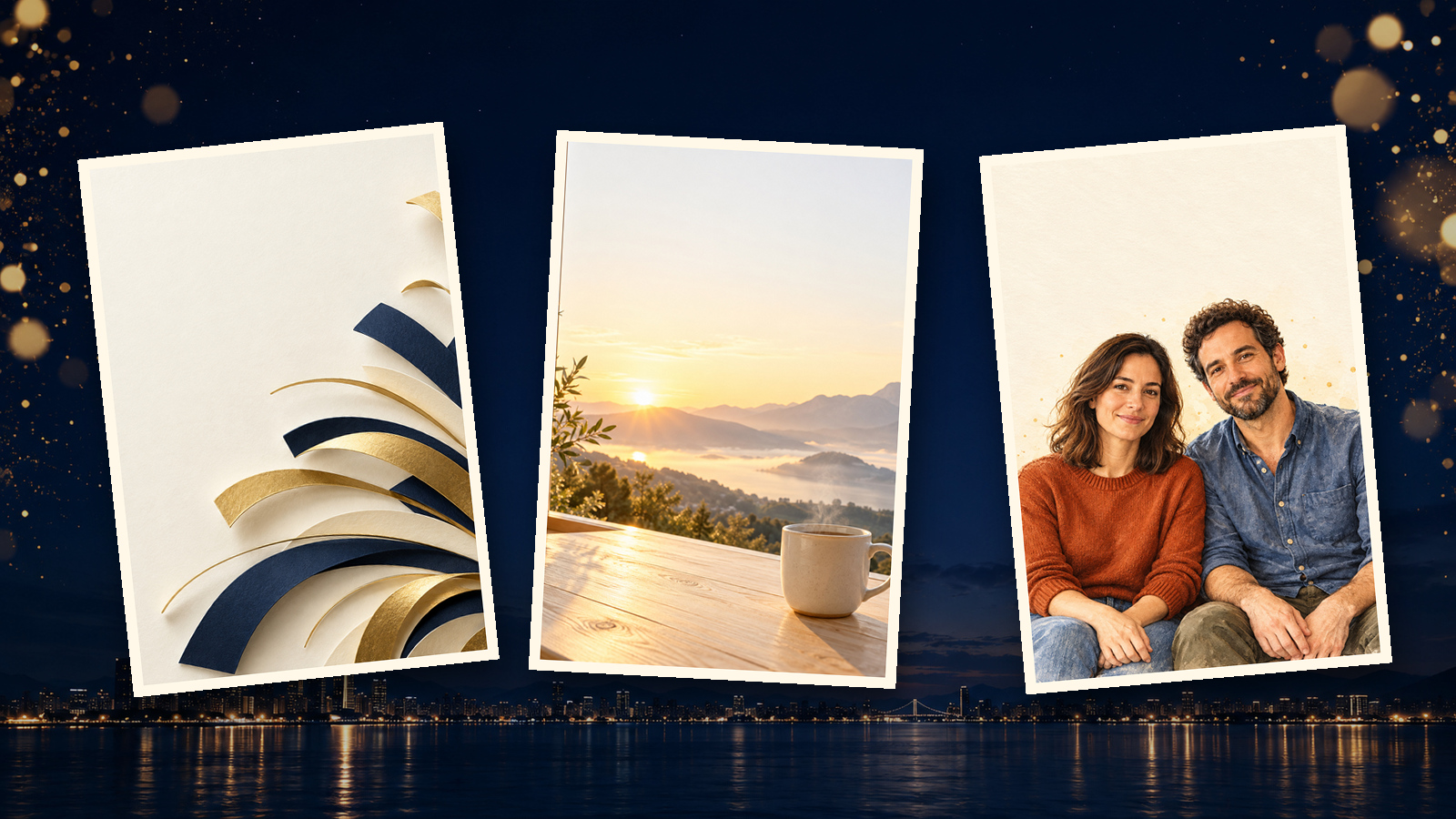
Vertical 9:16 New Year's Eve greeting background. Deep navy night sky with a few small gold fireworks confined to the upper corners and a distant low city silhouette along the bottom. Keep the center a large uninterrupted navy area for countdown numbers added later. Restrained photographic texture. No people, lettering, dates, numbers, logos, or watermark.02 · A quiet January morning | Image, 4:5
Portrait 4:5 New Year greeting artwork. A pale wooden kitchen table beside a window, one plain ceramic coffee mug in the lower right, soft sunrise over distant hills outside. Warm cream and pale gold, natural photographic texture. Keep the upper half pale and empty for a personal note. No people, calendars, lettering, numbers, or watermark.03 · A thank-you for a teammate | Image, 1:1
Square 1:1 New Year card on ivory paper. One small abstract burst of navy and muted gold cut-paper shapes in the lower right. Soft side light reveals layered paper edges. Keep the left side and upper half clear for a thank-you and signature. No glasses, people, text, numbers, logos, or watermark.04 · A seat for someone you miss | Image, 1:1
Square 1:1 New Year greeting in soft gouache. Two separate chairs sit side by side on a small balcony in the lower half, with one warm lamp nearby and a blue-to-pink morning sky beyond. Leave the upper half clear. Quiet, welcoming mood, visible paper grain. No people, text, numbers, zodiac symbols, or watermark.05 · A party-screen background | Image, 16:9
Landscape 16:9 New Year's Eve party background. Deep navy sky with sparse gold light dots at the far left and right edges, a very low city silhouette at the bottom. Keep the entire center and upper middle plain navy for large countdown numbers and a greeting added later. No clocks, people, lettering, numbers, branding, or watermark.06 · From your household | Image, 1:1
Click Add node → Upload file, select the family photo, then click Add to canvas (1). Connect the photo to your target Image node, type @, and pick its thumbnail.
Replace [Image 1] with that menu selection. Pasting the placeholder alone does not attach a photo.
[Image 1] is the only family reference. Make a square 1:1 New Year greeting illustration, retaining each person's face shape, hairstyle, skin tone, age features, clothing, and left-to-right position. Place the group in the lower half against a simplified cream background with a few gold light dots. Leave the upper half clear. Keep the original pose and number of people. No added people, glasses, lettering, numbers, or watermark.07 · Animate the fireworks | Video, 9:16, 10 seconds
Use the text-free result from prompt 1 as the video input.
Use the supplied night-sky artwork as the starting image. Vertical 9:16, one continuous ten-second shot, locked camera. A few small gold fireworks slowly open and fade only in the upper corners. The city silhouette stays still and the center remains plain navy throughout. No bright white flashes, cuts, moving buildings, people, lettering, or numbers.08 · Keep the party screen understated | Video, 16:9, 10 seconds
Use the result from prompt 5 instead of generating the vertical version.
Use the supplied wide navy sky artwork as the starting image. Landscape 16:9, one continuous ten-second shot, locked camera. Only the small gold light dots at the far edges slowly brighten and dim. The city silhouette stays still. Keep the center and upper middle empty throughout. No flashes, camera moves, cuts, clocks, new objects, lettering, or numbers.How do you animate the background?
Connect one text-free image to a Video node and generate ten seconds with Kling 4.
1. Connect the artwork. Choose Add node → Video, then drag a connection from the finished Image node to it. Use only that one input and check its thumbnail.
2. Set the clip. Select Kling 4 and open Video settings from the settings summary beneath the input. Set Resolution to 720p, the ratio under Size to match the image (9:16 or 16:9), and Seconds to 10; paste prompt 7 or 8.
3. Generate and watch. Check the 70-credit quote, click the ↑ button, and watch the entire result for obstructed message space or sudden flashes. Use Download to save the background; Kling 4 produces silent video.
For other frame-based setups, see the Kling AI guide.
How do you add an accurate ten-second countdown?
Give each number from 10 through 1 one second in your video editor, then add the greeting.
Import the background and make it ten seconds long before adding type. Trim excess footage or freeze the last frame if it is short; do not stretch one number to fill a gap.
| Timeline | Type overlay | Check |
|---|---|---|
| 0:00–0:05 | 10, 9, 8, 7, 6 | One second per number, no overlap |
| 0:05–0:10 | 5, 4, 3, 2, 1 | Every number present, including 1 |
| 0:10–0:12 | Happy New Year · 2027 | Two-second hold on the same background |
The finished example is twelve seconds: ten of countdown and two of greeting. Keep the numbers centered and preview on the actual phone or TV; for a gathering, you must cue playback yourself.
How much does the image-and-video version cost?
One 1K image plus ten seconds of 720p video costs 72 credits.
Prices dated October 29, 2026; each row includes one generation per asset.
| Choice | Calculation | Total | Tradeoff |
|---|---|---|---|
| Still only | GPT Image 2.5 1K: 1 × 2 | 2 credits | Add typography separately |
| Still + 720p clip | 2 + Kling 4: 10 × 7 | 72 credits | Silent background |
| Still + 1080p clip | 2 + Kling 4: 10 × 12 | 122 credits | More detail, same editing work |
| All six stills, animate one at 720p | 6 × 2 + 10 × 7 | 82 credits | A second video format costs extra |
Redoing a ten-second 720p clip costs another 70 credits; another 1K still costs 2. Check the button quote before submitting.
What are the limitations?
Use your editor for precision and the original photo whenever someone’s appearance must stay exact.
- Faces can change. Compare every person with the source; place the original photo in the card if the illustration feels wrong.
- Generated numbers can change or skip. Keep them out of the background and typeset them afterward.
- Motion can crowd the center. Switch from fireworks to prompt 8’s edge lights, or use the still.
- Clip length can differ from the requested duration. Trim or freeze frames before placing the countdown.
- Audio and live timing are separate. Add music you have permission to use; use a dedicated clock for automatic midnight synchronization.
“Make an amazing party video with numbers and fireworks” gives you little to check. “Locked camera, light at the edges, empty center” makes the brief specific enough to revise.
Frequently asked questions
Can AI generate the countdown numbers for me?
Add the numbers in your video editor. Generate a text-free background, then give each number from 10 through 1 exactly one second and follow it with your 2027 greeting.
Will the video automatically count down to midnight?
No. It is a prerecorded clip. You control when playback begins; use a clock or dedicated countdown tool if you need live synchronization.
Can I use a family photo?
Yes. Connect the photo to an Image node, type @, select its thumbnail, and use prompt 6. Compare every face with the original before sending.
What does one card plus a ten-second video cost?
72 credits: 2 for GPT Image 2.5 at 1K and 70 for ten seconds of Kling 4 at 720p, charged at 7 credits per second. Additional generations cost extra.
Write the note, choose the format, and make the still first. Animate only the version you want to send, then add dates and numbers in your editor. Open a canvas and start with prompt 1; the canvas walkthrough shows the connections.