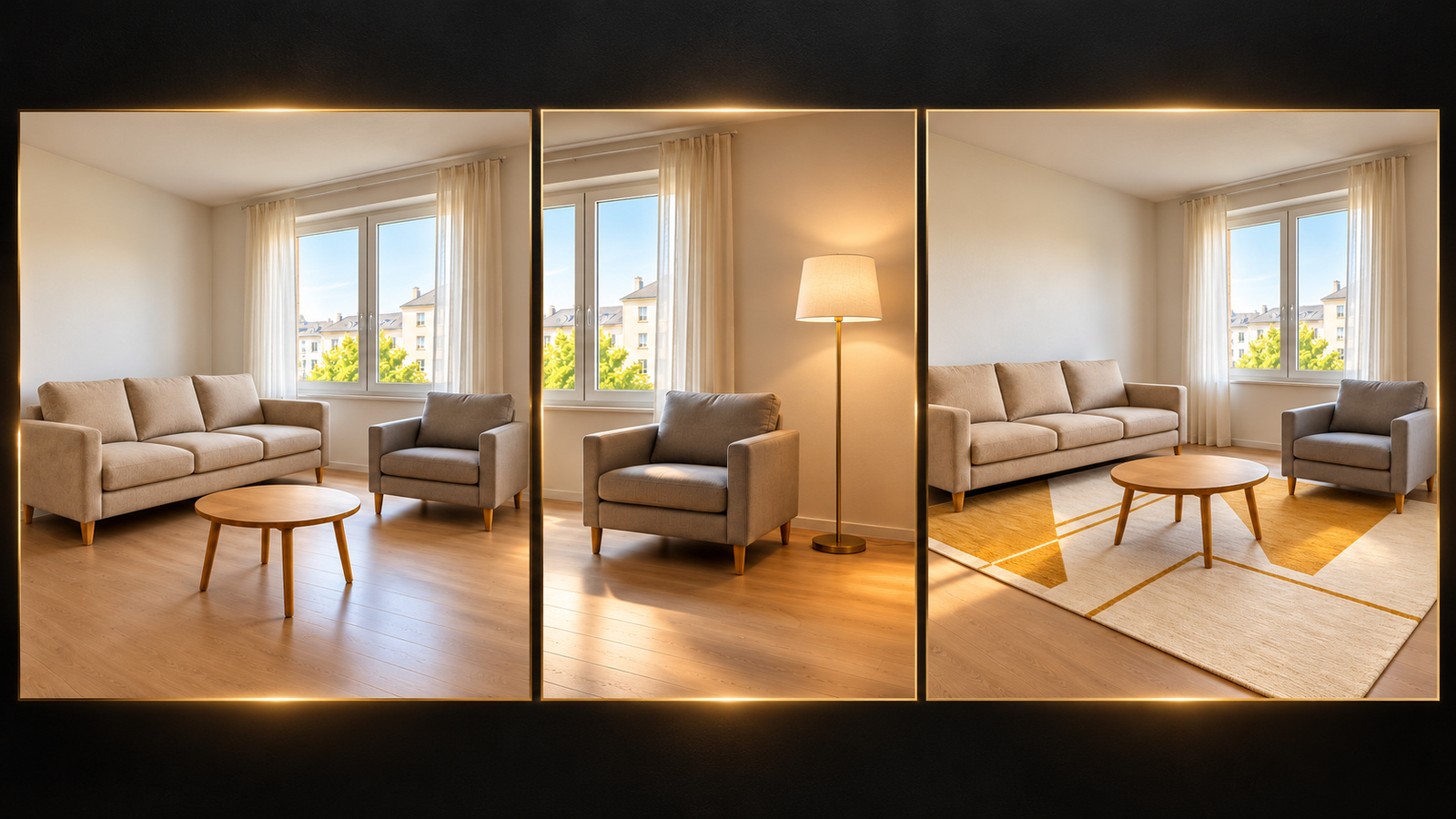
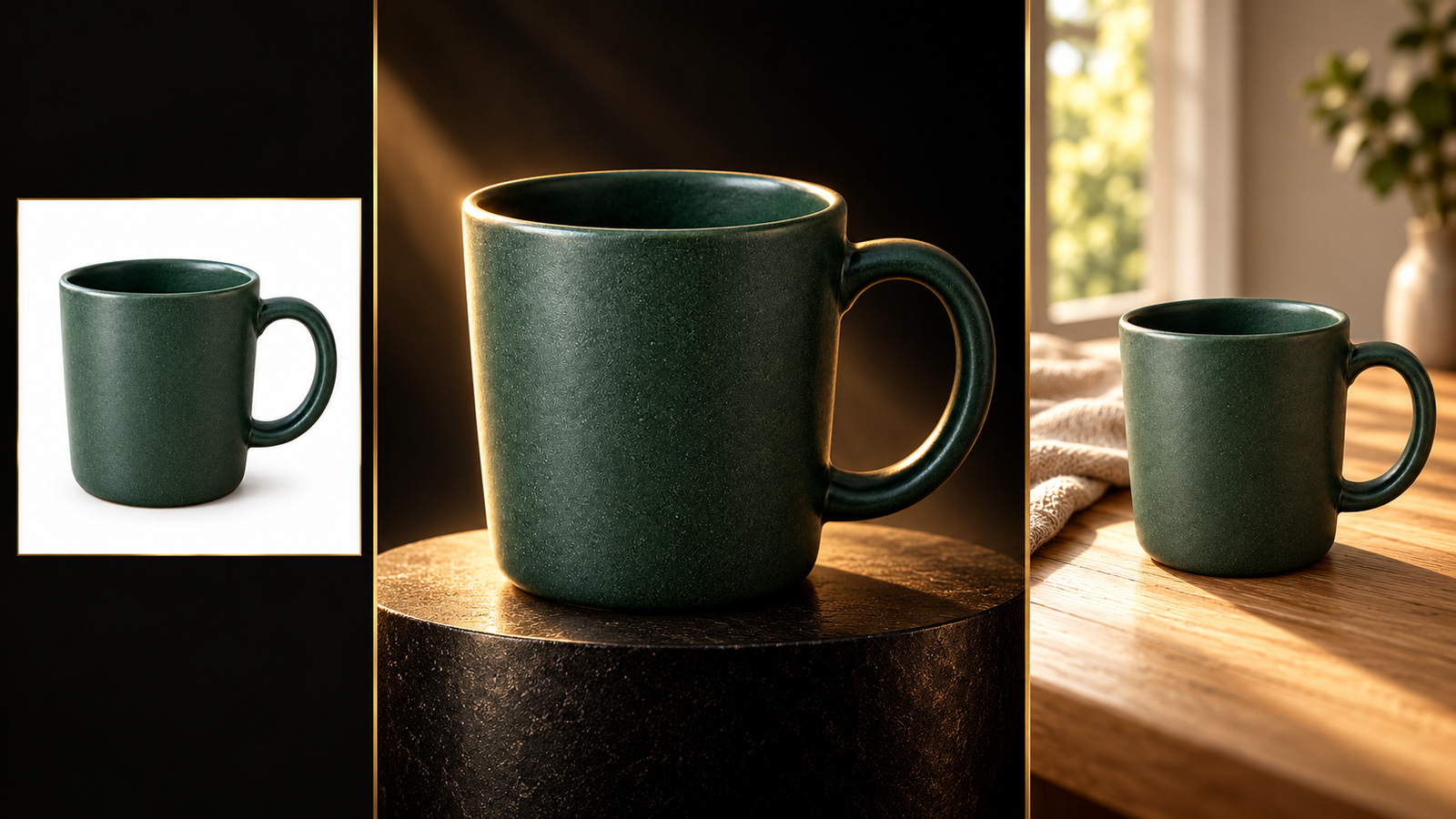
2026 Year in Review Video: Turn 6 of Your Photos Into a 30-Second AI Recap

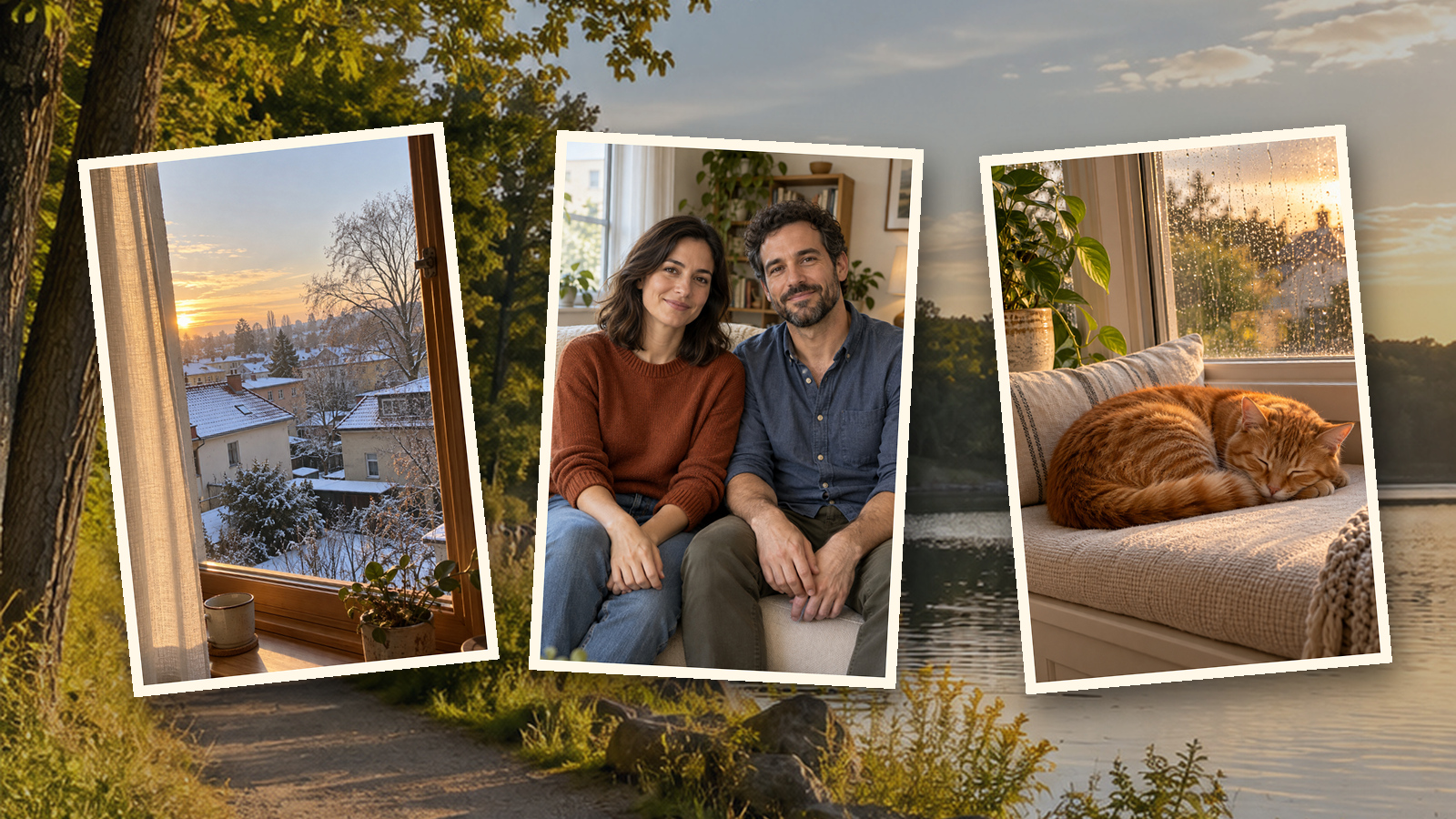
Build a thirty-second year-in-review video from six of your own photos, with five seconds for each. Give the pictures a little movement, arrange them into a story, and add your dates and music afterward.
You don’t need twelve milestones or a camera roll full of vacations. A new apartment, a Saturday breakfast, and the dog waiting by the door can say more about your 2026 than another highlight reel. Below are a six-photo plan, eight motion prompts, and the canvas-to-export steps, including when to keep the original still.
Which six photos tell the story of your year?
Choose a beginning, a routine, a change, a place, someone who mattered, and an image you want to linger on.
| Slot | Look for | Caption idea for editing | Skip this |
|---|---|---|---|
| 01, 0–5 s | The view from where your year began | Where 2026 started | A wide scene that cannot survive a vertical crop |
| 02, 5–10 s | Breakfast, a hobby desk, a weekly ritual | The ordinary days counted, too | Receipts or screens full of small text |
| 03, 10–15 s | A move, a new job, a finished project | Something changed | A document whose wording must remain legible |
| 04, 15–20 s | A road trip, trail, or neighborhood walk | Glad I went | A photo that needs a long explanation |
| 05, 20–25 s | Family, friends, or your pet | My favorite company | Blurred faces or a crowded group |
| 06, 25–30 s | A quiet image worth holding | Taking this with me | A repeat of the opening with nothing new to say |
A “change” can be getting back to painting. Your “place” can be the park down the street; the video does not need to make your life look more eventful than it was.
Save working copies named 01 through 06 and keep the originals. For a Reel or Story, crop those copies to 9:16 before uploading; if a group cannot fit, choose another image or make the whole video 16:9.
How do you turn the photos into six video clips?
Connect each photo to its own Video node and finish clip 1 before repeating the setup.
1. Upload your photos. Click Add node → Upload file, choose photo 01, then click Add to canvas (1). Once its photo node appears, check that it is the cropped copy and upload the remaining five.
2. Connect the first clip. Choose Add node → Video and drag a connection from photo 01 to the new Video node. Check the input thumbnail; connect only that photo to this clip.
In the video prompt, type @ and choose the connected image. Replace [Image 1] in the prompts with that actual selection; within each separate clip, it means that clip’s own photo.
3. Set and generate clip 1. Choose Kling 4, open Video settings from the settings summary, and set Resolution to 720p, the ratio under Size to 9:16, and Seconds to 5. Paste prompt 1, check the 35-credit quote, and click the ↑ button.
4. Repeat one clip at a time. After watching clip 1, create a Video node for each remaining photo and repeat the connection, reference selection, and settings. Watch every result before moving on so you can catch an unsuitable crop or camera move early.
See the canvas guide for connections and the Kling AI guide for other image-to-video setups.
What eight prompts work for a photo recap?
Use prompts 1–6 for the six slots; prompts 7–8 replace a difficult clip rather than adding to the running time.
The formula is reference + five-second continuous shot + one small movement + what stays unchanged. Add dates and captions later.
01 · The beginning | 5 seconds
[Image 1] is the only reference for this clip. Vertical 9:16, one continuous five-second shot. An extremely slow, small camera push-in. Preserve the buildings, window frames, objects, positions, and original lighting. Do not change the weather or add people, cars, signs, or distant scenery. No cuts, lettering, or numbers.02 · The everyday ritual | 5 seconds
[Image 1] is the only reference for this clip. Vertical 9:16, one continuous five-second shot with a locked camera. Food, cups, the table, and all existing objects stay still. Only the existing ambient light changes very slightly. No added steam, liquid, utensils, hands, or food. Preserve object shapes and counts. No cuts, text, or numbers.03 · Something changed | 5 seconds
[Image 1] is the only reference for this clip. Vertical 9:16, one continuous five-second shot. The camera moves an extremely small distance to the right. Preserve the room, plants, and personal objects without revealing any new space outside the photo. No added people, packaging, or logos. Do not open doors or boxes. No cuts, lettering, or numbers.04 · A place you went | 5 seconds
[Image 1] is the only reference for this clip. Vertical 9:16, one continuous five-second shot with a small, slow camera push-in. Keep the terrain, roads, trees, and buildings in their original positions and shapes. Preserve the weather and time of day. No added landmarks, visitors, vehicles, birds, or fireworks. No season change, cuts, text, or numbers.05 · Your people | 5 seconds
[Image 1] is the only group-photo reference. Vertical 9:16, one continuous five-second shot, locked camera. Preserve the number of people, each person's face, age features, clothing, left-to-right position, and pose. Nobody talks, waves, or turns their head; allow only very slight natural breathing. The background stays still. No added people, cuts, text, or numbers.06 · The image you keep | 5 seconds
[Image 1] is the only reference for this clip. Vertical 9:16, one continuous five-second shot. Make an extremely slow push-in for the first three seconds, then hold steady for two seconds. Preserve all subjects, shapes, colors, positions, and original lighting. No added sunset, people, or decorations. No cuts, fade to black, lettering, or numbers.07 · Replace slot 5 with your pet | 5 seconds
[Image 1] is the only pet reference. Vertical 9:16, one continuous five-second shot, locked camera. Retain the ear shape, coat color areas, facial markings, body proportions, and original pose. The pet stays settled without walking, opening its mouth, or turning its head; only slight breathing. Keep the background unchanged. No added animals, collars, toys, cuts, text, or numbers.08 · Replace a clip with camera movement only | 5 seconds
[Image 1] is the only reference for this clip. Vertical 9:16, one continuous five-second shot. Every person, animal, object, and background element stays still. Only the camera makes a very small, slow push-in without revealing content outside the original photo. Retain faces and poses, with no expression changes or invented limbs or objects. No cuts, text, or numbers.What if a face or familiar detail changes?
Reduce the motion first, then use the original photo in your editor if the change still distracts you.
| Request or problem | Why it gets in the way | Better next move |
|---|---|---|
| “Make everyone laugh, turn, and wave” | Invents expressions and body movements absent from the photo | Keep the pose and use a tiny push-in |
| “Re-create my graduation and road trip” | Invites new events rather than animating one memory | Describe one continuous shot per photo |
| Faces drift halfway through | A good opening frame hides later changes | Watch the full clip beside the original |
| A wide group becomes a vertical scene | People may be cropped or extra space invented | Crop first or choose 16:9 for the whole recap |
A still-photo hold is a useful choice for a precious group picture. The memory matters more than having every frame move.
How do you assemble and export the thirty-second recap?
Open the editor, arrange the six clips in order, and check the final length.
1. Open the timeline. When all clips are ready, select any Video node and click Open editor in its upper toolbar. A new project builds its timeline from the canvas video nodes, so use a separate canvas for this recap to keep unrelated footage out.
2. Arrange the sequence. Check the six slots against your plan, move clips into order, and close gaps. Watch the joins rather than relying on node names or thumbnails.
3. Check and export. Trim excess footage by dragging clip edges, then click Export video to download an MP4. If you are short of thirty seconds, add an original-photo hold or freeze the last frame in your editing app before making the final thirty-second file.
Place “My 2026” over clip 1 and your closing line over clip 6, rather than adding extra title cards. Add dates and music you have permission to use afterward; Kling 4 footage is silent.
Download video on a node saves one clip. For another multi-shot timeline example, see the three-shot video walkthrough.
How many credits does a thirty-second recap cost?
Six five-second clips with Kling 4 at 720p cost 210 credits, using your original photos directly.
Prices dated October 29, 2026; these totals exclude retakes.
| Choice | Unit price | Full thirty seconds | Tradeoff |
|---|---|---|---|
| Kling 4, 720p | 7 credits/second; 35 per clip | 210 credits | Silent; check motion before spending more |
| Kling 4, 1080p | 12 credits/second; 60 per clip | 360 credits | Higher resolution can still change faces |
| One 720p pilot, then five more | 35 + 175 | 210 credits | Assumes you keep the pilot |
One extra 720p retake makes the total 245 credits; redoing all six makes it 420. Generating six new 1080p versions costs a separate 360 credits, rather than a resolution-upgrade fee; check each button quote.
What are the limitations?
Keep the original still whenever exact appearance or readable details matter more than motion.
- Faces and hands can change. Check people counts and details throughout each clip; switch to an original-photo hold if needed.
- This does not organize your camera roll. You choose, crop, and sequence the photos; six references in one generation are not a six-shot edit.
- Animation can invent action. Treat the result as an AI-animated memory, rather than footage of an event you recorded.
- Audio comes separately. Add your own captions, dates, and licensed music in editing.
- Requested duration needs a final check. Any photo holds should occupy an existing five-second slot, not extend the video.
Frequently asked questions
Do I need one photo for every month?
No. Choose six photos with different roles: a beginning, a routine, a change, a place, a person or pet, and an ending. Each gets five seconds.
Do I have to regenerate my photos as AI images first?
No. Connect each original photo directly to its own Video node. Use one photo per clip rather than attaching all six to one generation.
Why is my six-clip recap not exactly thirty seconds?
Generated clip lengths can differ from their settings. Check the timeline, trim excess footage, and fill any shortage with an original-photo hold or a frozen frame in your editing app.
How many credits does the full recap cost?
210 credits with Kling 4 at 720p: six five-second clips at 7 credits per second. No new still images are generated. Each five-second retake costs another 35 credits.
Start with the photo you care about most and make its five seconds work before choosing the other five. Keep the original wherever motion changes the memory. Open a fresh canvas and use the canvas walkthrough to make your first connection.